Account · Social Accounts
Social Accounts is the tab where you connect social media platforms to your account. Once a platform is connected, you can publish content to it directly from MaterialsHub instead of switching apps. This guide covers what it is, why it matters, exactly how to connect a platform, and what connecting enables.
Where it is
Open your Profile menu at the top-right of any page, or go straight to /profile, then select the Social Accounts tab from the row of tabs along the top of the page.
What's on the screen
What it is — the tab where you connect social media platforms to your account. Why it matters — once a platform is connected, you can publish content to it directly from MaterialsHub instead of switching apps.
- Connect — links a new platform to your account.
- Refresh — re-syncs a connected account if it falls out of date.
Connecting and disconnecting accounts is managed entirely from this tab.
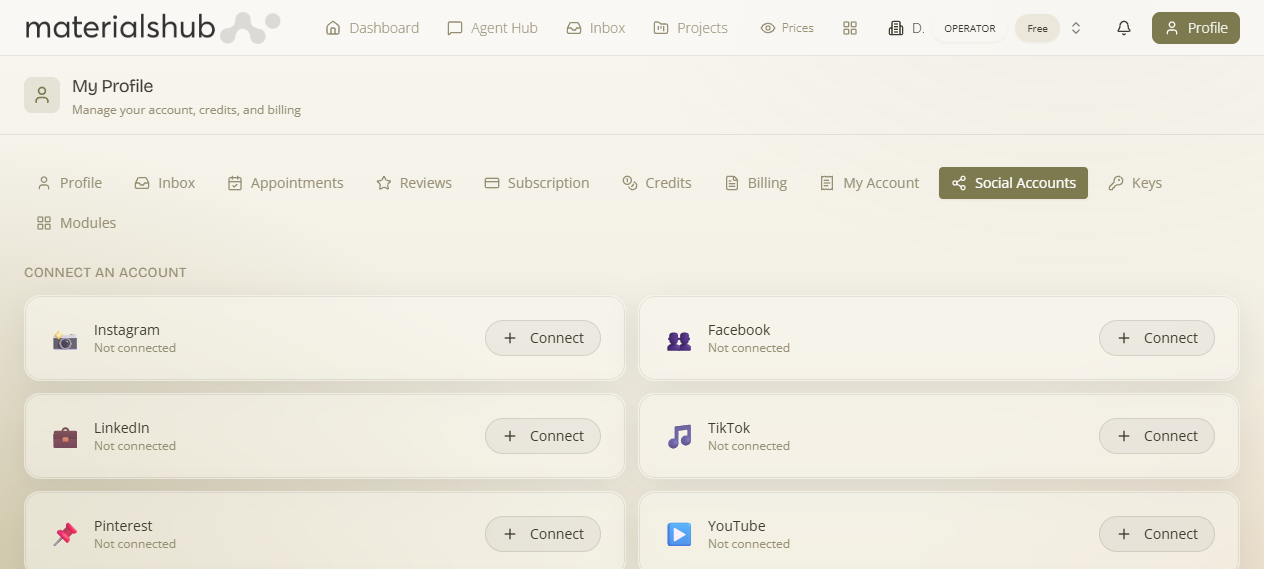
How to connect an account — step by step
- Open your Profile (/profile) and select the Social Accounts tab.
- Click Connect to link a new platform.
- Use Refresh to re-sync a connected account if it falls out of date.
- Connecting and disconnecting accounts is managed entirely from this tab.
Worked example — connecting a platform you publish to. Open Profile → Social Accounts → click Connect to link the platform → if a connected account later falls out of date, click Refresh to re-sync it. From then on, that platform is available as a publishing target whenever you create and send social content.
What it enables
Once a platform is connected, you can publish content to it directly from MaterialsHub instead of switching apps. Connected platforms become available as publishing targets when you create and send social content.
What it affects: connected platforms become available as publishing targets when you create and send social content.