Account · Subscription & API keys
Your plan is tiered by the monthly credit allowance it includes, and higher plans raise your quotas and unlock additional capabilities across the platform's modules. The Subscription tab is also where your API keys live — the kai_* credentials that authenticate the external partner APIs for price, mention and job tracking. This guide covers both: what they are, why they matter, exactly how to use them, and what they change elsewhere.
Where it is
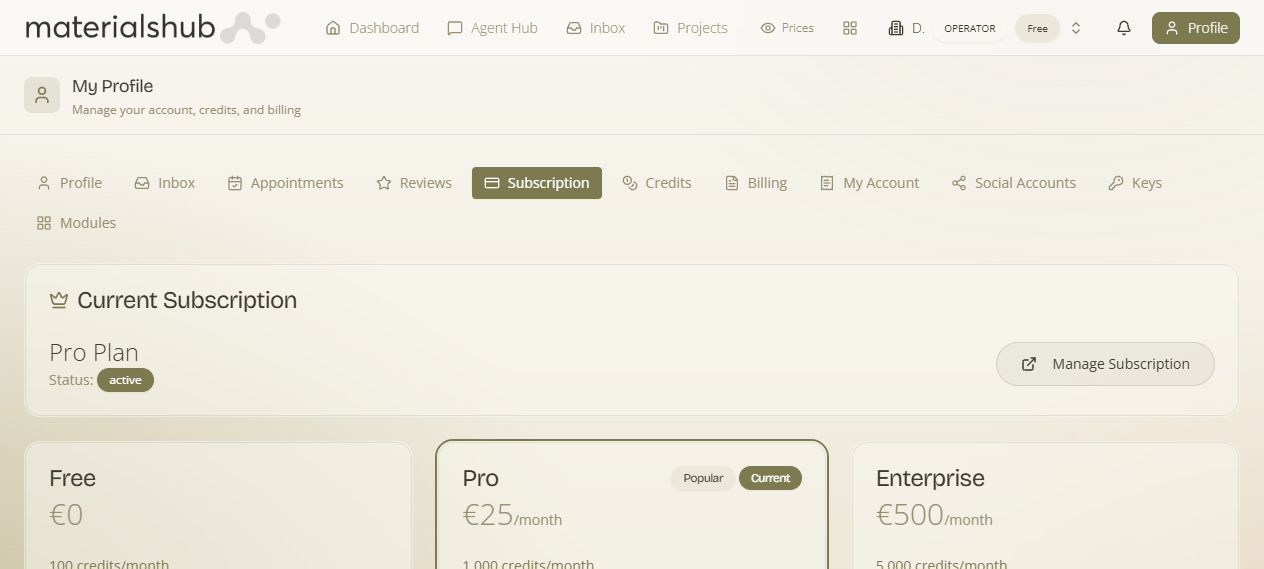
Open your Profile menu at the top-right of any page and go to the Subscription tab to see your current plan. Change your plan at /billing/subscriptions. Your API keys are managed in the same Subscription tab.
What's on the screen
- Your current plan — the tier you're on, shown in the Subscription tab.
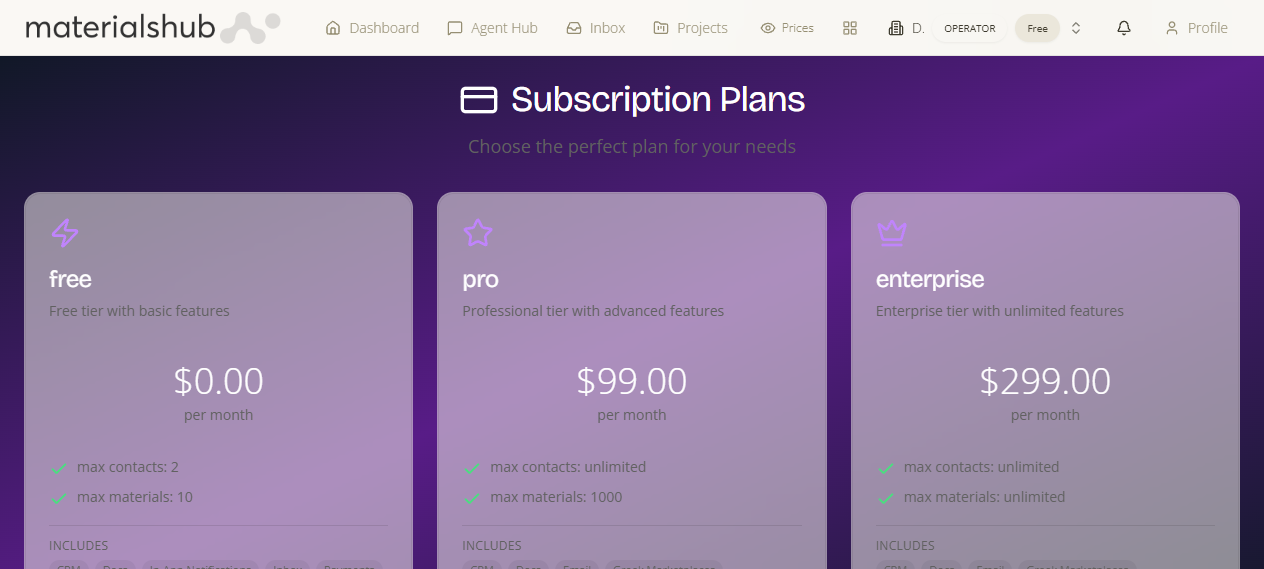
- Plan options at /billing/subscriptions — pick a plan and use Manage Subscription, Cancel Subscription, or Subscribe to Enterprise.
- API Keys — generate, view (masked), test and audit your
kai_*keys for the external partner APIs.
Plan tiers
Plans are tiered by the monthly credit allowance they include. Higher plans raise your quotas and unlock additional capabilities across the platform's modules. If you're hitting limits or want more advanced features, this is where to move up.
| Tier | Monthly credit allowance |
|---|---|
| Entry | 100 credits / month |
| Pro | 1,000 credits / month |
| Enterprise | 5,000 credits / month |
How to change your plan — step by step
- Open the Subscription tab to see your current plan.
- Go to /billing/subscriptions and pick the plan you want.
- Use Manage Subscription, Cancel Subscription, or Subscribe to Enterprise as needed.
- Confirm to apply the change.
What it affects: your monthly credit allowance, your quotas, and which advanced capabilities are available across the platform's modules.
API Keys
What it is — credentials, managed in the Subscription tab, that authenticate the external partner APIs for price tracking, mention tracking and job tracking. Why it matters — they let other projects call those services on your behalf. Keys are prefixed kai_ and are shown masked (e.g. kai_••••gBJd) once created.
For each key you'll see:
- The masked key — e.g.
kai_••••gBJd, shown masked once created. - Created — when the key was generated.
- Last used — when the key was last used.
- Generate Key — create a new
kai_*key. - Test — verify the key works.
- Changes Log — the history of key activity and changes.
How to generate & test an API key — step by step
- Click Generate Key to create a new
kai_*key. - Note the Created and Last used details listed against each key.
- Use Test to verify the key works.
- Review the Changes Log for the history of key activity and changes.
Worked example — wiring up an external project. Open the Subscription tab → click Generate Key to mint a fresh kai_* key → click Test to confirm it works → check the Changes Log to see the key recorded → paste the key into your other project so it can call the price, mention and job tracking APIs against your account. Back here, the key shows masked (kai_••••gBJd) with its Created date and a Last used timestamp that updates as your project makes calls.
What it affects: a valid key authorises external calls to the price, mention and job tracking APIs against your account.
What it affects
- Changing your plan changes your monthly credit allowance, your quotas, and which advanced capabilities are available across the platform's modules.
- A valid
kai_*API key authorises external calls to the price, mention and job tracking APIs against your account.