Discover · Profiles
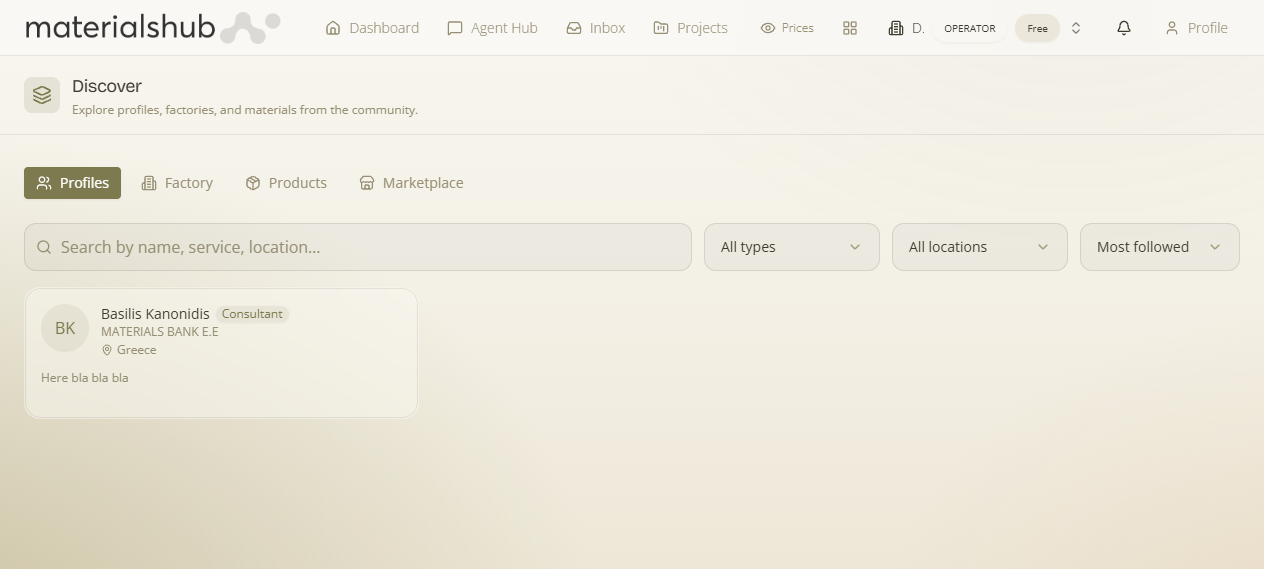
The Profiles tab is the community member directory — designers, consultants, professionals and other users who have a public presence on the platform. It's how you find the right person to collaborate with or hire before you ever leave the platform. You pick a member type, search by name, service or location, and open a card to see that person's public profile.
Where it is
Top navigation → Discover → the Profiles tab. Profiles is one of the four tabs in Discover (Profiles, Factory, Products, Marketplace), and they all share the one search box at the top — so you can switch between them without retyping what you're looking for.
What's on the screen
Profiles is the public-facing side of MaterialsHub: the place to see who is on the platform beyond your own workspace. Everywhere else your data stays inside your own workspace — Profiles is the deliberate window out, the way to find people who belong to other organisations. The controls on the tab:
- All types — a type filter to narrow the directory to a particular kind of member (for example a profile type or a professional type), or leave it on All types to see everyone.
- Search — a search box (“Search by name, service, location…”) that matches on a member's name, the services they offer or their location, so you find the right person without scrolling the whole directory.
- Open a profile — each result is a card; click it to open that member's public profile and review their services and a sample of their work.
How to use it — step by step
- Open Discover from the top navigation and select the Profiles tab.
- Use the All types filter to narrow the directory to a particular kind of member (for example a profile type or a professional type), or leave it on All types to see everyone.
- Type into the Search box (“Search by name, service, location…”) — it matches on a member's name, the services they offer or their location.
- Open a profile: each result is a card; click it to open that member's public profile and review their services and a sample of their work.
- Decide whether to reach out or connect once you've judged their services and work.
Worked example — finding a designer to collaborate with. Open Discover → Profiles → set All types to the kind of member you want (a designer/consultant type) → type a service or location into “Search by name, service, location…” → click a result card to open that member's public profile → review their services and a sample of their work, then reach out.
What it affects elsewhere
Every profile you open is a member's public page that lives at a stable, shareable link — /u/:userId — see Public pages. Reaching out to a member starts a conversation that lands in your Inbox, alongside your other platform messages.