Inbox
The Inbox is one place for every conversation your team relies on — internal chats between colleagues, customer threads, and WhatsApp messages — organised, searchable, and assigned to the right person. An AI assistant can also answer customer threads automatically and step aside the moment a human replies. This guide walks every part of it: what each control is, why it matters, exactly how to use it, and what it changes elsewhere in the platform.
How to open it: top navigation → Inbox.
Recommended reading order (each part builds on the last): the filters & All-workspaces controls → starting an internal conversation → WhatsApp (connecting a number, assign-on-reply, templates & the 24-hour window) → sharing a public thread. The first parts work the moment you have access; WhatsApp needs a connected number.
What this page is for
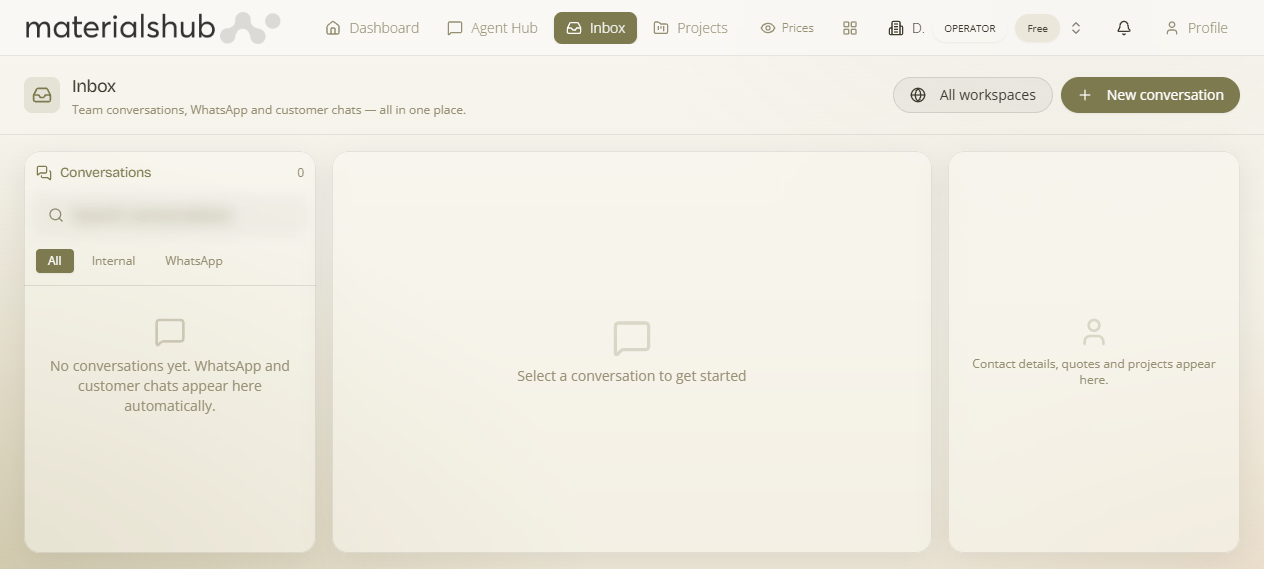
What it is — a single view that brings together the conversations your team relies on so they don't end up scattered across separate apps: internal discussions between colleagues, customer threads, and WhatsApp messages you can read and reply to. Why it matters — when conversations live in one searchable, assigned place, nothing falls through the cracks and the right person always picks up the right thread. The Inbox is multi-tenant aware: by default it shows the conversations for the workspace you're working in, and — where you're permitted — it can show conversations across all the workspaces you belong to.
Layout & the header controls
What it is — the conversation list on the left and the open conversation on the right; the header holds everything you need to find and start conversations. Selecting a conversation opens it on the right, where you read the message history and reply. Why it matters — these controls are how you cut a long list down to exactly the thread you need, and how you decide whether you're looking at one workspace or all of them.
- Conversation list with count — every conversation you can see, with the total shown so you know how many are in the current view.
- Search conversations — a search box to filter the list by what you're looking for.
- Filters: All / Internal / WhatsApp — narrow the list to everything, to internal team threads only, or to WhatsApp threads only. All is the default catch-all; Internal isolates colleague-to-colleague threads; WhatsApp isolates customer threads on a connected number.
- All workspaces — a toggle to switch between a single workspace and a combined view across the workspaces you're allowed to see. If you only belong to one workspace, this has no effect.
- New conversation — start a fresh thread.
What it affects: the filters and search only change what's shown to you — they don't move or hide anything for teammates. The All workspaces toggle changes the scope of the whole list, so a thread you can't find in one workspace may simply be in another.
Tip — reach for the filters first and the search second: filtering to WhatsApp (or Internal) shortens the list before you type, so the search has less to wade through.
The three conversation types
What it is — every thread in the Inbox is one of three kinds. Why it matters — knowing the type tells you who can see it and how to reach the other party.
Internal
Discussions between members of your team — questions, hand-offs, and notes that stay inside the workspace.
Messages exchanged with customers over a connected WhatsApp number, read and answered in the Inbox.
Customer / shared
Threads opened to an outside party through a link, so they can take part without creating an account.
Starting an internal conversation
What it is — a private thread between members of your team that stays inside the workspace. Why it matters — it keeps questions, hand-offs and notes alongside your customer and WhatsApp threads instead of in a separate chat app, so context isn't lost.
How to start one
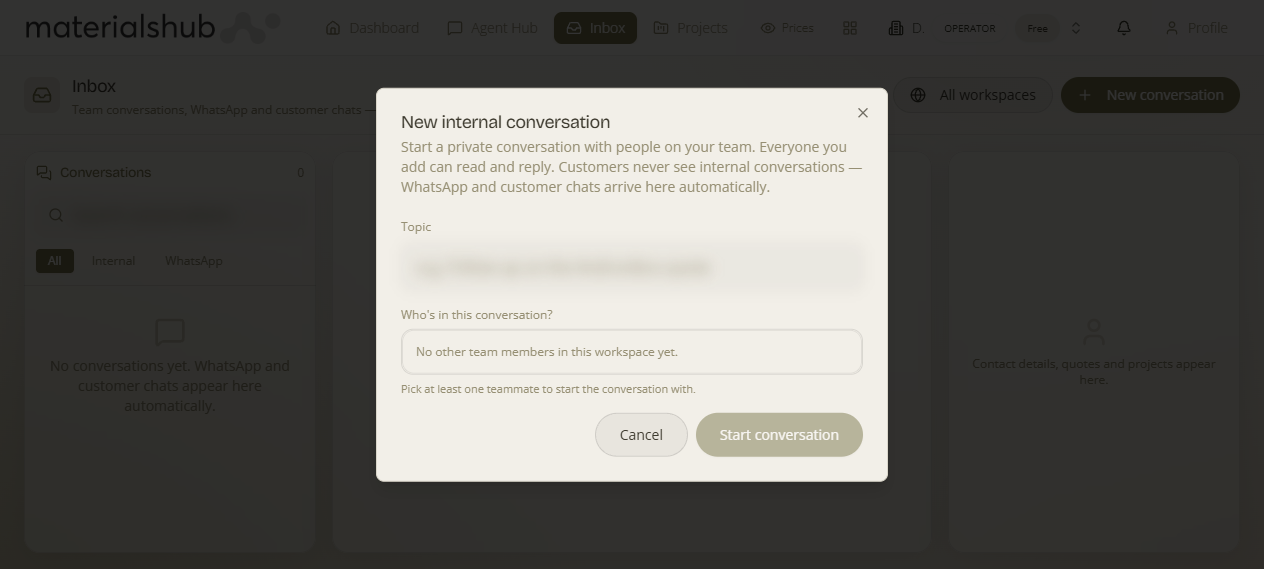
- Open the /inbox and click New conversation — this opens the New internal conversation dialog.
- Give the conversation a subject so colleagues can recognise it in the list.
- Pick the participants — the team members who should take part.
- Send your first message to start the thread; it appears in the conversation list under the Internal filter.
What it affects: the new thread shows up for the participants you chose, under the Internal filter, in this workspace.
WhatsApp conversations
What it is — customer messages on a connected WhatsApp number, read and answered without leaving the Inbox. When your workspace has a WhatsApp number connected, its conversations appear here alongside everything else. Why it matters — customers increasingly expect to reach a business on WhatsApp, and handling those threads in the same place as the rest of your conversations means replies are fast and nothing is missed.
- Connected numbers show up automatically — once a number is set up, its threads flow into the Inbox without any extra step.
- Customer replies become conversations — when a customer messages or replies, a conversation is created (or updated) and assigned to the right owner so the correct person picks it up. This is the assign-on-reply behaviour: you don't have to manually route an incoming message; it lands with the person responsible.
- Outbound & marketing sends use approved templates — to start or re-open a conversation outside the active reply window, WhatsApp requires a pre-approved message template. Day-to-day replies inside the 24-hour window can be free-form; messages sent outside that window must use one of the approved templates.
Why marketing sends need an approved template and a 24-hour window
WhatsApp draws a clear line between answering a customer who contacted you and reaching out to a customer first. The rule exists to protect people from unsolicited business messages:
- Inside the 24-hour window — the customer has messaged you recently, so they're expecting a conversation. You can reply free-form: any text, in your own words, for 24 hours after their last message.
- Outside the 24-hour window — the conversation has gone quiet, so a new message from you is effectively an unsolicited approach. WhatsApp only allows it if the wording was reviewed and approved in advance as a template. This is what stops the channel becoming a spam firehose, and it's why a marketing or "just checking in" send always has to go through an approved template — there's no recent customer message to open a free-form window.
WhatsApp's 24-hour window rule is set by WhatsApp, not by MaterialsHub. Inside 24 hours of the customer's last message you can reply freely; after that, you can only reach out using an approved template. The Inbox follows these rules for you.
How to handle a WhatsApp reply
- Open the WhatsApp filter to narrow the list to WhatsApp threads only.
- Open the incoming conversation — on the customer's first reply it is created (or updated) and assigned to the right owner, so it lands with the correct person.
- Reply from the Inbox. Inside the 24-hour window you can reply free-form; outside it, outbound marketing sends use an approved template.
- Optionally share a public thread link (/i/:token) so an outside party can take part without a MaterialsHub account — see Public & Shared Pages.
What it affects: connecting a number makes its threads appear under the WhatsApp filter; incoming replies are assigned automatically, and whether a send goes free-form or via template depends entirely on the 24-hour window above.
The AI assistant in the Inbox (auto-replies)
What it is — an AI assistant that can answer customer threads for you automatically. When a customer message comes in (in-app customer thread or WhatsApp), the assistant replies first — grounded in that customer's own data (their statement, invoices and quotes, scoped to the thread's customer) — so routine questions are handled instantly, day or night. Why it matters — it covers first response when no one's at the desk, but is built to step aside the moment a human steps in, so it never talks over your team.
Human takeover — the assistant gets out of the way
- A staff reply pauses the bot. The instant a team member sends a text reply in a conversation, the assistant is paused for that thread — it stops auto-replying so it won't talk over the human who just took over.
- Private notes don't pause it. Internal notes are private and don't count as taking over, so jotting a note won't switch the bot off.
- Resume with the Bot toggle. When you're done and want the assistant to handle the thread again, flip the conversation's Bot toggle back on.
- No double-replies, no loops. The assistant only fires when the most recent message is a fresh inbound customer message — never in response to itself, a teammate, or a system event — and it's only charged when it actually replies (skipped turns cost nothing).
- Audit trail. When the assistant auto-engages it posts a system note (“The AI assistant is responding…”) into the thread, so the transcript shows the hand-off just like a manual one — on both the in-app and WhatsApp paths.
Settings — control what the assistant does owner / admin / operator
Open the gear (Settings) in the Inbox header for two live switches (any member can read them; owners/admins/operators can change them):
| Setting | What it does |
|---|---|
| Auto-respond to new chats | Whether the assistant answers inbound customer chats automatically. Turn off to make every thread human-first (the assistant only helps when you ask). |
| Answer account & billing | Whether the assistant may answer account/billing questions using the customer's own statement/invoices/quotes. The helper text flags the WhatsApp phone-identity caveat — on WhatsApp a sender is identified only by phone number — so you decide, informed, whether billing answers should go out on that channel. |
Editable persona. The assistant's tone and instructions (its system prompt) are configurable without a redeploy — an admin can tune the inbox assistant's persona the same way the main KAI agent's prompt is edited. There's a sensible built-in default if you change nothing.
Auto-respond is on by default per workspace. Each auto-reply uses credits; pausing (a human reply) or turning off Auto-respond stops the charges.
Sharing a customer / public thread
What it is — a way to open a conversation up to someone outside your team. When a thread is shared, the platform creates a token link (/i/:token Public) that the outside party can open in a browser to read and reply — no MaterialsHub account required. Why it matters — it lets a customer, supplier or contractor take part in the exact thread you're already working in, instead of starting a separate email chain. This is the same approach used for other shared customer-facing pages, so the experience is familiar to recipients.
| Surface | Who uses it | Access |
|---|---|---|
| /inbox | Your team (signed in) | inbox.use |
| /i/:token | An outside party you've shared a thread with | Public link |
What it affects: anyone holding the link can read and reply to that one thread — so treat it like any shared customer-facing link. For more about how these links are shared and revoked, see Public & Shared Pages.
A typical workflow
Putting the parts together, a normal day in the Inbox looks like this:
- Open /inbox and use the filters or search to find the conversation you need.
- Pick a thread to read its history; reply directly — internal note, customer message, or WhatsApp.
- When a customer replies on WhatsApp, the conversation is assigned to the right owner so it lands with the correct person.
- To involve an outside party, share the thread and send them the /i/:token link.
- Switch All workspaces on or off depending on whether you want one workspace or the combined view.
Access & availability
The Inbox requires the inbox.use capability and the messaging module being enabled for your workspace. WhatsApp conversations only appear once a WhatsApp number is connected. If you don't see the Inbox, ask your workspace administrator to grant access or enable the module.