Operations · Reports
Reports are financial summaries and exports across your data. This is the bridge to your accountant: the journals and the VAT summary are the standard views an accountant expects, and the CSV export hands them the raw numbers without you re-keying anything. Owners use the same reports for their own analysis.
Where it is
Top navigation → Finance → Reports tab.
What's on the screen
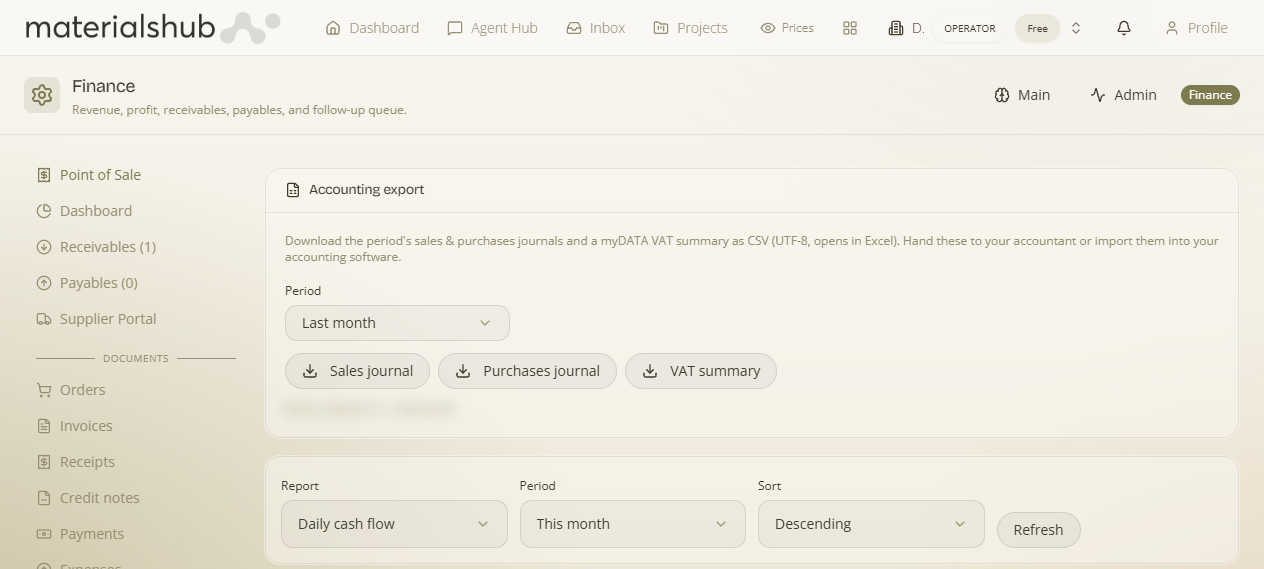
A report builder with three controls and the on-screen result:
- Report type — choose one of Sales journal, Purchases journal, VAT summary, or Sales per day.
- Period selector — This month, Last month, or a custom range.
- Export CSV — downloads the current report for your accountant or spreadsheet.
- On-screen summary — the report itself, rendered for the type and period you picked.
The report types
| Report type | What it shows |
|---|---|
| Sales journal | Your sales documents over the chosen period. |
| Purchases journal | Your purchase documents over the chosen period. |
| VAT summary | The standard VAT view an accountant expects for the period. |
| Sales per day | Sales broken down day by day across the period. |
How to run a VAT summary and export CSV — step by step
- Open Finance → Reports.
- Choose the report type: VAT summary (the other types are Sales journal, Purchases journal and Sales per day).
- Set the period with the selector — This month, Last month, or a custom range.
- Read the on-screen summary, then click Export CSV to download it for your accountant or spreadsheet.
Worked example — last month's VAT for the accountant. Open Reports → set the report type to VAT summary → set the period to Last month → read the on-screen figures to sanity-check them → click Export CSV and send the file to your accountant. No re-keying — they get the raw numbers straight from your documents.
What it affects elsewhere
The breakdowns here lean on your Categories (income/expense buckets) — set those up in Settings so revenue and cost aren't reported as one undifferentiated lump.