Receivables & Payables · Payments
Payments is the running record of money received and money paid. It's the tab that actually moves the numbers: recording a payment against a receivable or a payable is what updates that document's outstanding balance and feeds the Dashboard totals. It's the link between "we agreed they owe X" and "X has actually arrived." Every payment ties back to the customer or supplier and the related document.
Where it is
Top navigation → Finance → the Payments tab (one of the five Receivables & Payables tabs: Receivables, Payables, Follow-ups, Payments and Cheques).
What's on the screen
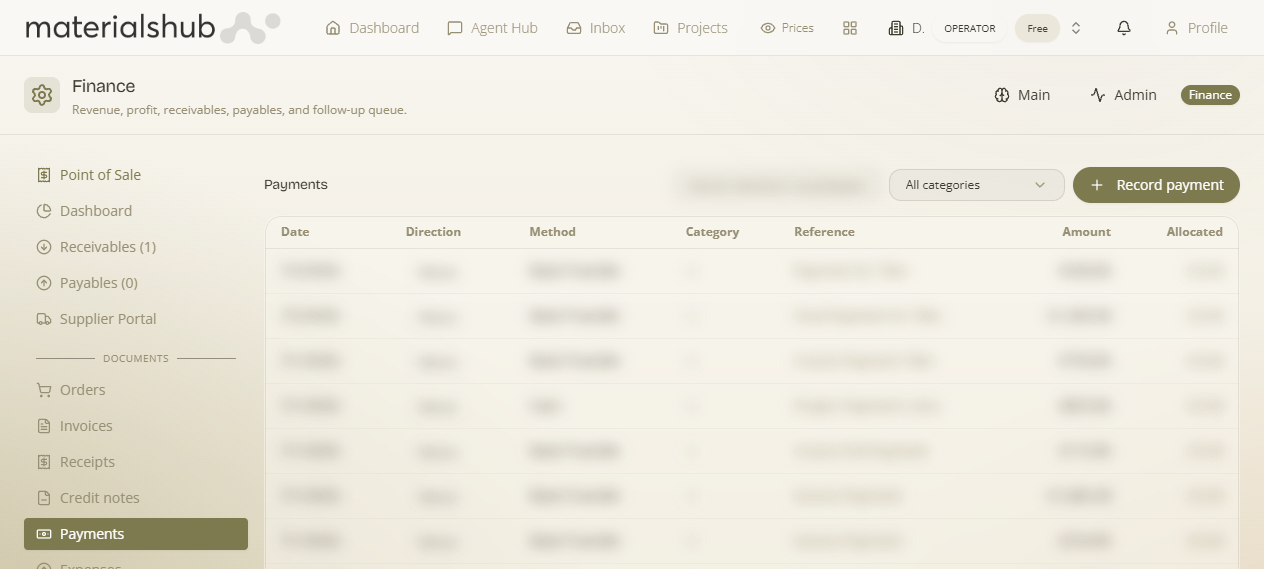
A toolbar above a settlement list:
- Record payment — the button that opens the form to log money in or out.
- All categories — a filter to narrow the list to one payment category.
- Search box — "Search reference / counterparty…", to jump to a specific transaction.
Below the toolbar is the list itself — your full settlement history, one row per payment.
How to record a payment — step by step
- Go to Finance → Payments and click Record payment.
- Set the Direction — in when a customer pays you, out when you pay a supplier.
- Choose the Method (how the money moved), pick the Category, and enter a Reference and the Amount.
- Allocate the amount to the document(s) it settles — the Allocated figure shows how much of the payment has been tied to documents, so a single payment can clear part or all of a receivable or payable.
- Save. The matched Receivable or Payable's Paid goes up and its Due goes down automatically.
How allocation works — and what it updates
The Allocated figure is the heart of this tab. When you tie a payment to a document, that document's Paid rises by the allocated amount and its Due falls by the same. Because allocation is per-document, one payment can be split — partially clearing one receivable, or covering several at once. A fully-allocated in payment against an overdue invoice drops that row's Due to zero, which is what lets it fall out of its aging bucket on the Receivables tab. The same mechanics, in reverse, clear a supplier bill on Payables when you record an out payment.
How to read each row
The list is your settlement history; search by reference or counterparty to find a specific transaction:
| Column | Description |
|---|---|
| Date | Date the payment was made/received. |
| Direction | in / out. |
| Method | Payment method. |
| Category | Payment category. |
| Reference | Payment reference. |
| Amount | Payment amount. |
| Allocated | Amount allocated to documents. |
Worked example — a customer pays an overdue invoice. Open Payments → click Record payment → set Direction to in → choose the Method and Category, type the bank Reference and the Amount → allocate the full amount to that customer's overdue invoice so Allocated equals the amount → Save. The invoice's Paid jumps to its total, its Due drops to €0, and it falls out of the 90+ days aging bucket on Receivables. The cash totals on the Dashboard update at the same time.
What it affects elsewhere
Every recorded payment shifts the Paid/Due figures on the linked Receivable or Payable and updates the cash totals on the Dashboard. The receivables and payables totals on the Dashboard are the sum of the Due columns on those tabs, so a payment recorded here is what keeps the overview accurate.