Projects · Client View
The Client View is the project-level deliverable — the thing you actually send to the client. It bundles selected presentation sheets, drawn from any of the project's boards, into one client-ready package: a PDF plus a revocable online page. This guide covers the full builder (every field), what the client experiences at the online page, and exactly how to assemble and deliver one.
Where it is
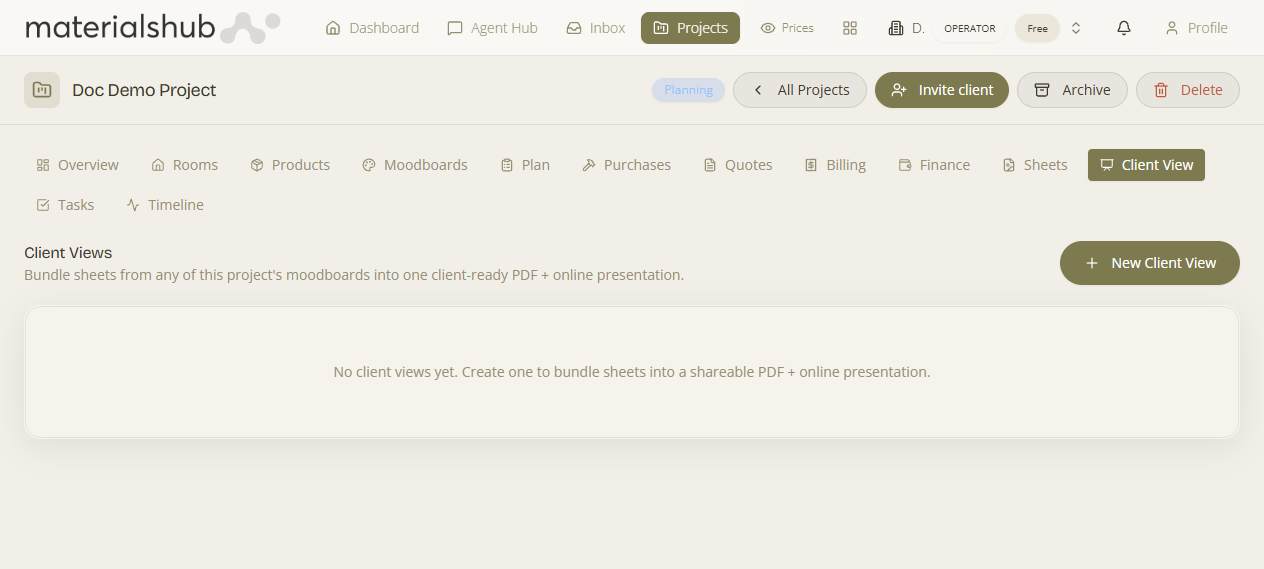
Top navigation → Projects → open a project to reach its detail page (/projects/:id) → the Client View tab (owner-only) → New Client View.
What a Client View is, and why it matters
What it is — a project-level deliverable that bundles selected presentation sheets — drawn from any of the project's boards — into one client-ready package: a PDF plus a revocable online page.
Why it matters — by the end of a project your best work is scattered across several boards as individual sheets. The client shouldn't have to receive five separate boards and stitch the story together themselves. A Client View bundles the sheets you choose, in the order you choose, into a single coherent presentation — so the client gets one polished thing instead of a pile of parts. It sits one level above a single board's deck: a board's deck is the lightweight, single-board PDF; the Client View combines sheets from several boards and adds an interactive online surface on top of the PDF.
What's on the screen — the builder (every field)
Open the Client View tab and click New Client View. The builder offers these fields:
| Field | Notes |
|---|---|
| Title | The deliverable's title (e.g. Modern Bathroom Design). |
| Subtitle | A secondary line under the title. |
| Client name | Shown as "Prepared for…". |
| Date | The date for the deliverable. |
| Sheets to include | Pick and order the presentation sheets — drawn from any board in the project. |
| FF&E source quote | Choose a quote to render its live FF&E table. |
| 3D world | Choose a generated Marble world to embed an explorable walkthrough. |
When you're done, Save & generate PDF — or Save draft to come back later.
What the client experiences at /cv/:token
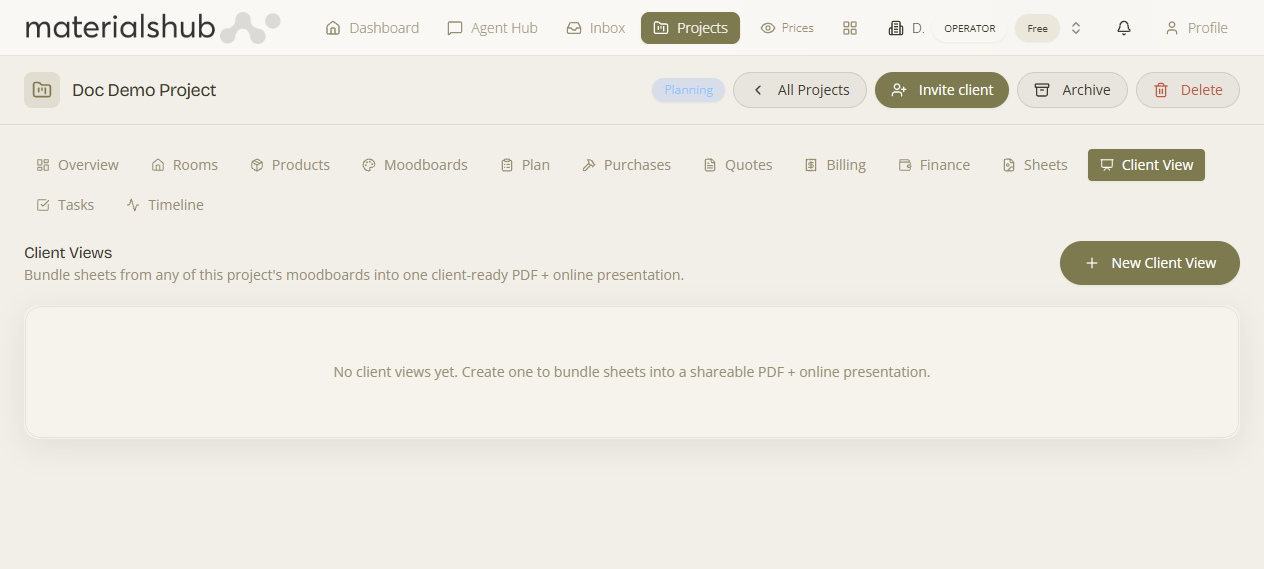
When you share a Client View, the client opens a public page at /cv/:token — no login required, just the link. They see the bundled deck (the PDF you generated) plus whichever interactive extras you switched on:
- 3D walkthrough — an explorable Marble world embedded right in the page.
- Lighting moods — switch the hero render between lighting presets so the client sees the space in different light.
- Live FF&E table — a furniture, fixtures & equipment list pulled live from a linked quote, so it stays accurate.
- Inline approve / comment — the client can sign off or leave feedback directly on the page.
Because access is tied to that token, you can revoke the share link at any time to cut off access — useful once a project is closed or if a link was sent in error. For more on how the public-facing page behaves, see Public pages & sharing.
How to deliver a Client View — step by step
- Open the project → Client View → New Client View.
- Set the Title, Subtitle, Client name and Date.
- Select and order the sheets to include — you can draw them from any of the project's boards.
- Optionally pick an FF&E source quote (to render its live FF&E table) and a 3D world (to embed a walkthrough).
- Save & generate PDF to produce the downloadable version of the package — or Save draft to come back later.
- Copy the share link and send it to the client; revoke it at any time to cut off access. See Public pages & sharing for how the public page behaves.
- Read the client's inline approvals and comments back in the project.
Worked example — handing over a bathroom design. Open the project → Client View → New Client View → set the Title to Modern Bathroom Design, add a subtitle, the client's name and a date → pick the strongest sheets from across the project's boards and order them → choose the FF&E source quote so the page shows a live FF&E table, and the 3D world for a walkthrough → Save & generate PDF → copy the share link and email it. The client opens /cv/:token, explores the walkthrough, tries the lighting moods, and approves inline — and that approval comes back into the project.
What it affects
Anything the client does on the online page — an approval or a comment — comes back into the project, so you read their feedback in one place rather than chasing it across email. Switch on only the embeds you actually have ready — there's no point enabling a 3D walkthrough or lighting moods if you haven't generated the underlying world or render yet.
In short: assemble the chosen sheets into a Client View, generate the PDF, and send the revocable share link. The client opens it at /cv/:token, explores the interactive extras, and approves or comments — and their feedback returns to the project.