Account · Billing
The Billing tab holds your payment details, the invoices for your subscription, and your full ledger of credit transactions. It's the single record of money in and out: every top-up and every credit-consuming action is listed, so you can reconcile your spend and find any individual charge. This guide covers what's on the screen, what each ledger column means, and how to read it to track down a charge.
Where it is
Open your Profile menu at the top-right of any page, or go straight to /profile, then open the Billing tab in the row of profile tabs.
What's on the screen
What it is — three things in one place: your payment details, the invoices for your subscription, and your full credit ledger. Why it matters — it's your complete audit trail — every top-up and every credit-consuming action is recorded, so you can reconcile spend and download invoices.
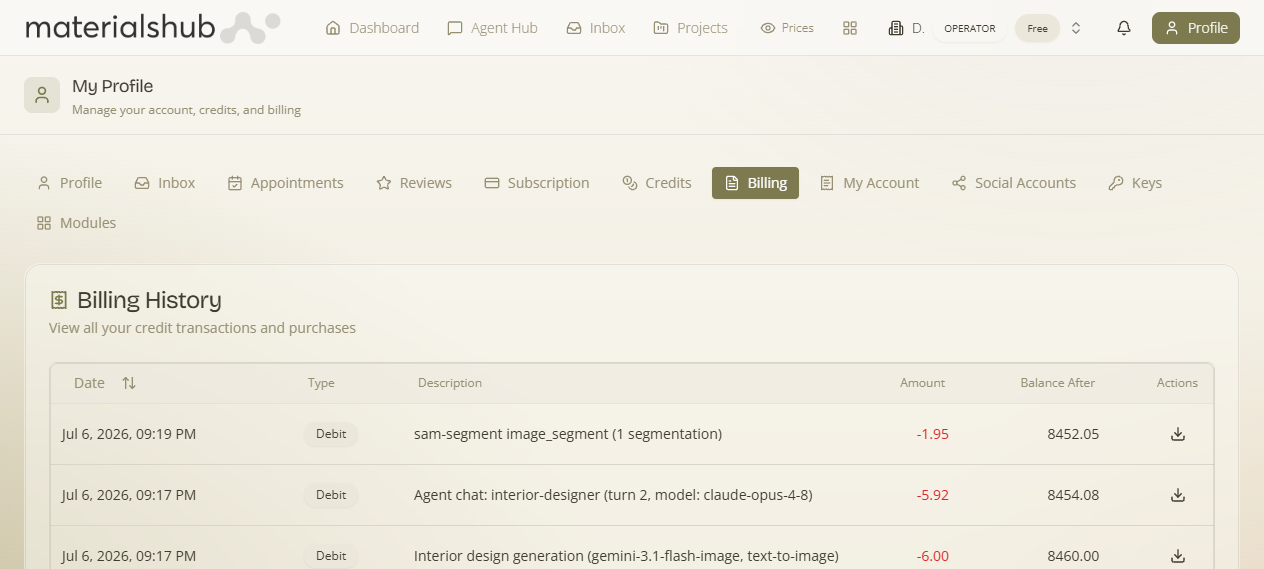
The ledger — column by column
The ledger lists every entry. Each credit-consuming action and every purchase appears as its own row, with these columns:
| Column | What it shows |
|---|---|
| Date | When the transaction happened. |
| Type | Credit (a top-up) or Debit (usage). |
| Description | What the entry was for, e.g. "Public price scan". |
| Amount | Credits added or spent. |
| Balance After | Your running balance after the entry. |
| Actions | Per-row actions (e.g. view detail). |
How to read it — finding a charge
- Open the Billing tab and scroll to the ledger.
- Scan the Date column to the day you're interested in.
- Check the Type to tell a top-up (Credit) from usage (Debit).
- Read the Description to see what the entry was for — e.g. "Public price scan" — and the Amount for how many credits it added or spent.
- Use the row's Actions to view detail, and the Balance After to confirm the running balance at that point.
Worked example — reconciling a missing balance. Your Credits tab shows fewer credits than you expected. Open Billing and read the ledger top-down: a Credit row records the €25 pack you bought (Amount ~2,631 credits), and below it several Debit rows — each a metered action with its own Description and Amount. Add the debits since your last top-up and the Balance After on the most recent row matches the figure in the Credits tab exactly. The charge you couldn't place is the Debit row whose Description names the action that spent it.
What it affects
Nothing downstream — this is your audit trail. The Balance After column reconciles directly with the balance shown in the Credits tab, and purchased packs appear here as Credit top-ups while every metered action appears as a Debit.