Account · Credits
Credits are the platform's currency for AI and generation actions. The Credits tab shows how many you have, how much of your monthly plan allowance that is, and a history of what used them. When you run low, the credit-pack store lets you top up — and because bigger packs earn bigger volume discounts, buying in larger amounts stretches your money further. This guide covers what credits are, what consumes them, how to read your balance, and exactly how to top up.
Where it is
Open your Profile menu at the top-right of any page, or go straight to /profile, then open the Credits tab in the row of profile tabs. The credit-pack store where you buy more is at /billing/credits.
What credits are, and what consumes them
What it is — credits meter the actions that have a real cost to run, while everyday use stays free. Why it matters — spending credits is how you turn your balance into images, sheets, scans and 3D worlds. Running an AI model or a generation job is metered; everything else is not.
What consumes credits:
- Generating images.
- Presentation sheets.
- Scans.
- 3D / VR worlds.
- Other metered tools across the platform.
- Scheduled / background work — some recurring jobs also draw credits when they run: material price/mention alerts, automatic customer statements, HR late-check-in alerts, and scheduled email digests. These are metered per run against your balance (or the workspace pool).
If you run out, scheduled features pause. When your credits are exhausted, the recurring jobs above stop running and the Credits tab shows a banner — “Some scheduled features are paused — out of credits.” Top up (or your monthly allowance refreshes) and they resume automatically. On-demand actions simply block until you have credits again.
Everyday chatting and searching in the Agent Hub is inexpensive. Only explicit generation actions are metered, and the assistant tells you the cost before it runs one. A full list of which actions cost credits is in Tools & Capabilities.
What's on the screen
The Credits tab shows:
- Balance — how many credits you have available right now.
- Percentage of your monthly allowance — your balance against your plan's allowance, so you can see at a glance how much of your plan you've used.
- Usage & spend history — a categorised summary of where your credits went (by type of action) plus a detailed activity list of individual debits, so you can see exactly what consumed them.
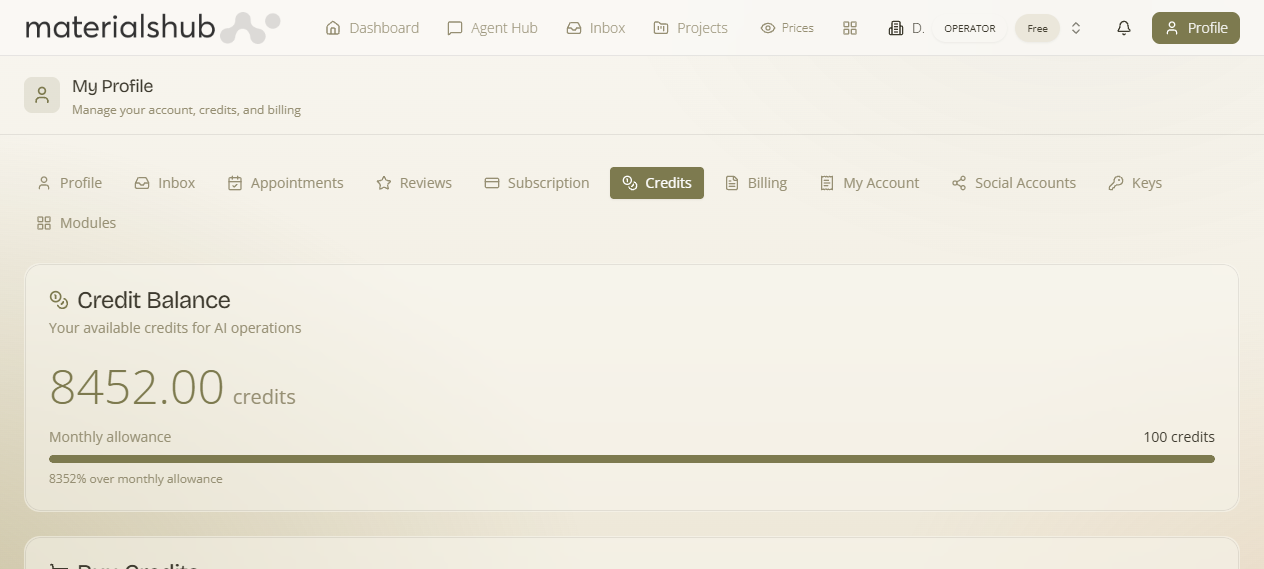
Personal credits vs the workspace pool
What it is — a workspace can run on a shared credit pool that the owner funds, so the whole team draws from one balance instead of everyone buying their own. Why it matters — it's how a business pays for its team's AI usage centrally, with control over how much each member can spend.
- The pool. The owner tops up a workspace Pool balance; metered actions by any member draw from it. Until it's funded the card reads “Not funded yet — the team is on personal credits until you add some,” and members simply use their own personal credits — so there's a clean fallback.
- Per-member caps. The owner can set a Monthly limit per member (blank = unlimited, shown as ∞) so no one person can drain the pool.
- Where the owner funds it. In Finance → Settings → Team (the workspace credits card): add funds to the pool, set per-member monthly caps, and see each member's usage.
- What members see. When your workspace is on a pool, your Credits tab shows a banner indicating you're drawing from the shared pool (and your cap, if any) rather than personal credits.
Which is used? If the workspace pool is funded, metered actions draw from it (up to your per-member cap); otherwise they fall back to your personal credits. Either way the action tells you the cost first.
Buying credit packs (with volume discounts)
What it is — the credit-pack store at /billing/credits. Why it matters — it's the fastest way to refill when you run low, and bigger packs earn bigger volume discounts. Each button shows exactly what you'll receive, for example "Buy 2,631 Credits for €25".
| Pay | You get | Discount |
|---|---|---|
| €10 | ~1,052 credits | 5% off |
| €25 | ~2,631 credits | 5% off |
| €50 | ~5,555 credits | 10% off |
| €100 | ~11,764 credits | 15% off |
You can also enter a custom amount — bigger amounts automatically get better rates. Spending €45 or more unlocks the Gold tier, with 10% off.

How to top up — step by step
- Open the Credits tab to see your current balance and usage history.
- When you run low, go to /billing/credits.
- Choose one of the available credit packs (each button shows exactly what you'll receive, e.g. "Buy 2,631 Credits for €25"), or enter a custom amount. Spending €45 or more unlocks the Gold tier (10% off).
- Complete the purchase through secure checkout.
- Your new balance is reflected in the Credits tab right after payment.
Worked example — refilling for a busy week. You open the Credits tab and see your balance is near zero with most of your monthly allowance used. You head to /billing/credits and pick the €50 pack — that's ~5,555 credits at 10% off. After checkout your balance jumps by that amount in the Credits tab, and the top-up also shows up in your Billing ledger. Had you instead typed a custom amount of €45 or more, the same purchase would have qualified for the Gold tier.
What it affects
When your balance runs out, metered generation actions are blocked until you top up or your monthly plan allowance refreshes. Purchased credits add to the balance shown in the Credits tab and appear as a top-up in your Billing ledger. Your plan's monthly allowance — the figure your balance is measured against as a percentage — is set by your subscription tier; raise it by changing your plan at /billing/subscriptions.