Dashboard
Your home screen and launch pad — a personalised overview of recent activity across the platform, with one-click access to materials, knowledge, profiles, factories and the AI assistant. It is the first page you see after signing in. This guide teaches you how to read every panel and feed on it, and exactly what to do next from each one.
How to open it: it's the home screen — click the logo or Dashboard in the top navigation.
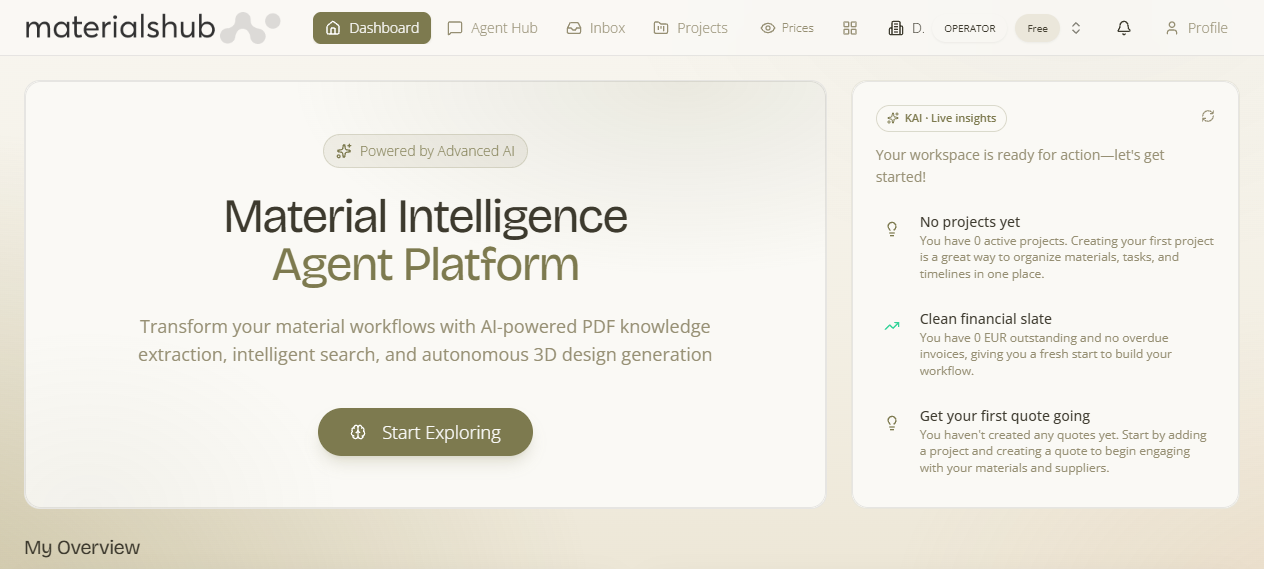
1. The Dashboard as a whole
What it is — a read-only landing page that pulls together what's new and what's relevant to you: a welcome hero that points you at the AI assistant, a short insights panel, four live feeds of the freshest content on the platform, and a row of personalised recommendations.
Why it matters — it orients you the moment you arrive. Instead of starting from a blank screen, you see activity and shortcuts. Everything on the page is a shortcut: most cards open the item right there in a pop-up, and every feed has a View all link to its full module. It refreshes its feeds each time you load it, so the latest items are always current.
How to use it — scan top to bottom. The hero offers your one primary action; the feeds tell you what changed; the recommendations suggest where to look next. Click any card to inspect it in place, or use View all to dive into the matching module.
What it affects elsewhere — the Dashboard makes no changes itself; it surfaces and links to content. You make changes in Discover, the Knowledge Base, Moodboards, or the Agent Hub.
2. The hero — "Material Intelligence Agent Platform"
What it is — the large panel at the top that introduces the platform and gives you a single primary action.
Why it matters — it is the fastest path into the most powerful surface on the platform — the conversational assistant — so when you don't know where to start, the hero tells you.
How to read it
- Badge — a small "Powered by Advanced AI" marker.
- Headline — Material Intelligence Agent Platform, with a one-line description of what the platform does: AI-powered knowledge extraction, intelligent search and design generation.
- Start Exploring — the primary button. It opens the Agent Hub, the conversational assistant where you can describe what you want in plain language and let it search, create and automate for you.
What it affects elsewhere — Start Exploring hands you straight into the Agent Hub, where any action you take (searches, moodboards, quotes) flows into those respective modules.
Tip: if you're not sure where to begin, press Start Exploring and just type what you need — for example "find matte grey porcelain tiles" or "build a moodboard from these images".
3. AI Insights panel
What it is — a compact panel beside the hero. It explains that the assistant is continuously learning from the new catalogs and materials added to the platform, and offers a rotating Pro Tip — a short suggestion for getting more out of the assistant, such as using it to compare technical specifications across manufacturers.
Why it matters — it nudges you toward the kinds of questions the assistant handles well, so you discover capabilities you might not have tried.
How to use it — read the Pro Tip when you load the page; if it suggests something useful (like a spec comparison), act on it by opening the Agent Hub and asking that question.
What it affects elsewhere — nothing directly — it's advisory. Its suggestions point you at the Agent Hub.
4. Latest activity feeds
What it is — four side-by-side feeds below the hero, each showing the most recently added items in its category.
Why it matters — they are your "what changed" view. They tell you what new materials, knowledge, members and factories have appeared without you hunting through each module.
How to read each feed and what to do from it
Every feed has a View all link in its top-right corner that jumps to the full list, and most items open in a pop-up when clicked so you can stay on the Dashboard.
| Feed | Shows | Click an item | View all goes to |
|---|---|---|---|
| Latest Materials | Newest materials with a thumbnail and the date added. | Opens the material's detail pop-up. | Discover |
| Latest Knowledge | Newest published, public knowledge-base documents. | Listed for reference; open the full document from the Knowledge Base. | Knowledge Base |
| Latest Profiles | Recently joined community members (designers, consultants and other professionals) with their role and location. | Opens the member's profile pop-up. | Discover |
| Latest Factories | Manufacturers with their material count and primary category. | Opens the factory pop-up listing all of that maker's materials. | Discover |
The Latest Knowledge feed only ever shows documents that are published and marked public — internal, agent-only and private documents never appear here, so anything you see in this feed is safe to share.
From the Latest Factories pop-up you can drill in one more level: click any material listed for that maker to open its detail pop-up on top, then close it to return to the factory view.
What it affects elsewhere — acting on a feed item carries you into the matching module — Discover for materials, profiles and factories, the Knowledge Base for documents — where you can save, share or quote.
5. Recommended for You
What it is — a row at the bottom of the page showing materials picked for you based on what you and similar members have viewed and saved.
Why it matters — it surfaces relevant materials you haven't found yet. The more you explore, save and interact with materials, the more relevant these suggestions become.
How to act on a recommendation
- Click any recommendation to open its detail pop-up.
- From the pop-up, save it to a moodboard or add it to a quote.
What it affects elsewhere — saving feeds your moodboards and quotes, and your activity in turn refines future recommendations.
If you're new, this row may be sparse or empty until the platform has enough of your activity to personalise it. Browsing Discover and saving a few materials is the quickest way to warm it up.
Things you can do here
- Open an item in place — click any material, profile or factory card to view its details in a pop-up without leaving the Dashboard.
- Jump to a full list — use a feed's View all link to open the matching module (Discover or the Knowledge Base).
- Start a conversation — press Start Exploring to open the Agent Hub.
- Act on a recommendation — open a recommended material and save it to a moodboard or add it to a quote.
- Switch workspace or open your profile — use the header at the top of the screen; it stays available on every page, so you can change workspace or reach your account settings at any time.
If a feed looks empty
Feeds read from your current workspace and the platform's public content. If one shows "Nothing here yet", it usually means there isn't any matching content yet — for example a brand-new workspace with no materials imported, or no public knowledge documents published. Add or import content in the relevant module, or switch to a workspace that has data, and the feed will fill in on the next load.
Fastest way to act on anything you see: the Agent Hub. Instead of clicking through menus, ask it directly — "find tiles like this one", "add this material to a moodboard", or "compare the specs of these two products" — and it will do the work and return interactive results in the chat.