Discover · Marketplace
The Marketplace tab is the platform's surplus and last-stock marketplace. Workspaces list items they want to move — overstock, discontinued ranges, end-of-line pieces — and these are offered to the whole community at 0% commission. You browse the listings just like any other Discover tab, and when something fits you send an inquiry directly to the seller.
How to open it: top navigation → Discover → switch to the Marketplace tab. It sits alongside the Profiles, Factory and Products tabs and shares the same search box.
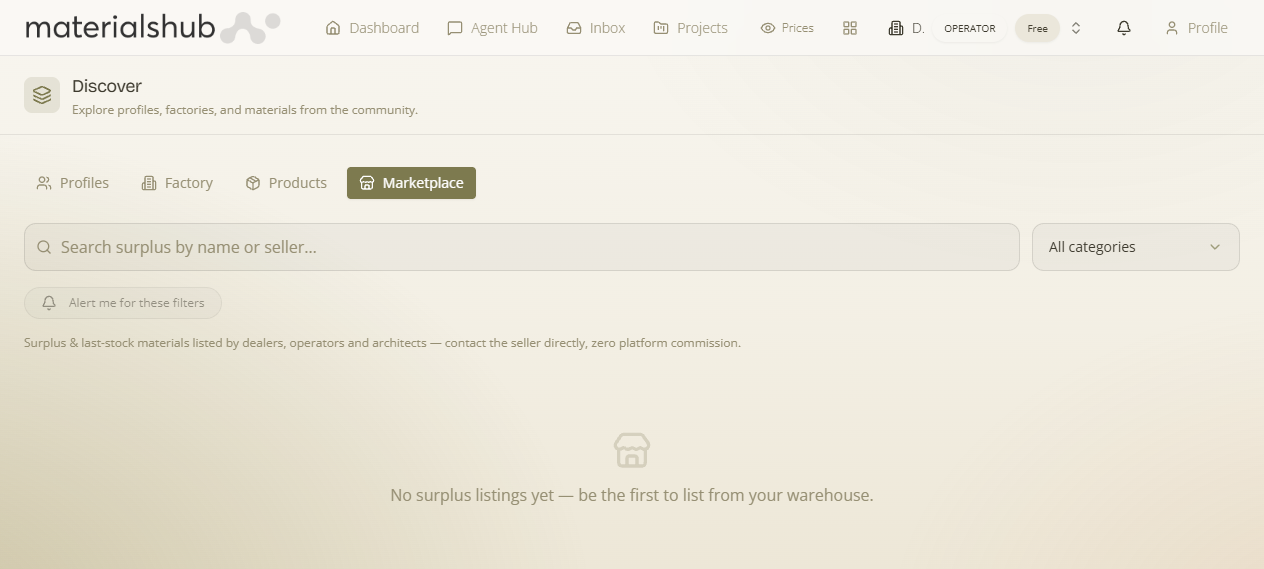
What it is
What it is — the surplus and last-stock marketplace. Workspaces list items they want to move — overstock, discontinued ranges, end-of-line pieces — and these are offered to the whole community at 0% commission.
Why it matters — stock that would otherwise sit idle can find a buyer beyond your own organisation, and because the platform takes nothing, the whole margin on the deal stays between buyer and seller. The Marketplace is deliberately the one place where listings are visible across workspaces — everywhere else on the platform your data stays inside your own workspace, so surplus listings are the intentional exception.
Where it is
Top navigation → Discover → the Marketplace tab. It is one of Discover's four tabs (Profiles, Factory, Products, Marketplace) that all share one search box at the top.
What's on the screen
The Marketplace gives you a few controls to cut through the listings — the same filter/search pattern as the other Discover tabs, plus a standing alert so matching stock can come to you:
- All categories — a category filter so you can narrow listings to the kind of material you're after, or leave it on All categories to see everything.
- Search — a search box (“Search surplus by name or seller…”) that matches on the item name or the seller, so you can hunt for a specific product or a specific workspace's stock.
- Multi-filters — narrow the listings by several attributes at once (category, condition, delivery, location and more), combined together rather than one at a time.
- Alert me for this search (saved want-list) — set your filters, then click the 🔔 Alert me for this search button to save a standing want-list. A want-list can capture a category, a keyword, a max price and a city, and you can keep several — a bell in the header shows your saved alerts. Whenever anyone — in any workspace — lists surplus that matches, you're notified automatically (bell notification, and email if your notifications include it). You don't have to keep checking back; matching stock comes to you.
Managing your alerts. Each saved want-list is a row you can switch off or delete. Matches are detected the moment a new listing is posted (the marketplace watches new listings against every active want-list across workspaces), so a freshly-listed item can reach you within moments of being listed.
When a workspace has no surplus to show, the tab reads “No surplus listings yet — be the first to list from your warehouse”.
Where listings come from
Marketplace listings are surplus drawn from a seller's Warehouse stock — the inventory tracked in the finance module. The Marketplace isn't a separate inventory you maintain by hand; it reads from the same warehouse you already keep for finance, so listing is a quick toggle on stock you're already tracking. See Warehouse for how Warehouse stock works.
How to list surplus stock — step by step
What this does — turns idle warehouse stock into a public listing the whole community can find and inquire about, with no commission deducted.
- Go to your Warehouse in the finance module and find the stock you want to move — overstock, discontinued ranges or end-of-line pieces.
- List the item as surplus from your Warehouse so it appears in the Marketplace.
- Set its category so buyers can find it with the All categories filter.
- Once listed, it's visible to the whole community across workspaces at 0% commission — buyers contact you directly.
How to find & inquire — step by step
What this does — finds surplus across every workspace and opens a direct line to the seller.
- Open Discover from the top navigation and switch to the Marketplace tab.
- Use the All categories filter and the “Search surplus by name or seller…” box to narrow the surplus and last-stock listings shared across workspaces. Tip: use Alert me for these filters to be notified when new matching stock is listed.
- Open a listing to see its details.
- Contact the seller directly by sending an inquiry.
- Continue the conversation in your Inbox, where the inquiry and the seller's replies are handled alongside your other platform messages.
Worked example — clearing an end-of-line tile range. Open your Warehouse → find the discontinued tile range you want to move → list it as surplus and set its category → it appears in the Marketplace, visible across workspaces at 0% commission. A buyer in another workspace filters by your category, opens the listing and sends an inquiry; the conversation lands in your Inbox, where you negotiate and arrange the deal — with the whole margin staying between the two of you.
What it affects
Listings read live from Warehouse stock — there's no separate inventory to maintain by hand. Buyers contact the seller directly: the inquiry doesn't open a separate messaging system; the conversation is handled through your Inbox, alongside your other platform messages, so you can negotiate, ask for details and arrange the deal in one place. Listings and inquiries work across workspaces, and the platform takes 0% commission on whatever you agree.
Tip: a clear name and the right category are what make your stock turn up in a buyer's filtered search and in their Alert me for these filters notifications. Set your own filters first and click Alert me for these filters once, so future matching stock finds you instead of the other way round.