Documents · Delivery notes
A delivery note is a record of goods dispatched — the document that says stock left your premises. It's one of the document tabs on the Finance page; this guide explains what it is, where to find it, how the list is laid out, how to create one step by step, and how it ties into the dispatch/warehouse flow.
Where it is
Top navigation → Finance → the Delivery notes tab. Each tab on the Finance page is one document type; Delivery notes is the one for goods dispatched.
When you'd use it — when stock leaves your premises, especially when the goods move before (or separately from) the invoice. Delivery notes are often tied into the dispatch/warehouse flow.
What's on the screen
What it is — a record of goods dispatched. When you'd use it — when stock leaves your premises, especially when the goods move before (or separately from) the invoice. How — click New, pick the delivery note Type, and record the dispatch.
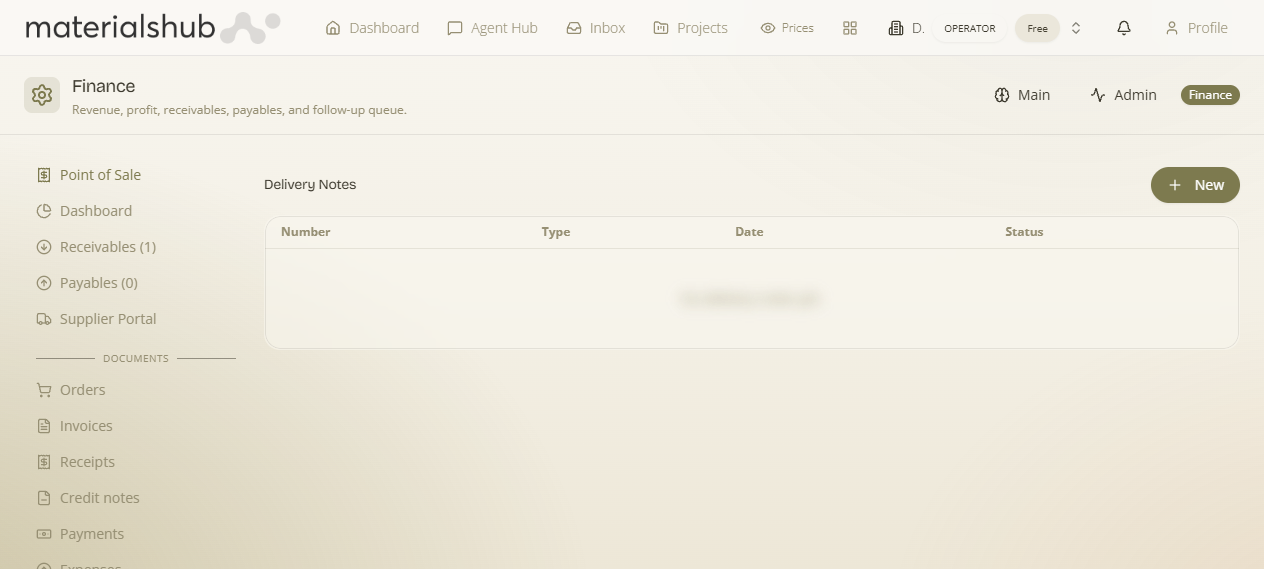
Toolbar
New.
- New — start a delivery note: pick the delivery note Type and record the dispatch.
Columns
The columns let you read the state of each delivery note at a glance:
| Column | What it shows |
|---|---|
| Number | The delivery note number. |
| Type | The delivery note type. |
| Date | The dispatch date. |
| Status | The document status. |
How to create a delivery note — step by step
- Open Finance from the top navigation, then select the Delivery notes tab.
- Click New.
- Pick the delivery note Type.
- Record the dispatch.
Worked example — dispatching stock ahead of the invoice
Goods are leaving the warehouse before the invoice is raised. Open Finance → Delivery notes → click New → pick the delivery note Type → record the dispatch. The note now appears in the list with its Number, Type, dispatch Date and Status, giving you the record that stock left your premises separately from the billing.
What it affects elsewhere
Delivery notes are often tied into the dispatch/warehouse flow — the record of goods leaving your premises. For how dispatch and warehouse movements fit into the wider picture, see Operations.