Operations · Dispatch board
The Dispatch board is a board view for managing the goods leaving your business, tracking each order or delivery through its stages in one place. Anyone shipping physical materials needs a single screen that answers "what's going out, and where is it in the process?" — and that's exactly what this board is. It sits between the paperwork (Delivery notes) and the physical stock (Warehouse), so dispatch staff and owners aren't chasing that picture across three tools.
Where it is
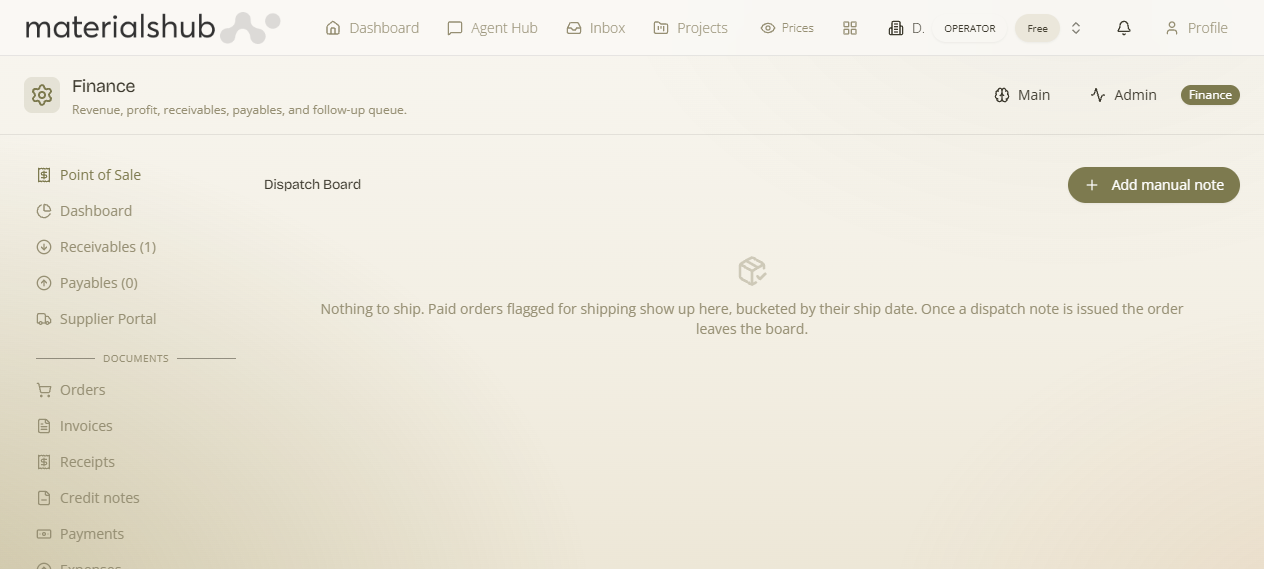
Top navigation → Finance → the Dispatch board tab.
This tab shines for product / stock-based businesses. If it looks empty, it isn't broken — it just means there are no outgoing items yet. Create documents (for example a Delivery note) and the board fills itself in.
What's on the screen
Every outgoing item laid out as a board, so you can see each order or delivery and the stage it's currently at:
- The board — each outgoing item is a card you can move along as it progresses through its stages, giving you a single picture of what's going out and where it is in the process.
- Add manual note — drop a note straight onto the board for something that isn't tied to a formal document.
How to use it — step by step
- Open Finance → Dispatch board to see every outgoing item laid out as a board.
- Move items along as they progress through their stages.
- For something that isn't tied to a formal document, click Add manual note and drop a note straight onto the board.
Worked example — a document-less movement. A pallet is leaving the yard that isn't tied to any sale or delivery note. Open Finance → Dispatch board → click Add manual note → drop a note onto the board so the movement is visible to everyone. Use manual notes sparingly, for genuinely document-less movements: if goods are leaving against a sale, raise a Delivery note instead so the dispatch is traceable end-to-end.
What it affects elsewhere
The Dispatch board works hand-in-hand with Delivery notes (under Documents) and the Warehouse stock side — dispatching goods is the natural counterpart to drawing them down from stock. Keeping the warehouse current is what makes the Dispatch board trustworthy.