Settings · Categories
Finance Categories let you classify every invoice, receipt, expense and payment under a label of your own — Materials, Rent, Services, and so on. Once a category exists, it becomes pickable on each document and on every payment, which is what powers your list filters and the breakdowns in Reports. You build the list once here, or seed a standard set with a single click.
Where it is
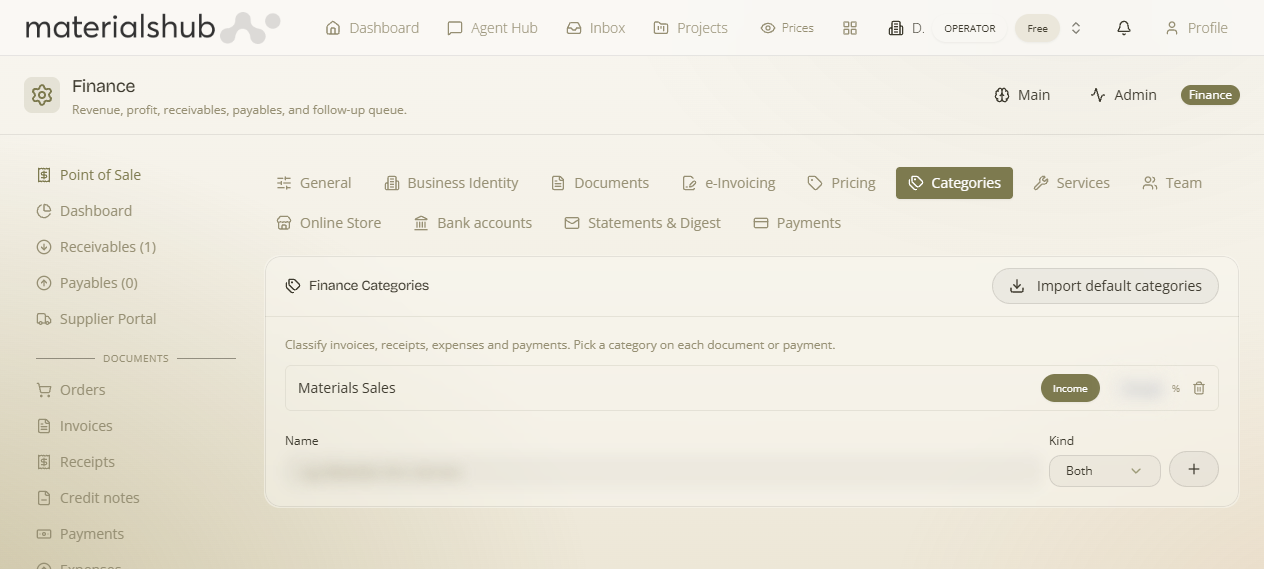
Top navigation → Finance → Settings tab → Categories (in the row of settings sub-tabs). The panel is headed Finance Categories.
What's on the screen
One panel with a short helper line and an add form:
- Helper line — "Classify invoices, receipts, expenses and payments. Pick a category on each document or payment." This is your reminder that the categories you create here are what you'll later choose from on individual documents.
- Name — a free-text field for the label, e.g. Materials, Rent, Services.
- Kind — a dropdown that decides where the category may be used. The options are Both, Income, and Expense. An Income category appears only in the income picker, an Expense category only in the expense picker, and Both in either.
- Margin % — an optional figure you can attach to the category.
- Add — commits the new category to the list.
- Import default categories — a button that seeds a standard ready-made set, so you don't have to type the common ones by hand.
How to add a category — step by step
- Go to Finance → Settings → Categories.
- In the Name field, type the label you want — for example Materials, Rent or Services.
- Open the Kind dropdown and choose where it should be usable: Both (income and expense documents), Income only, or Expense only.
- Optional: set a margin % on the category if you want one attached.
- Click Add. The category joins the list and is immediately available in the matching category pickers on documents and payments.
If you'd rather start from a ready-made list, click Import default categories instead of typing — it seeds a standard set in one step, which you can then trim or extend.
Worked example — adding a "Materials" expense category. Open Categories → type Materials in Name → set Kind to Expense → click Add. From now on, when you record a supplier bill or an expense, "Materials" shows up in the Expense category picker, your Payables/expense lists can be filtered to just Materials, and Reports break the spend out under that label.
What it affects
The categories you create here flow straight through to three places:
- The Income / Expense category pickers on documents — when you raise or record a document or payment, you choose its category from this list (filtered by the Kind you set).
- List filters — document and payment lists can be narrowed by category, so a category has to exist here before you can filter by it.
- Reports — the income and expense breakdowns group totals by category, so a clean category list gives you clean reporting.