Settings · Finance Digest
The Finance Digest section sends a recurring financial summary by email to the people you choose. You set how often it goes out, on which day and hour, and to whom — then the digest arrives automatically on schedule, covering your receivables, payables, cash-flow forecast and open balances at a glance.
Where it is
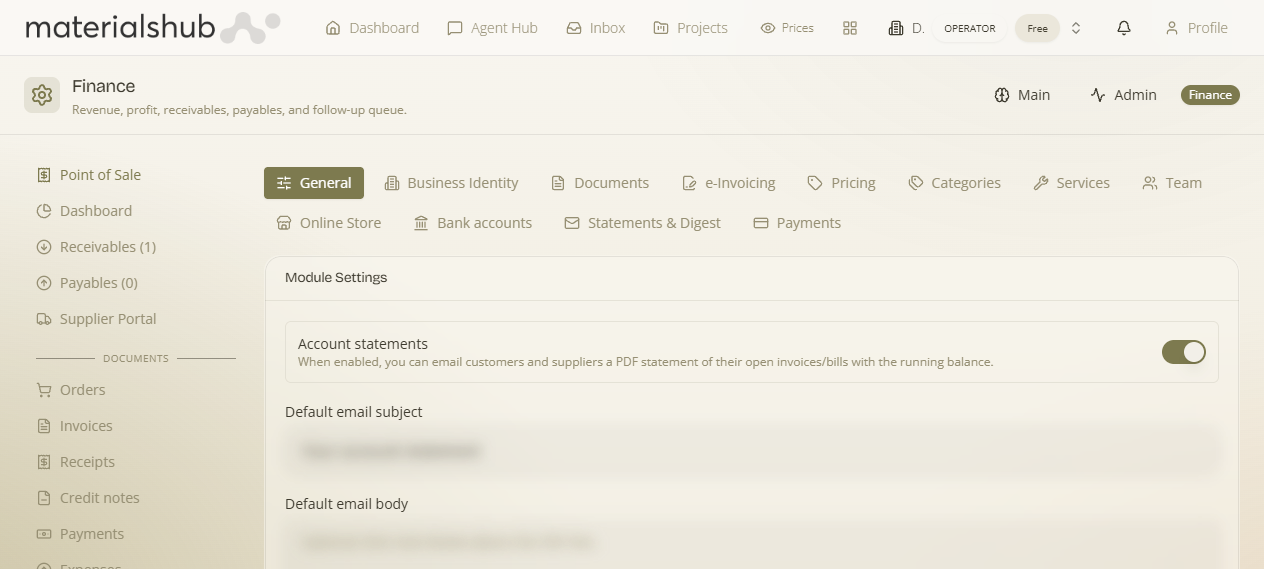
Top navigation → Finance → Settings tab → Finance Digest (in the row of settings sub-tabs).
What's on the screen
A scheduling form followed by three action buttons:
- Frequency — how often the digest is sent (for example, Weekly).
- Day of week — which day it goes out (for example, Monday).
- Hour (UTC, 0–23) — the send hour, given in UTC on a 24-hour clock.
- Recipients — the address list. Type an email and click Add; repeat to add several recipients.
- Save digest settings — saves the schedule and recipient list.
- Send now to recipients — sends the digest immediately to everyone on the saved recipient list.
- Send test — sends the live digest right now to a single address you type, without changing your recipients or the next-send schedule.
What's in the digest
Each digest summarises your finance position: AR (accounts receivable — what customers owe you), AP (accounts payable — what you owe suppliers), a cash-flow forecast, your top open balances, and planned payments. It's a single periodic snapshot for the people who need to keep an eye on the books.
How to schedule the digest — step by step
- Go to Finance → Settings → Finance Digest.
- Set Frequency to how often you want it — e.g. Weekly.
- Pick the Day of week — e.g. Monday.
- Set the Hour (UTC, 0–23). Remember this is UTC, so adjust for your local time (e.g. for 9am in a UTC+2 zone, enter
7). - Under Recipients, type an email address and click Add. Repeat for each person who should receive it.
- Click Save digest settings. The digest will now go out on that schedule.
- (Optional) Click Send test, type your own address, and confirm the email looks right — this does not touch your recipients or schedule.
- (Optional) Click Send now to recipients if you want everyone to get a copy immediately, outside the schedule.
Worked example — a Monday-morning team digest. Open Finance Digest → set Frequency to Weekly, Day of week to Monday, and Hour (UTC) to 7 → add you@company.com and accountant@company.com under Recipients → click Send test with your own address to preview it → click Save digest settings. From then on, both recipients get the AR/AP, cash-flow forecast and open-balance summary every Monday.
What it affects
Saving here controls a scheduled outbound email — it never changes any finance data. The schedule and recipient list drive when and to whom the digest is sent; Send now dispatches to the saved list once; Send test goes only to the address you type and leaves the saved recipients and next-send time untouched.