Settings · Payments
The Payments section configures how your customers pay you online. It controls the payment methods and links offered on the public pay page at /pay/:token — the page a customer reaches when they click through from an emailed invoice. Set it up once and every invoice you send gives the recipient a way to settle it online.
Where it is
Top navigation → Finance → Settings tab → Payments (in the row of settings sub-tabs).
What's on the screen
The configuration for your online payment options:
- Online payment methods / links — the methods and payment links that will be presented to a customer on the public pay page. These are what the customer chooses from when they go to pay an emailed invoice.
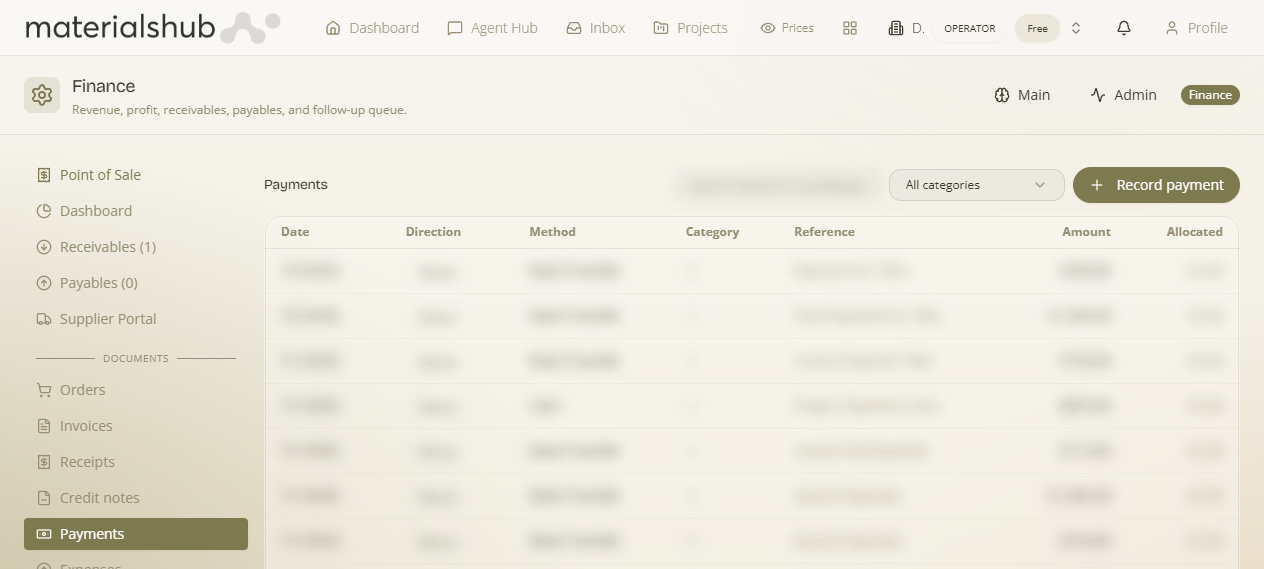
/pay/:token.How online payment works
When you email an invoice, the customer can open a public pay page at /pay/:token. Whatever you configure here is what that page offers them. The customer never needs an account — they follow the token link from their invoice email and pay using one of the methods you've set up. See Public Pages for how the pay page renders alongside the other public-facing surfaces.
How to set up online payments — step by step
- Go to Finance → Settings → Payments.
- Configure the online payment methods / links you want to offer your customers.
- Save your configuration so it applies to the public pay page.
- Email an invoice to a customer, then open its
/pay/:tokenlink yourself to confirm the payment options appear as expected.
Worked example — letting a customer pay an invoice online. Open Payments → configure your online payment method → save. Now email an invoice to a customer. They click the link in the email, land on the public pay page at /pay/:token, and choose the method you set up — settling the invoice without ever logging in.
What it affects
This section drives only the public pay page at /pay/:token — the methods and links a customer sees when paying an emailed invoice. It changes how customers can pay, not the invoices themselves. For the broader set of customer-facing surfaces, see Public Pages.