MoodBoards · Building a board
A MoodBoard is where a project starts to take shape: you gather materials, finishes and inspiration images into one board, let the platform suggest matching products, and then turn that board into something a client can hold — a priced quote or a shareable public page. This guide covers the everyday work of building a board: creating it, the Items and Tools tabs, adding products, importing from Pinterest, finding complementary materials, generating a quote, and sharing. For each part it explains what it is, why it matters, how to do it, and what it changes elsewhere.
Where it is
Top navigation → MoodBoards. Click a board to open it at /moodboard/:id, or click New MoodBoard to create one. A board you publish is reachable by anyone with its link at /board/:id.
The natural workflow (each step builds on the last): create a board → Add Products and/or Import from Pinterest → run Find Products to round it out → ask the Agent Hub to build presentation sheets → either Generate Quote for pricing or assemble the sheets into a project-level Client View for the final hand-off.
What's on the screen
The list page
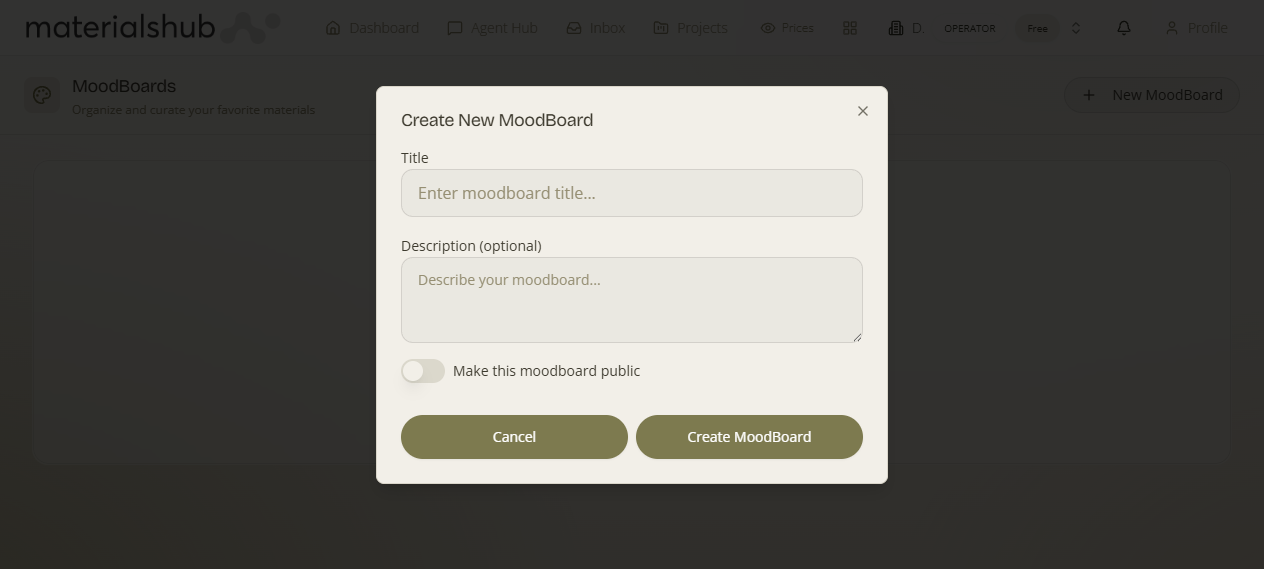
What it is — the home for every board you own. Why it matters — it is your overview of in-flight concepts at a glance, and the launch point for creating, opening, renaming and managing boards. Each board appears as a card showing its name, its visibility (a Public or Private badge) and its item count (how many materials and images are on the board).
What it affects: deleting a board removes it and its generated sheets — but it does not delete the underlying catalogue products, so the materials remain available for other boards and quotes.
The board detail page
What it is — the screen you reach when you open a board: two tabs (Items and Tools) plus an action toolbar. Why it matters — this is your workspace for the board — everything you do to build, enrich, price and publish a board happens here.
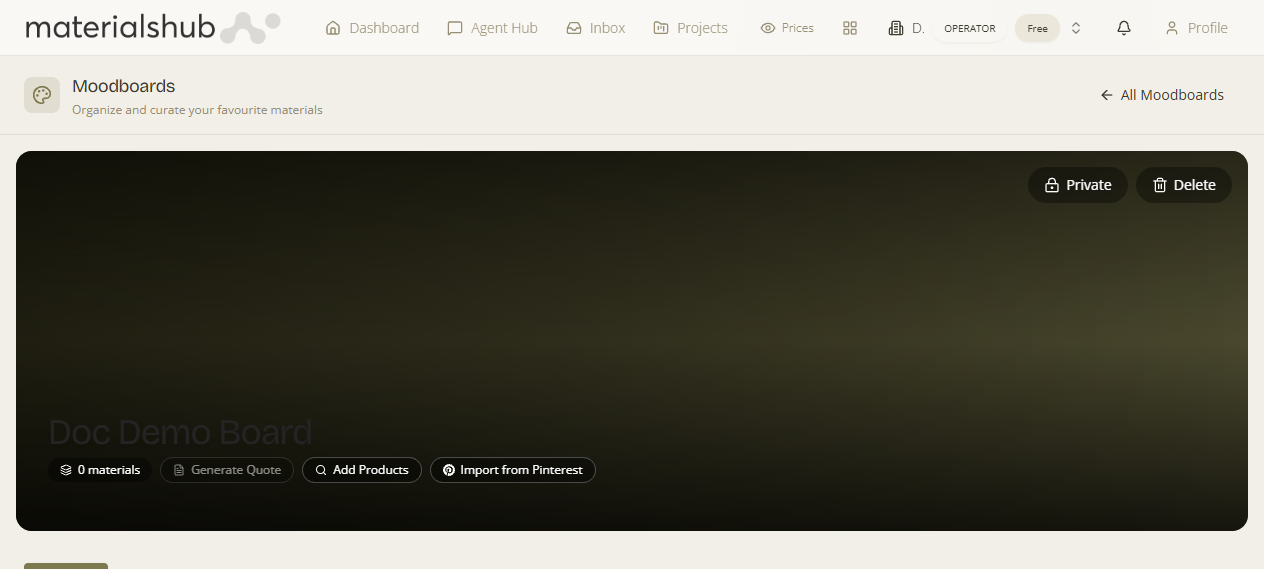
- Items tab — the board itself: the materials and images you've collected, arranged as a visual grid. Review what's on the board, open an individual item to inspect it, arrange items, or remove ones you no longer want. The products visible here are what feed Generate Quote and the product-based presentation sheets, so curating this tab directly shapes those deliverables.
- Tools tab — board-level helpers. The key one is Find Products, which looks across the catalogue for materials that match what's already on the board. It is also where you reach New Tool to start a presentation sheet.
The action toolbar
| Action | What it does |
|---|---|
| Add Products | Add catalogue materials directly to the board. |
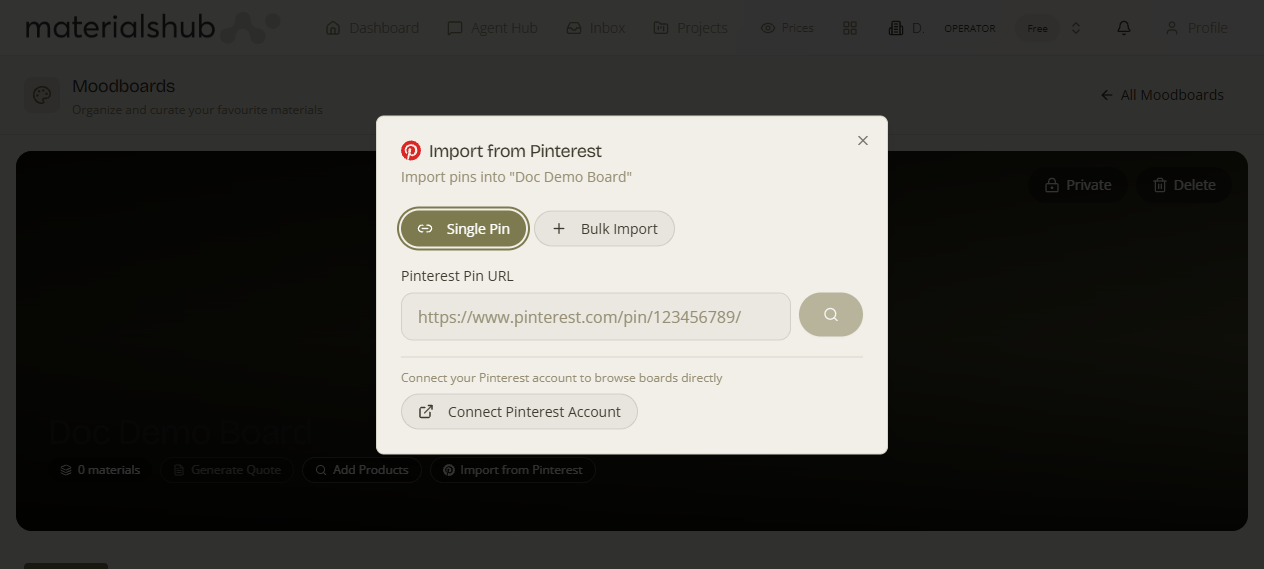
| Import from Pinterest | Paste a single pin URL, or connect your Pinterest account to browse boards and import images in bulk. Imported images are automatically matched against the catalogue so the platform can suggest the products that look closest. |
| Generate Quote | Turn the board's products into a quote. Enabled once the board contains at least one product. |
| Public / Private | Toggle the board's visibility. Public boards can be opened by anyone with the share link. |
| Delete | Remove the board and its generated sheets. |
Add Products
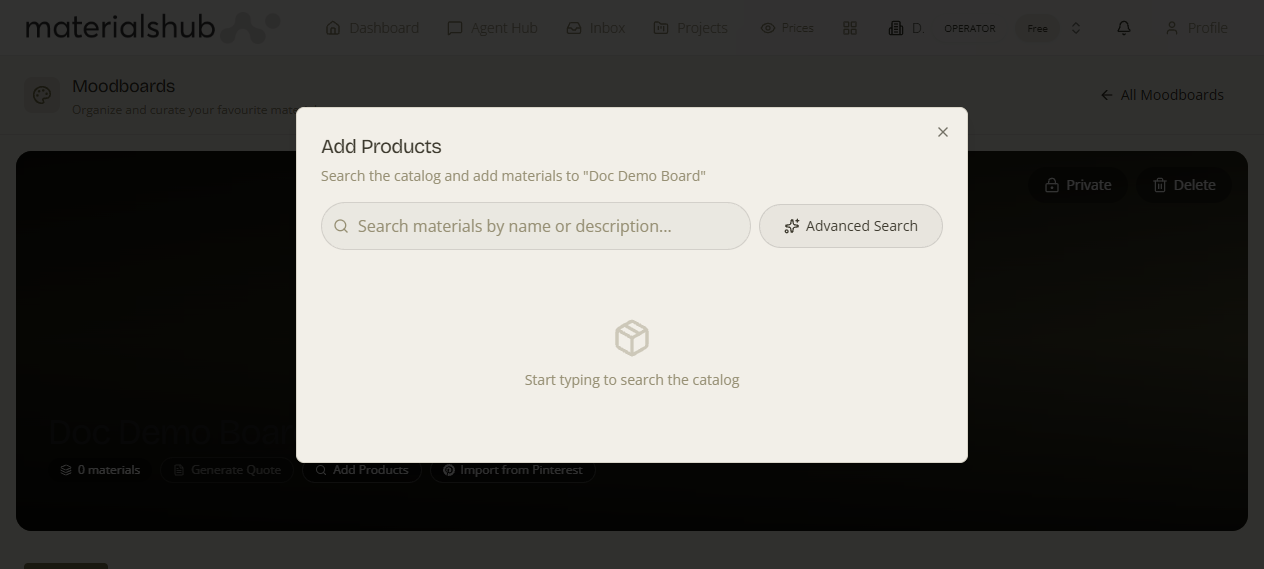
What it is — the direct route to put catalogue materials on the board. Why it matters — the products you add are the raw material for everything downstream — a quote, a material board, an FF&E schedule all draw on them. How — open Add Products, search the catalogue, and add the materials you want. What it affects: every added product increases the board's item count, enables Generate Quote (which needs at least one product), and becomes available to the product-based sheet types.
Import from Pinterest
What it is — a way to pull inspiration images into the board from Pinterest. Why it matters — clients and designers often gather references on Pinterest first; this brings those references in and connects them back to real, purchasable products. How — paste a single pin URL, or connect your Pinterest account to browse your boards and import images in bulk. What it affects: imported images are automatically matched against the catalogue, so the platform suggests the products that look closest — turning loose inspiration into candidate materials you can add to the board.
Find Products
What it is — the board-level catalogue matcher in the Tools tab. Why it matters — it rounds out a concept with complementary items so you don't have to guess what else pairs well. How — open the Tools tab and run Find Products; it reads what's already on the board and suggests matching catalogue materials. What it affects: suggestions you accept become board products — feeding the same downstream quote and sheets as anything you add manually.
Generate Quote
What it is — the action that converts the board's products into a quote. Why it matters — it is the moment a visual concept becomes a priced proposal — no re-entering products. How — once the board contains at least one product the button is enabled; click it to generate the quote from those products. What it affects: it creates a quote you then refine in the Quotes area; that quote can in turn supply the items for an FF&E schedule sheet, closing the loop between board, pricing and presentation.
Public / Private
What it is — the visibility toggle for the board. Why it matters — it decides whether the board is a private working space or a shareable reference. How — flip Public / Private. What it affects: a public board can be opened by anyone with its link at /board/:id; a private board is visible only to you and your workspace.
Saving from the AI chat: when the Agent Hub returns a product or generated image you like, you can save it straight into a moodboard. A copy of the image is kept on the board, so it survives even if you later delete the conversation it came from.
Step by step: create a board
- From the top navigation open MoodBoards, then click New MoodBoard.
- Enter a title for the board (and an optional description), then confirm.
- Open the new board to reach its detail page with the Items and Tools tabs.
Step by step: add materials
- On the board's detail page, use Add Products to search the catalogue and add materials to the board.
- Optionally use Import from Pinterest to bring in images — they are auto-matched to catalogue products — or open the Tools tab and run Find Products to surface complementary materials.
- Arrange the items on the Items tab until the board reflects your concept.
- When the board has at least one product, click Generate Quote if you want to turn it into a priced quote.
Step by step: share a board
- Set the board to Public using the Public / Private toggle.
- Copy its share link at /board/:id and send it to your client or colleague — no account needed to open it.
- The client can request a quote from the shared board. The public board page now has a “Request a quote” action: the viewer fills in their details and it sends the request straight to you (a notification, via the platform's Flows engine) with the board referenced — so a shared moodboard becomes a lead, not just a view. You pick it up and turn the board into a priced quote with Generate Quote.
- For a richer, project-level deliverable that bundles sheets across boards — with an embedded 3D walkthrough, lighting moods, a live FF&E table and inline client approval — bundle them into a Projects → Client View instead.
Worked example — turning a Pinterest reference into a priced board
Open MoodBoards → New MoodBoard and give it a title and short description → on the detail page click Import from Pinterest and paste a pin URL; the platform auto-matches that image against the catalogue and suggests the closest products, which you add to the board → run Find Products from the Tools tab to round out the concept with complementary materials → arrange everything on the Items tab → click Generate Quote to convert the board's products into a priced proposal, then set the board Public and send the /board/:id link so the client can see the visual reference while you finish the quote.
What it affects
Everything you collect on a board can be re-used downstream: the products become a quote, the board becomes presentation sheets, and the sheets feed a Client View. Deleting a board removes it and its generated sheets but leaves the underlying catalogue products intact. For larger deliverables that combine sheets from several boards, MoodBoards feed into Projects → Client Views.