CRM · Categories
Categories are the reusable labels you create to group the people and organisations you work with — platform users, CRM contacts and companies — into lists. They aren't just tidy tags: those lists are what the rest of the platform targets for outreach. Most directly, the "Send to Customers" action on catalogs and other email outreach send to a category rather than to individuals, so a well-kept set of categories is the backbone of your segmentation — get them right and outreach reaches exactly the audience you intend.
Where it is
Top navigation → CRM → the Categories tab (alongside the Users, Contacts and Companies tabs). If you're starting fresh, it's worth building your categories first, so you have segments to file people and organisations under as you add them.
What's on the screen
The Categories tab lists every category you've created, each shown as a stat card. The headline figure on each card is its member count, split by Users / Contacts / Companies, so you can see at a glance how many of each kind of record a category covers. A toolbar across the top carries the create, edit, resync and search controls.
- The category cards — one card per category, each with its name and the Users / Contacts / Companies member-count split.
- The toolbar — New Category, Edit, Resync auto and a Search categories box.
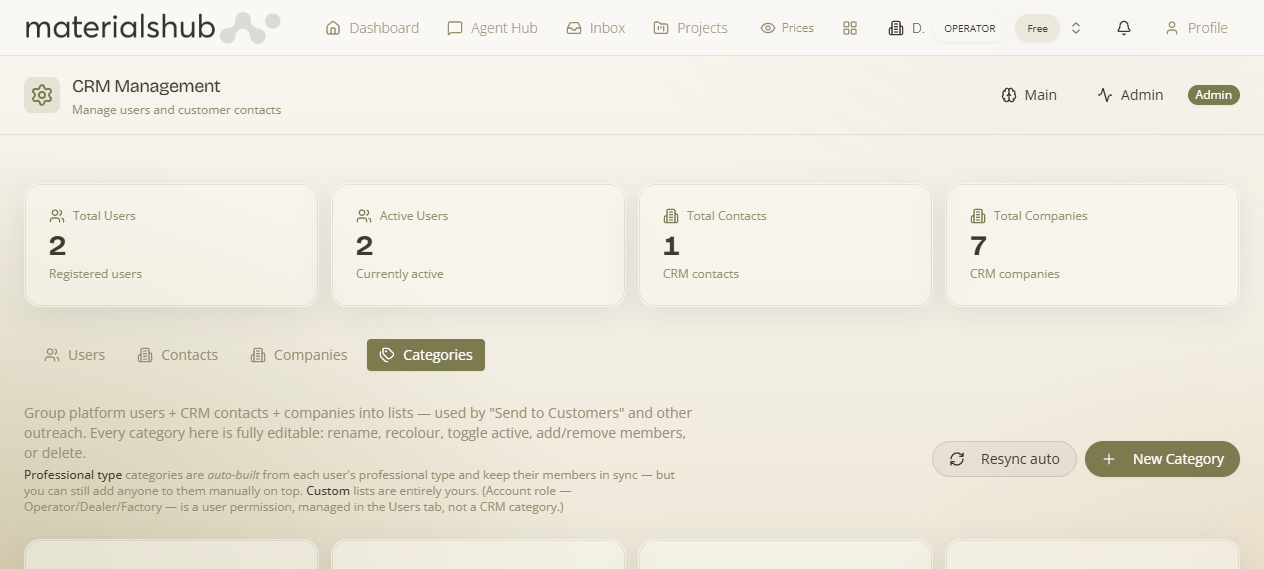
The toolbar, control by control
| Control | What it does |
|---|---|
| New Category | Create a new category — name it and set its type. |
| Edit | Modify an existing category (for example rename it or change its type). |
| Search categories | Filters the list so you can find a category quickly. |
How to add a category — step by step
- Open CRM from the top navigation and go to the Categories tab.
- Click New Category.
- Name the category (for example, Architects in Athens).
- Set its type.
- Save.
- Assign the category on a contact or company — open the record's detail page and apply the label there. (A category you've just created starts empty; it fills up as you assign it.)
What it affects elsewhere: once a category exists and has members, it becomes a selectable audience for the Send to Customers action on catalogs and for other email outreach, and a filter for grouping your contacts and companies.
What Edit does
Edit is for the categories you create and curate by hand — use it to rename a category or change its type as your segmentation evolves. The members of a hand-curated category are the records you've assigned the label to on their detail pages.
Changed in 2026-06: categories no longer carry a role, and the old auto-populated Dealer Accounts / Factory Accounts role-linked categories were retired when roles were consolidated (dealer/factory → Supplier). Access is now driven by a user's account Role, not by category membership. Categories are purely the audiences you curate for outreach and filtering.
Seeded example categories
MaterialsHub ships with a set of starter categories you can use straight away or adapt — so you're not segmenting from a blank slate:
| Category | Description |
|---|---|
| Architecture and design professionals | Architects, designers and interior designers. |
| Industry consultants | Consultants working in the industry. |
| B2B sourcing agents | Agents who source products on behalf of businesses. |
| Suppliers, manufacturers, brands and distributors | Anyone who supplies products. |
| Other professional types | A catch-all for professionals who don't fit the categories above. |
What categories affect
Categories are an audience, not just a label. Once a category has members, it surfaces wherever the platform sends to a segment:
- Send to Customers on catalogs — the most direct use. The action sends a catalog to a chosen category rather than to individuals, so the right segment receives it in one step.
- Other email outreach — targeted emails go to a category, so you reach exactly the audience you intend without hand-picking recipients each time.
- Filtering and grouping — categories are a filter for grouping your contacts and companies inside the CRM.
Worked example — building an "Architects in Athens" list to email a catalog. Open CRM → Categories → click New Category → name it Architects in Athens, set its type / role → Save. Now open each relevant contact or company and, on its detail page, assign the Architects in Athens category. As you assign it, the category card's member count climbs (split by Users / Contacts / Companies). When the list is built, run Send to Customers on the catalog you want to share and pick Architects in Athens as the audience — every member of that list receives the catalog, and no one outside it does.
Categories segment the people you keep in the CRM. To manage the records you're filing under them, see CRM (Users, Contacts and Companies); for what happens to a company once you start invoicing it, see Finance & Invoicing.