Settings · Online Store
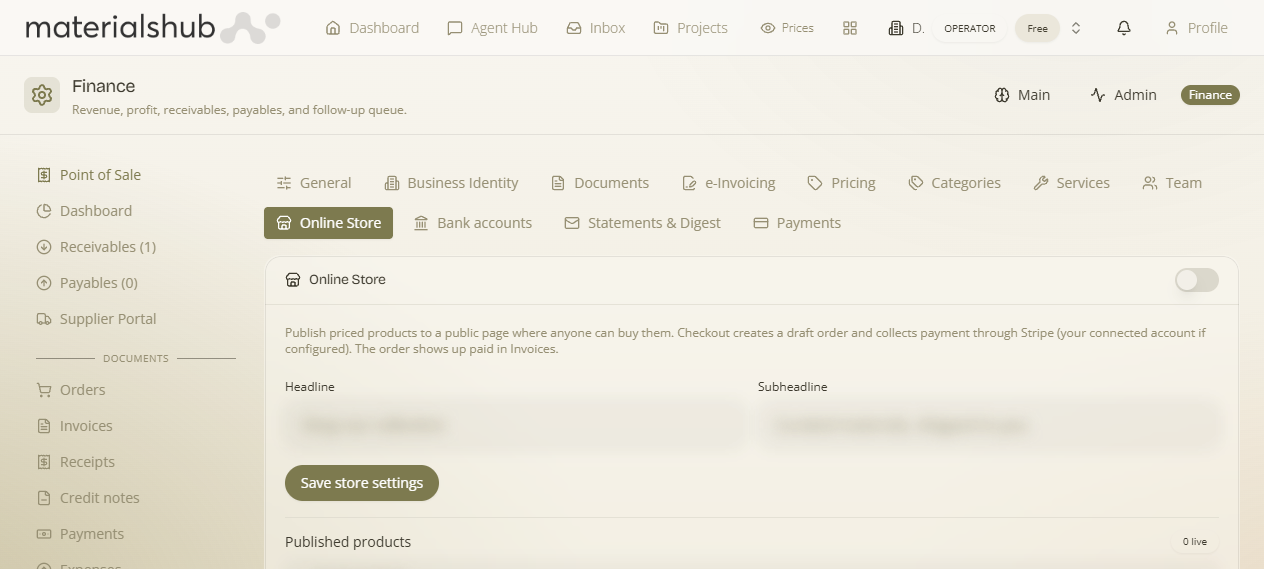
The Online Store section turns your priced catalogue into a public storefront at /store/:slug — a shareable page where anyone can browse what you sell, with no login. You set the headline text shoppers see and choose which products are searchable; everything that already has a price flows through automatically.
Where it is
Top navigation → Finance → Settings tab → Online Store (in the row of settings sub-tabs, after Team).
What's on the screen
A short form, top to bottom, followed by the Save button:
- Headline — the large title at the top of your public store page (for example, "Shop our collection").
- Subheadline — the supporting line under the headline (for example, "Curated materials, shipped to you").
- Product search — a search box you use to find and confirm which catalogue products appear in the store.
- Save store settings — the button that publishes your changes to the live store page.
/store/:slug page.Only priced products appear
The store is deliberately a price-driven surface: a product only shows up if it has a sell price. If a product is missing from the public store, it almost always means it has no price yet. Set prices through your catalogue markup rules — see Settings → Pricing for category markups (cost → sell price), and Store → Public Pages for how the public storefront renders.
How to set up your store — step by step
- Go to Finance → Settings → Online Store.
- Type your Headline — keep it short and inviting, e.g. "Shop our collection".
- Type your Subheadline underneath it, e.g. "Curated materials, shipped to you".
- Use the product search to confirm the products you expect to sell are present. Remember only products with a price will list.
- Click Save store settings. Your changes go live on the public page at
/store/:slug. - Open
/store/:slugin a browser to see exactly what a shopper sees.
Worked example — launching a small storefront. Open Online Store → set Headline to "Shop our collection" and Subheadline to "Curated materials, shipped to you" → use product search and notice three items are missing. Hop to Settings → Pricing, add a category markup so those items get a sell price, come back, and they now appear. Click Save store settings and share the /store/:slug link.
What it affects
Saving here updates your live public storefront at /store/:slug — the headline and subheadline text, and the set of products on display. The product list is governed entirely by which catalogue items have a price, so this section works hand-in-hand with Settings → Pricing. For the public-facing rendering and the rest of the storefront pages, see Store → Public Pages.