Quotes · Requests
The Requests tab is the front door for inbound demand. Instead of starting from a blank quote, you start from what a customer actually asked you to price. Each request is something a customer has asked you to quote; this tab collects them, lets you filter the list to focus on what still needs attention, and lets you convert any request into a real quote that then follows the normal build-and-send flow.
Where it is: top navigation → Quotes → the Requests tab at the top of the page (next to My Quotes).
Where it is
Quotes is split into two views you switch between at the top of the page: My Quotes /quotes (everything you've created) and Requests /quotes/requests (incoming quote requests from customers). This guide covers the Requests tab. For building and sending a quote once you've started one, see Quotes · Build & send.
What's on the screen
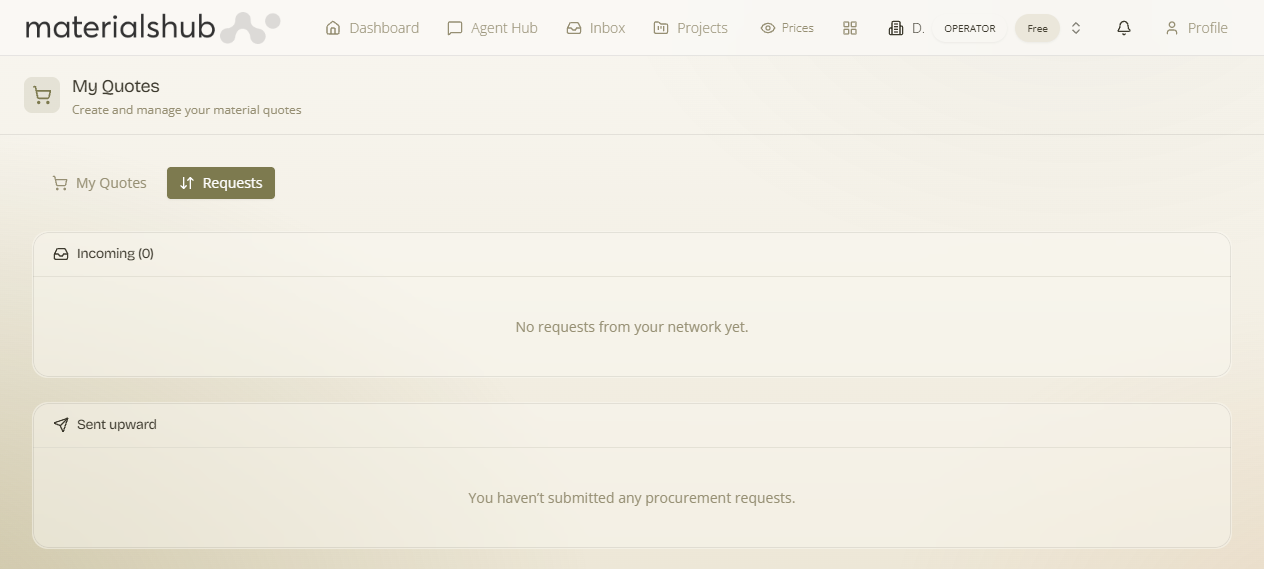
What it is — the Requests tab /quotes/requests collects quote requests that come in from customers. Why it matters — it's the front door for inbound demand: instead of starting from a blank quote, you start from what the customer actually asked for. The tab gives you:
- The requests list — incoming quote requests from customers, each one something a customer has asked you to price.
- Filter — narrow the list so you can focus on what still needs attention.
- Review — open a request to see exactly what the customer is after.
- Convert into a quote — start a real quote pre-populated from the request.
How to convert a request into a quote — step by step
- Open Quotes from the top navigation and switch to the Requests tab /quotes/requests.
- Optionally Filter the list to focus on what still needs attention.
- Open a request from the list.
- Review what the customer is asking for.
- Convert it into a quote — a real quote pre-populated from the request.
- Continue as usual: add line items, prices and FF&E specifications, preview the branded PDF, then send. See Quotes · Build & send for that flow.
Worked example — pricing a customer enquiry
A customer sends in a request and you turn it around.
- Open Quotes → Requests /quotes/requests. Use Filter to surface the requests still needing attention.
- Open the customer's request and review what they've asked you to price.
- Click to convert it into a quote — you get a real quote pre-populated from the request, so you're not starting from a blank page.
- Add the remaining line items, set quantities and prices, fill in FF&E specs where useful (room, dimensions, installation requirements, delivery date), then open Preview and send with Email Quote or Share.
What it affects
Converting a request creates a normal quote that then follows the exact build-and-send flow — the request just gives you a head start on its contents. From there the quote behaves like any other: it produces a branded PDF and a public, token-protected page at /q/:token the customer can accept without logging in, and accepted work can flow into your Finance & Invoicing. For the full builder — line items, the Custom Product FF&E fields, Extras, Timeline and the send actions — see Quotes · Build & send.