Quotes · Build & send
The quote detail page is where a quote actually gets built. A quote in MaterialsHub is more than a price list: each line item can carry the full FF&E specification — room, dimensions, installation requirements and delivery date — so the same document is both your sales document and your spec sheet. Everything you enter flows into two customer-facing outputs generated from the one quote: a branded PDF and a public, token-protected web page your customer can open and accept without logging in. This guide walks the whole build-and-send flow end to end, then drills into line items, the Custom Product FF&E fields, Extras, Timeline, the send actions, and what the customer sees.
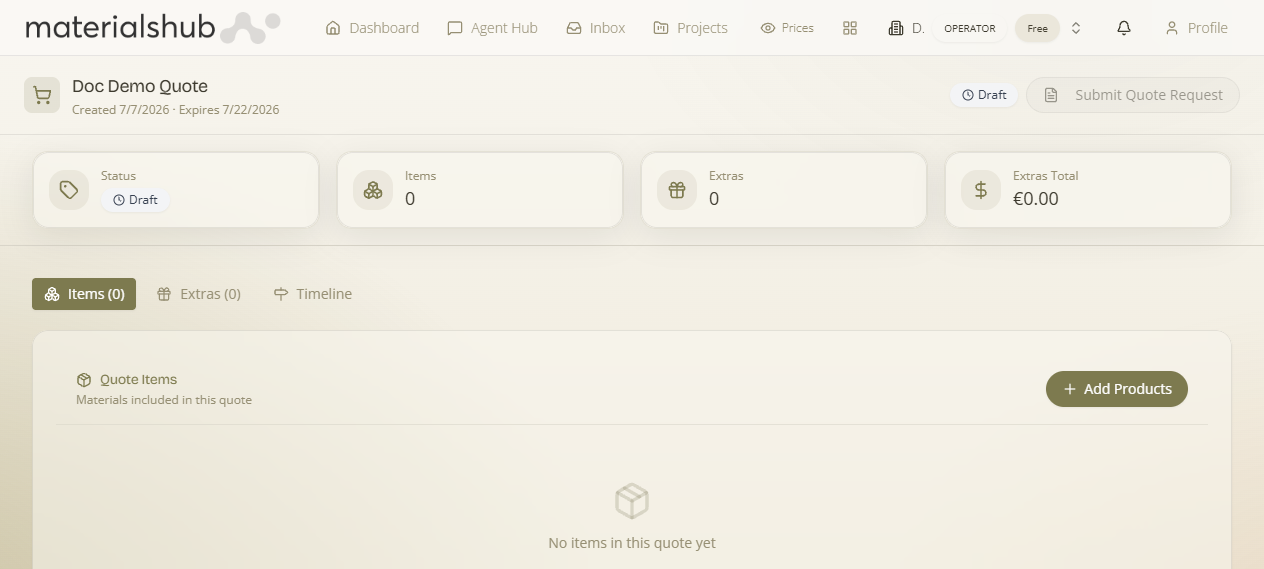
Where it is: top navigation → Quotes → open any quote (or click New Quote). You land on the quote's detail page /quotes/:id, the hub for line items, Extras, Timeline, preview and sending.
Where it is
From the top navigation → Quotes, click New Quote to create a quote from scratch, or click any row in your My Quotes list to open its detail page. The detail page lives at /quotes/:id and is where the rest of this guide takes place.
What's on the screen
The detail page is organised around the line items table plus a set of tabs and header actions:
- Quote title — editable inline; it defaults to "Untitled Quote" if you don't set one.
- Items tab — the priced line items table, the heart of the quote, with the running total.
- Extras tab — optional add-on lines presented alongside the main items.
- Timeline tab — a visual delivery/milestone timeline the customer will see.
- Header actions — Submit Quote Request, Share, Email Quote, Preview and Download PDF.
How to build and send a quote — step by step
Here is the whole flow, top to bottom. The deep sections that follow expand each step.
- Open Quotes and click New Quote. From the top navigation → Quotes, then New Quote.
- Name it, and optionally link a project. Give the quote a name, optionally add notes, and link it to a project so related work is grouped together. The title stays editable inline afterwards.
- Add line items. On the Items tab, click Add Products and add each item as either a catalogue product (Catalog Search) or a custom product (Custom Product). Set its quantity and price; the total recalculates as you go.
- Capture FF&E specs per item. Where it helps the customer, add room, dimensions, installation requirements and delivery date so the quote doubles as a spec schedule.
- Add Extras and a Timeline (optional). Use the Extras tab for add-on lines and the Timeline tab for a visual delivery/milestone plan.
- Preview the branded PDF. Open Preview /quotes/:id/preview to check exactly what the customer will receive.
- Send it. Use Email Quote or Share to deliver the quote.
- The customer accepts. They open the token-protected public page /q/:token Public with no login and accept it. After acceptance the work can flow into your Finance & Invoicing.
Creating and naming a quote
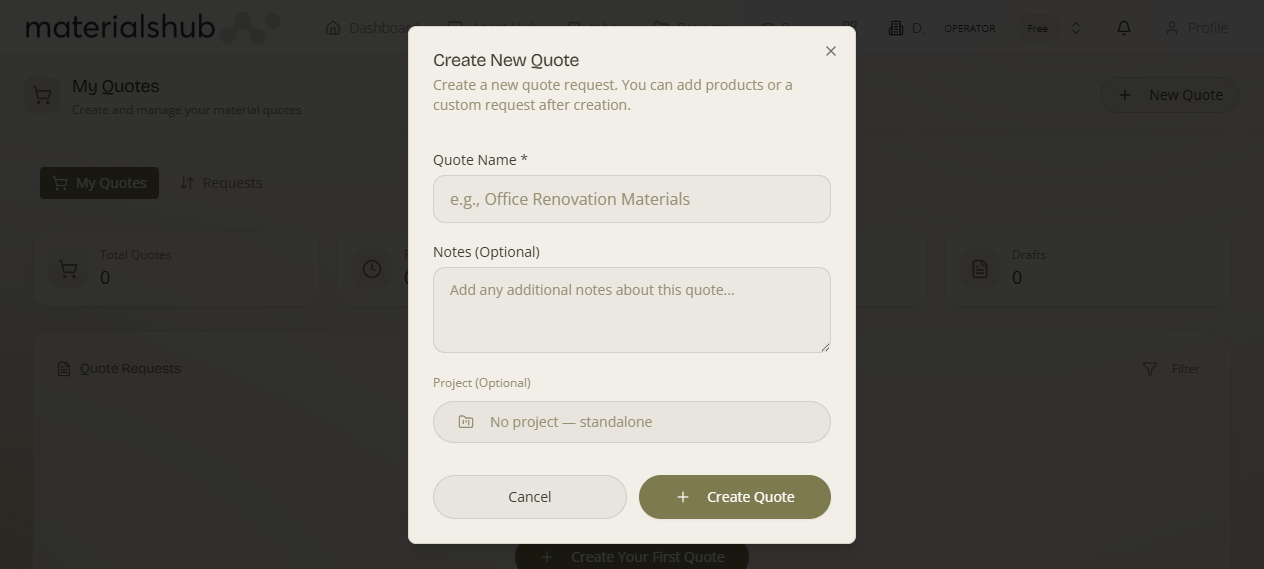
What it is — the New Quote dialog is the starting point for a quote from scratch. Why it matters — the name is how you'll recognise the quote in your list (and it appears on the document), and linking it to a project keeps related quotes, moodboards and work together. How: give it a name, optionally add notes and pick a project, then create it — you land on the quote's detail page to build it out. The title stays editable inline afterwards (it defaults to "Untitled Quote" if you don't set one).
Line items — the heart of the quote
What it is — line items are the priced rows that make up the quote, built on the Items tab. Why it matters — they are what the customer pays for and what the total is calculated from; each row also carries the spec detail that makes the quote useful as a schedule.
The items table has these columns: #, Product, Room, Qty, Price, Unit, Total and Actions. You can edit Room and Qty inline per row, and remove rows via Actions. You add items with Add Products, which offers two modes — Catalog Search and Custom Product. The two modes exist for two genuinely different situations, so it's worth knowing when to reach for each.
Catalog Search — for materials already in your knowledge base
What it is — a search across your existing catalogue. When to use it — whenever the item is a real product you've already added to MaterialsHub. Why — it reuses the data you've already captured (name, brand, material, colour and any imagery), so the line is consistent with the rest of your catalogue and you don't retype anything. How: search by name, brand, material or colour, tick the items you want, and confirm — the button shows "Add N Products" for the number you've selected.
Custom Product — for one-off items that aren't in the catalogue
What it is — a form where you type an item in by hand. When to use it — for anything that isn't (and won't be) a catalogue product: a bespoke piece, a one-off supply, a subcontracted item. Why — it lets you put a fully-specified line on the quote — including FF&E detail — without having to first create a permanent catalogue entry. How: fill the fields below and click "Add Custom Product". Every field maps to something the customer sees on the quote or the PDF, so they're worth understanding rather than skipping:
| Field | Notes |
|---|---|
| Product Name * | Required. |
| SKU / Code | Your internal code. |
| Unit | Unit of sale (e.g. piece, m², box). |
| Description | Free text. |
| Unit Price (€) | Price per unit. A "Get price" helper can propose a market price. |
| Quantity | How many units. |
| Size / Variant | E.g. dimensions/variant label. |
| Color / Finish | — |
| Room / Area | Which room the item is for (FF&E). |
| Dimensions (W×H×D) | Physical dimensions (FF&E). |
| Installation Requirements | Installation notes (FF&E). |
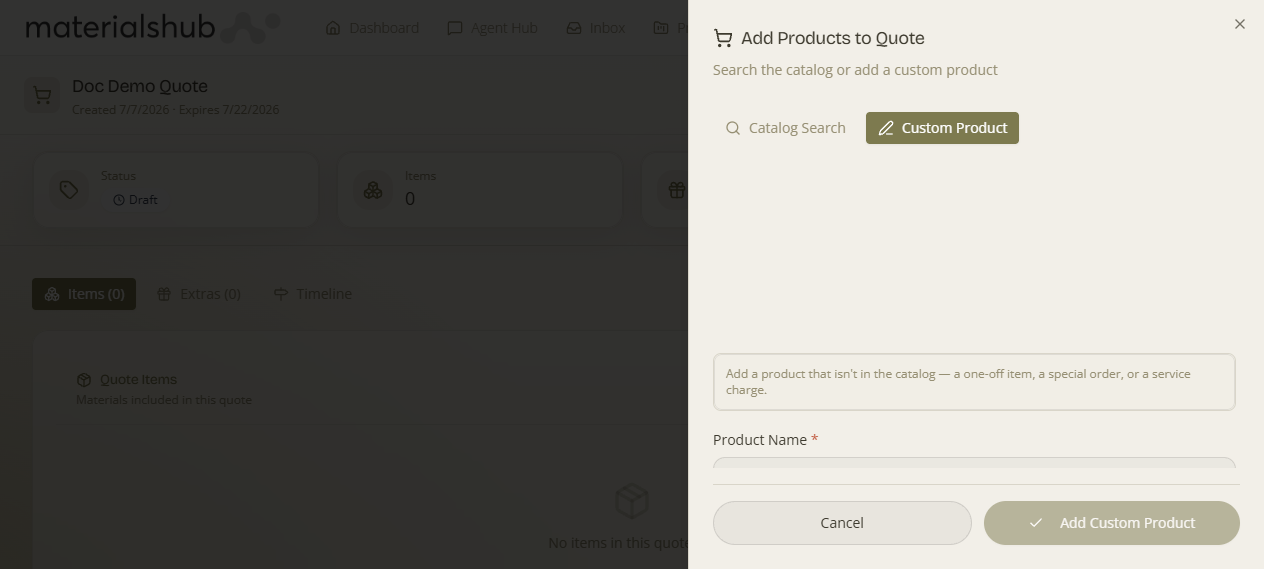
What it affects: the line on the quote and its appearance on the branded PDF. The price feeds the line total and the quote total; the "Get price" helper is there so you don't have to research a market figure yourself.
FF&E specifications per item — and where they end up
What it is — the fit-out detail you can add to any item so the quote doubles as an FF&E schedule. Why it matters — these fields are exactly what a contractor, installer or client needs to act on the quote, and they're surfaced specifically on the PDF so nothing gets lost. You can add them to catalogue and custom items alike. Each field has a clear job:
- Room — where the item belongs (the space it's specified for). It becomes a dedicated Room column on the PDF items table, so the schedule reads room by room.
- Dimensions — the size detail for the item. On the PDF, dimensions are appended to the product name so the size travels with the item wherever it appears.
- Installation requirements — what's needed to fit or install it. This is pulled into the PDF's "Specifications & Delivery" section.
- Delivery date — when it's expected on site. Also collected into the "Specifications & Delivery" section so the customer can see timing per item.
How: add the detail on the item, then expand the line to review its detail row — notes, installation requirements and delivery — so you can check everything before sending without cluttering the main table.
What it affects: the branded PDF. The Room column, the dimensions-in-name treatment, and the "Specifications & Delivery" section are all driven directly by these fields — fill them in and the schedule writes itself.
Pricing & discounts — how each line is priced
What it is — when you add a catalogue product, its price isn't typed in by hand — it's calculated for the customer on the quote using the resale pricing engine. Why it matters — the right customer gets the right price automatically, and you're stopped from quoting below cost by accident.
- Level-based price. The line starts from the catalogue cost + the category markup, then the customer's pricing level discount is applied (with any per-category override). A customer's level is set on their CRM record; with no level they get list price. (You can still edit any line manually.)
- Paid-upfront (cash) discount. If a Paid upfront (cash) custom rule applies, a dedicated cash-discount line is shown on the quote (and on the customer's public quote). When the quote becomes an invoice, that cash discount carries over.
- Cost & margin visibility. Whether a salesperson can see the underlying cost/margin on a line is gated by role — sales reps building orders may see the sell price without the cost. Finance managers see both.
- Negative-margin guardrail. If a line's price would fall below its cost, the quote flags it — you can't silently sell at a loss.
- Discount approval. If you push a discount beyond what your role is allowed (or past the guardrail), it isn't applied silently — it fans out to finance for approval (it appears under Pricing → Pending Discount Approvals). You're told it's pending; once an approver releases it, the price updates.
“Call for price” lines & upstream RFQ
What it is — a line you can't price yet because you need a supplier quote first. Why it matters — you can still put the item on the quote and get everything else moving, instead of blocking the whole quote on one unknown price. How it works: mark the line “call for price” (a first-class line state — it shows as awaiting a price rather than €0). You can then send an upstream RFQ (request-for-quote) to your supplier for those lines; while it's out, the line reads awaiting supplier, and when the supplier's price comes back the line is priced. On acceptance, the resale tree can materialise the corresponding upstream order/invoice.
Line images & thumbnails
You can upload an image for a custom line item, and item thumbnails render in the generated quote PDF — so the customer sees a picture of each product, not just a description. Catalogue lines use their existing product imagery automatically.
The quote's look — PDF Design Template Quotes → Settings
What it is — the Quotes hub now has a Settings tab with a per-workspace PDF Design Template you control yourself. Why it matters — your quotes go out looking like your brand without asking an operator to change a template — you self-serve the design and see a rendered preview before you use it. The same per-workspace template idea also covers your finance documents and published catalogues. Set it once in Quotes → Settings and every quote PDF uses it.
Extras & Timeline
Beyond the Items tab, a quote has two further tabs that round out what the customer sees.
Extras (Extras & Add-ons)
What it is — optional add-on lines beyond the main items. Why it matters — it lets you present upsells or optional extras without mixing them into the core item list, so the customer can see what's included versus what's optional. What it affects: the add-on section presented alongside the main items.
Shipping quote (freight)
What it is — a freight price added to the quote as a shipping line. How — in Extras, use “Get shipping quote”: it fetches freight offers (via SeaRates, which is operator-provided — your request routes to the platform operator, who returns the offers). Pick an offer and it's added to the quote as a shipping line item, so the customer sees delivery priced alongside the goods. Offers stay linked to the quote and appear here whenever the operator answers. See Stock Management for the shipping integrations.
Timeline (Project Timeline)
What it is — a visual delivery/milestone timeline. Why it matters — it sets expectations on when things happen, which is often as decisive as price for a customer choosing to accept. What it affects: a timeline shown to the customer on the quote.
Quote actions — sending and finalising
What it is — the buttons on the quote header that take the quote out to the customer. Why it matters — this is the hand-off: each action produces a different way for the customer to receive and act on the quote.
- Submit Quote Request — submit the quote.
- Share — produce a shareable public link (token-protected, /q/:token).
- Email Quote — email it to the customer.
- Preview — preview the branded PDF (also at /quotes/:id/preview).
- Download PDF — download the generated PDF.
The quote title is editable inline (it defaults to "Untitled Quote").
Previewing the branded PDF
What it is — a branded PDF preview at /quotes/:id/preview. Why it matters — it shows you exactly what your customer will receive, so you can catch anything missing before you send. The PDF is laid out for your customer and reflects everything you entered:
- An items table that includes a Room column, with each item's dimensions appended to the product name.
- A dedicated “Specifications & Delivery” section that pulls together the per-item notes, installation requirements and delivery dates.
- Your company branding, totals and any applicable VAT, applied from your workspace settings.
How: open Preview as often as you like while drafting — it always shows the current state of the quote. What it affects: nothing changes by previewing; it's a read-only view of the live quote.
What the customer sees at /q/:token
What it is — when you send a quote, your customer receives a link to a public, token-protected page at /q/:token Public. Why it matters — there's no friction for the customer: they don't need an account, and the link is unique to that quote so only people you share it with can see it. How it works for them: they open the page with no login required, review the items, specifications and totals, and accept (and e-sign) it directly from that page. For more on these shareable surfaces, see Public & Shared Pages.
Taking payment on a quote — deposit or in full
What it is — a customer can pay against the quote before any invoice exists. Why it matters — it's how you take a deposit to start the work (or get paid up front) without first raising an invoice and chasing it separately. How it works for them: on the public quote they're asked “How much would you like to pay?” — they can Pay in full or enter a part-payment (a deposit) and settle online. The payment is recorded against the deal, so when the invoice is raised the balance already reflects what they've paid (a fully-settled document simply reports “This document has no outstanding balance.”).
Online payments land through your connected Stripe, and the workspace's own payment receipt is emailed to the customer automatically. The same pay-a-balance experience is used on invoices and account statements.
Worked example — build a quote from a moodboard and send it
Shortcut — generate from a moodboard. Suppose you've gathered products on a moodboard for a client.
- Open the moodboard and click its Generate Quote button. The products on the board become the line items of a new quote.
- You land on the quote's detail page /quotes/:id. Set the quantity and price for each line.
- For the bespoke joinery you're supplying, click Add Products → Custom Product, fill in Product Name, Unit Price (use Get price if you want a market figure), Quantity, and the FF&E fields — Room, Dimensions (W×H×D) and Installation Requirements — then Add Custom Product.
- Open Preview /quotes/:id/preview and confirm the items table shows the Room column and the dimensions appended to each product name, plus the "Specifications & Delivery" section.
- Click Email Quote (or Share to copy a link). The customer opens /q/:token Public with no login and accepts.
What it affects
Everything you build here flows into two customer-facing outputs generated from the one quote — the branded PDF and the public page at /q/:token — so you maintain a single source of truth: edit the quote and both reflect it the next time they're opened. Once a customer accepts, the quote can flow into your back office — see Finance & Invoicing for turning accepted work into invoices and tracking what you're owed. To convert incoming customer requests into quotes that follow this same flow, see Quotes · Requests.
Quotes is a module-gated area. Administrators have additional configuration that shapes how quotes look and behave — status tags, upsells, timeline steps, PDF templates and company/VAT settings — managed in the admin area. That configuration is outside the scope of this end-user guide.