CRM · Contacts
The Contacts tab is where you keep the individual people you deal with — a buyer, an architect, a site contact, a supplier rep. A contact is not just an address-book entry: it carries its own pricing, billing and VAT details, so when Finance issues a quote or an invoice the document is already addressed to the right party with the right legal name, VAT number and terms — no re-keying, no mismatched names. This guide walks the Contacts list and every group of the New Contact form: what it captures, why it matters, how to fill it in, and what it changes elsewhere on the platform.
Where it is
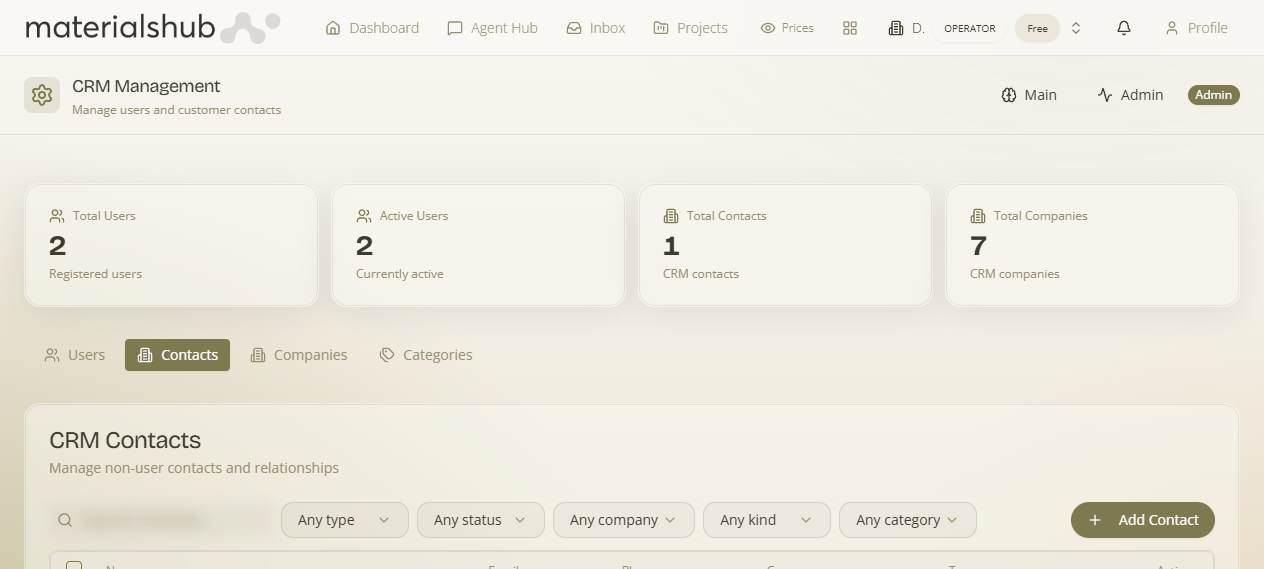
Top navigation → CRM → the Contacts tab. A toolbar Add Contact button (also labelled New Contact) opens the form, and a search box ("Search contacts…") filters the list. Clicking any row opens that person's detail page at /crm/contacts/:id.
What the list shows
What it is — a table of every contact on file, one person per row. Why it matters — it's your at-a-glance read of who you deal with, and the starting point for editing a record or raising a document against it. Each row carries the person's headline details, with per-row Actions.
| Column | What it shows |
|---|---|
| Name | The person's name. |
| Primary email address. | |
| Phone | Phone number. |
| Company | The business the contact is attached to (shown by name — it links through to that company's Account). |
| Type | The contact type. There's a Type filter (plus filters for status, company, kind and category) above the list. |
| Actions | Per-row actions to manage the contact. |
The contact detail page — Activity, notes & attached business
What it is — opening a contact shows a two-column layout (with collapsible sidebar sections) where the main column is a unified Activity feed.
- Activity feed + inline notes. The contact's quotes, invoices and notes appear together in one time-ordered feed, and you add a note inline right there — there's no separate Notes tab anymore.
- Role & Birthday on the contact. The customer/supplier Role sits in Contact Information (and is inherited from an attached business), and there's a Birthday field.
- Attached to a business → financials roll up. When a contact is attached to a company, their financial tabs (invoices/payments/balance) are hidden in favour of a “Check Company” link, and quotes/orders roll up to the business Account — so one customer's money lives in one place, not split between the person and their company. A solopreneur contact can be promoted to a business when they grow.
How to add a contact
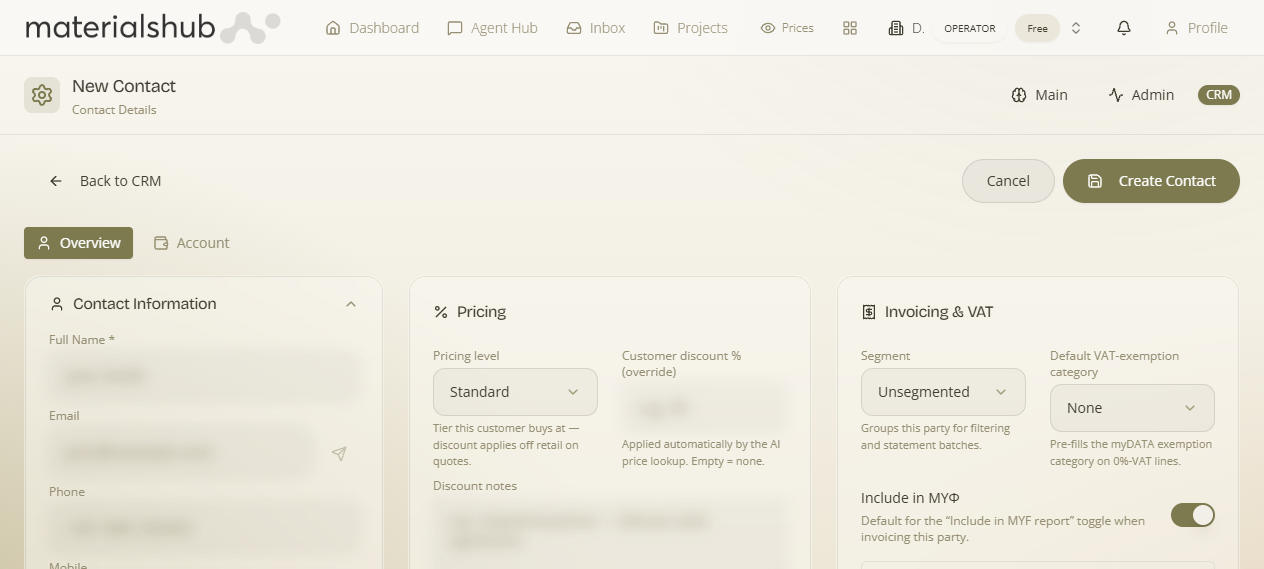
The New Contact form is organised into groups. Required fields are marked with *. The quick path is short; the field-by-field walkthrough below explains every group.
- Open CRM from the top navigation and go to the Contacts tab.
- Click Add Contact (also labelled New Contact) to open the New Contact form.
- Fill in Full Name (required) under Contact Information, then add Email, Phone and any other details you have.
- Work down the groups that apply — Lead Information, Address, Linked User Account, Pricing, Invoicing & VAT, Tax & VAT and Role.
- Optionally assign a category to segment the contact and link them to a company.
- Save. The person is now on file and can be linked to companies, quotes and projects.
The contact form group by group
Each group below explains what it captures, why you'd fill it in, and where the data surfaces elsewhere on the platform.
Contact Information
What it is — the basic identity of the person. Why it matters — the name is what addresses every document and what you search on; title and department help you reach the right person inside a larger organisation.
| Field | Notes |
|---|---|
| Full Name * | Required — the person's name. |
| Primary email address. | |
| Phone | Landline / main phone number. |
| Mobile | Mobile number. |
| Position/Title | Job title or role. |
| Department | Department within their organisation. |
Lead Information
What it is — where the contact sits in your sales pipeline and how they reached you. Why it matters — tracking lead status and source lets you tell a hot prospect from a cold one, and shows which channels actually bring you business.
| Field | Notes |
|---|---|
| Lead Status | Where the contact sits in your pipeline. A managed dropdown (no free text) so everyone uses the same stages. |
| Lead Source | How the contact came to you. Also a managed dropdown, so your source list stays clean and reportable. |
| Created | Set automatically when the record is saved. |
Address
What it is — the contact's physical/postal address. Why it matters — it's used for correspondence and delivery, and is distinct from the dedicated billing address in the Invoicing & VAT group below — the place you write to isn't always the legal address you bill.
| Field | Notes |
|---|---|
| Street Address | Street and number. |
| City | City / town. |
| Postal Code | Postcode. |
| State/Province | Region / state / province. |
| Country | Country. |
| Sub Units | Additional address sub-units (e.g. floor, suite). |
Linked User Account
What it is — the bridge between a CRM contact (a record) and a platform user (a login). Why it matters — linking lets the person you deal with actually use the platform — for example a dealer who needs to see their own portal, or a client you give access to a shared project. You can attach an existing login or create one on the spot.
| Field | Notes |
|---|---|
| Search by email | Search for and link an existing platform user to this contact. |
| Create & Invite User | Create a login for this contact, inviting them as a user. |
How to link a contact to a login (Create & Invite User)
- In the New Contact form (or on an existing contact's record), go to the Linked User Account group.
- If the person already has a login, use Search by email to find and attach it.
- If they don't, click Create & Invite User — this creates a login for the contact and invites them in as a user, so the record you keep and the person who logs in are the same.
- Save. The contact and the user are now the same person on the platform.
What it affects elsewhere: a linked user appears in the CRM → Users tab; if you grant them the dealer or factory role there, they automatically fall into the role-linked categories (Dealer Accounts / Factory Accounts).
Pricing
What it is — the commercial terms you've agreed with this contact. Why it matters — a default discount % is applied automatically so you don't re-negotiate on every quote, and a credit limit protects you from over-extending an account — Finance can warn or even block an invoice that would push the buyer past it.
| Field | Notes |
|---|---|
| Default discount % | Discount applied by default for this contact. |
| Credit limit | Credit limit on the account. |
| Discount notes | Free-text notes about the discount arrangement. |
Why set a credit limit? The limit you enter here drives the "Warn / Block when the invoice pushes the buyer over their credit limit" rules in Finance settings → General — so a single number on the contact record becomes an automatic guard-rail at invoice time, rather than something you have to remember and check by hand.
Invoicing & VAT
What it is — the dedicated billing identity used when you issue a document to this contact. Why it matters — the billing name, VAT (ΑΦΜ), tax office and billing address printed on an invoice can legitimately differ from the day-to-day contact details — this group is what guarantees the document is legally addressed. The Segment and VAT-exemption choices decide which pricing tier and which tax treatment apply, and Include in ΜΥΦ governs Greek clientele reporting.
| Field | Notes |
|---|---|
| Segment | Customer segment (e.g. Unsegmented). Managed in Finance settings. |
| Default VAT-exemption category | The default VAT-exemption category. See Finance settings. |
| Include in ΜΥΦ | Include this contact in the Greek MyData clientele list (ΜΥΦ). Turn this on for parties whose transactions must be reported in your clientele summary. |
| Billing name | Name to bill under. |
| Billing VAT (ΑΦΜ) | VAT number for billing. |
| Tax office (ΔΟΥ) | Greek tax office. |
| Country code | Billing country code. |
| Street | Billing street. |
| Number | Billing street number. |
| Postal code | Billing postcode. |
| City | Billing city. |
Why set a Segment? The segment is what decides which pricing tier the contact is treated under, so setting it once here means quotes and invoices apply the right tier automatically instead of you choosing it each time. Segments are defined in Finance settings.
Why set ΜΥΦ? Greek MyData requires a clientele summary (ΜΥΦ) of the parties you transact with. Marking a contact Include in ΜΥΦ here is what makes their transactions appear in that summary, so the reporting is complete and correct without manual list-keeping.
What it affects elsewhere: these billing details flow straight onto issued documents in Finance; the segment and VAT-exemption come from Finance settings.
Tax & VAT
What it is — the contact's tax identity, separate from the billing-specific VAT above. Why it matters — it records the person's VAT number and tax office for reference and validation, distinct from the dedicated billing VAT you'd print on a document.
| Field | Notes |
|---|---|
| VAT number | The contact's VAT number. |
| Tax office | The contact's tax office. |
Role
What it is — which side of the relationship this contact sits on. Why it matters — marking a contact as a supplier is what makes them eligible to appear on the purchases/payables side of Finance (and on the Business page's supplier overview), while marking them a customer puts them on the sales/receivables side. Both can apply at once for a party you buy from and sell to.
| Field | Notes |
|---|---|
| This is a supplier | Mark the contact as a supplier. |
| This is a customer | Mark the contact as a customer (either or both can apply). |
| Contact type | The kind of contact. |
Why mark is supplier? Payables, expense documents and the supplier account overview only pull from parties flagged as suppliers — so this single checkbox is what connects a contact to everything you owe and pay.
Editing a contact
Click any row in the Contacts list (or use the per-row Actions) to open the contact's detail page at /crm/contacts/:id. This is where the whole relationship lives in one view. From there you can:
- Edit core information — name, email, phone, address, VAT/tax details, pricing and notes — using the same grouped form described above.
- Assign categories — apply the segment labels you defined in the Categories tab, so the contact joins the audiences used for outreach.
- Link or change the login — attach an existing user, or use Create & Invite User to give the person access.
- See associated records — the company the contact belongs to, and the documents and activity tied to them, so the whole relationship is in one place.
What a contact affects elsewhere
- Quotes & invoices — the Invoicing & VAT group (billing name, ΑΦΜ, ΔΟΥ, billing address) is exactly what prints on a document in Finance; the Pricing group's default discount and segment pre-fill the commercial terms.
- Credit control — the credit limit drives the warn/block rules in Finance settings → General.
- Payables — a contact flagged This is a supplier becomes available on the purchases/payables side and the supplier account overview.
- Greek clientele reporting (ΜΥΦ) — Include in ΜΥΦ adds the contact's transactions to your MyData clientele summary.
- Platform access — a contact linked via Create & Invite User appears in CRM → Users with a manageable role and subscription.
Worked example — adding a customer who can also log in. Open CRM → Contacts → Add Contact. Under Contact Information enter the buyer's Full Name, Email and Phone. In Pricing set a Default discount % you've agreed and a Credit limit so Finance can guard the account. In Invoicing & VAT fill the Billing name, Billing VAT (ΑΦΜ), Tax office (ΔΟΥ) and billing address, pick the right Segment, and (for a Greek customer) switch on Include in ΜΥΦ. Under Role tick This is a customer. Finally, in Linked User Account click Create & Invite User so they get a login to the shared project. Save. The person is now a billing-ready customer whose invoices are correctly addressed, capped to their credit limit, reported in your ΜΥΦ — and who can log in to the platform.
For the other CRM tabs (Users, Companies, Categories) and the Greek ΑΑΔΕ company lookup, see CRM. For what happens once you invoice a contact, see Finance & Invoicing; for the segments, VAT-exemption categories and credit-limit rules referenced above, see Finance settings.