CRM · Companies
The Companies tab is where you keep the organisations you trade with — your customers, suppliers and partners. A company is your billing counter-party: the legal name, address and VAT number you confirm here are exactly what prints on an invoice, so this is the record that makes your documents legally correct. It is also where the Greek business-registry lookup (ΑΑΔΕ) and the EU VIES VAT validation live, and where you decide whether a company sits on your sales side, your purchases side, or both. This guide walks the list, the New Company form group by group — what each captures, why it matters, how to fill it in, and what it changes elsewhere on the platform.
Where it is
Top navigation → CRM → the Companies tab (alongside Users, Contacts and Categories). A toolbar Add Company button creates a new organisation, and a search box ("Search companies…") filters the list. Clicking any row opens that company's own detail page at /crm/companies/:id.
How to open it: top navigation → CRM → Companies tab. To add one, click Add Company on the toolbar.
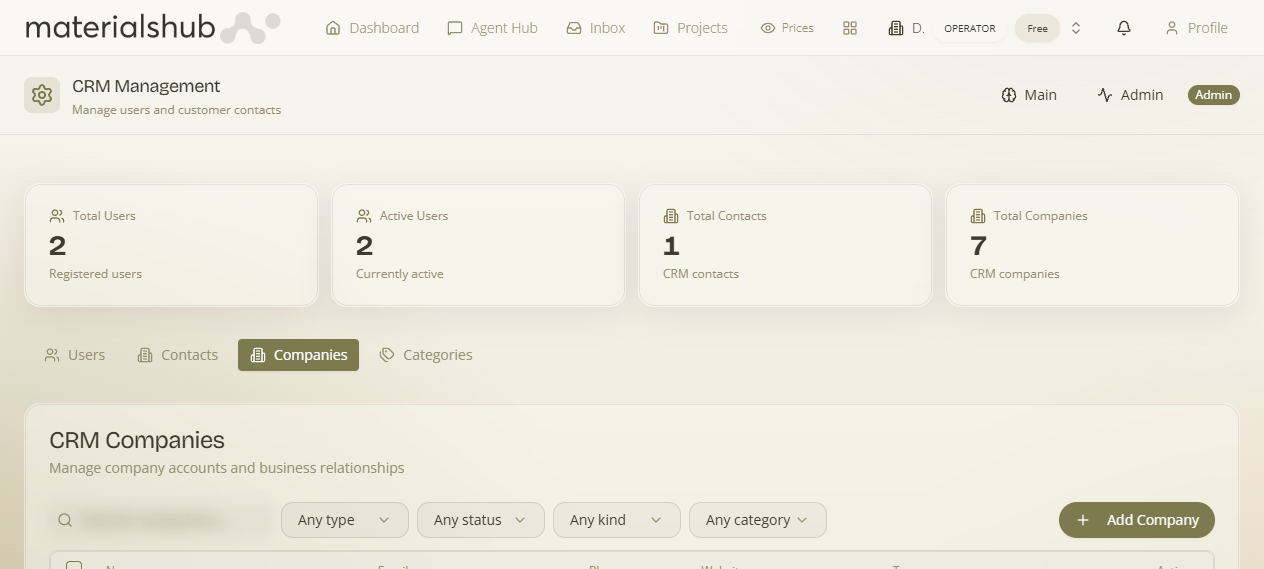
What this tab is for
What it is — the tab for managing company accounts and business relationships. Why it matters — a company is your billing counter-party. The legal name, address and VAT number you confirm here are exactly what appears on an invoice, so this is the record that makes your documents legally correct. It's also where the Greek registry lookup and the EU VIES validation live, so getting a company on file properly means no re-typing, no mismatched names, and no rejected myDATA submissions because a VAT number was wrong.
The company detail page — the Account tab
What it is — clicking a company opens its detail page, where a company is treated as an Account you trade with over time. Its tabs are Overview, Contacts, Social, Notes and — the financial one — Account. Orders drive the Account, so everything money-related lives together on the one Account tab:
| On the Account tab | What it shows |
|---|---|
| Account balance & ledger | The running Account balance (what they owe you, or you owe them) plus a ledger overview — the money summary for the whole relationship. (“Account balance” is what used to be labelled “net”.) |
| Payment Rules | This customer's pricing level and per-customer overrides (credit limit, payment terms, minimum order) — see the Pricing & Payment Rules section below. |
| Expected payments | Per-customer scheduled/expected payments you can tick off when paid — so you can see what's due from this account and mark it received. |
| Orders | Every order for this company, inline. Invoices, payments and profit live per order (open an order to see them), so this is the company's order history and the source of the balance above. |
The detail page uses a two-column layout with collapsible sidebar sections, and a unified Activity/Notes view records what's happened.
Business vs solopreneur. A contact who runs a business can be promoted to (or linked with) a business Account; when that happens, the financials (orders, invoices, balance) roll up to the business rather than the individual, and the individual contact's financial tabs are hidden in favour of a “Check Company” link to the Account. This keeps one customer's money in one place instead of split across a person and their company.
The Companies list
Each row carries the company's headline details, with per-row Actions to manage it. The columns are:
| Column | What it shows |
|---|---|
| Name | The organisation's name. |
| Company email address. | |
| Phone | Company phone number. |
| Website | Company website. |
| Industry | Industry the company operates in. |
| Created | When the company was added. |
| Actions | Per-row actions to manage the company. |
How to add a company and enrich it from ΑΑΔΕ
- Open CRM from the top navigation and go to the Companies tab.
- Click Add Company and enter its core details (at minimum, the Company Name).
- For a Greek company, enter its ΑΦΜ (VAT number).
- Run the ΑΑΔΕ lookup to auto-fill the legal name, registered address, tax office (ΔΟΥ), activity codes (ΚΑΔ) and status from the official tax-authority registry.
- For an EU company, use Validate (VIES) to verify the VAT number before you trade on credit or issue documents.
- Set the Role — mark the company a supplier, a customer, or both.
- Save. The confirmed billing details flow straight through to documents in Finance.
Greek business lookup (ΑΑΔΕ / myAADE)
What it is — a one-click pull of a Greek company's official profile from the tax-authority registry (ΑΑΔΕ), using the company's ΑΦΜ. Why it matters — typing legal details by hand invites typos that get a myDATA submission rejected; the registry is the source of truth, so this is the recommended way to validate a VAT number before invoicing a Greek customer or supplier. On a company's detail page, enter the ΑΦΜ and run the lookup; the platform retrieves and fills:
- Legal name and commercial title.
- Registered address — street, number, postcode and city.
- Tax office (ΔΟΥ).
- Activity codes (ΚΑΔ) — the company's primary and secondary business activities.
- Status — whether the VAT number is active or has been deactivated.
What it affects elsewhere: the same registry data underpins Greek e-invoicing — see Greek e-invoicing for how invoices are transmitted to myDATA / ΑΑΔΕ, and note that Finance settings → General can block issuance against a VAT number the registry shows as inactive.
Lookups are cached for about 90 days. Once you've fetched a company's details, repeating the lookup within that window is instant and doesn't re-contact the registry — so there's no penalty for re-opening a record.
Each fresh lookup writes a notification to the looked-up company's TaxisNet inbox. This is required by tax-authority policy and can't be turned off. For that reason the lookup is meant for verifying your own business or a legitimate customer/supplier you actually trade with — not for researching arbitrary companies.
Company fields in detail
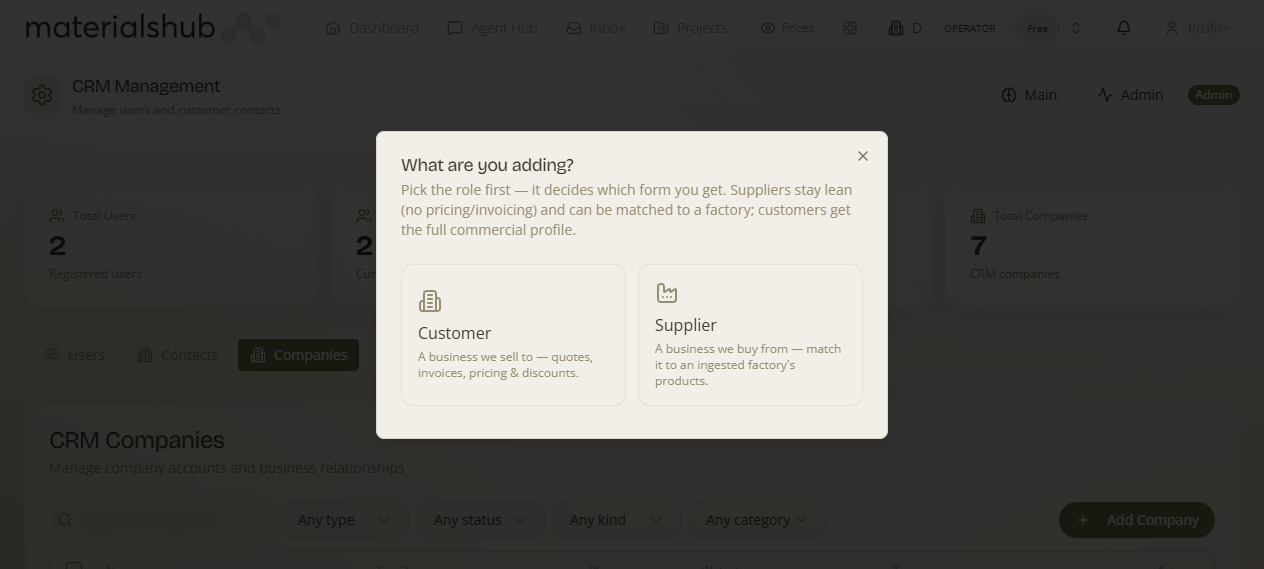
The New Company form is organised into groups. Required fields are marked with *. Each group below explains what it captures, why you'd fill it in, and where the data surfaces.
Company Information
What it is — the organisation's identity and profile. Why it matters — the name is what prints on documents and what you search on; the profile fields (industry, size, revenue) help you understand and segment the account.
| Field | Notes |
|---|---|
| Company Name * | Required — the organisation's name. |
| Industry | Industry the company operates in. |
| Company email address. | |
| Phone | Company phone number. |
| Website | Company website. |
| Employee Count | Number of employees. |
| Annual Revenue | Reported annual revenue. |
| Description | Free-text description of the company. |
Tax & VAT
What it is — the company's tax identity and the EU VAT-validation button. Why it matters — Validate (VIES) confirms an EU VAT number is real and active before you extend credit or issue cross-border documents, cutting the risk of a rejected or non-compliant invoice.
| Field | Notes |
|---|---|
| Country Code | Country code for the VAT number. |
| VAT Number | The company's VAT number. |
| Tax Office | The company's tax office. |
| Validate (VIES) | Button to verify EU VAT numbers via VIES. See Greek e-invoicing for related VAT validation. |
How to validate a VAT number with VIES
What VIES is — the EU's official VAT Information Exchange System. The Validate (VIES) button checks the company's VAT number against that system and confirms it is real and active. Why validate — before you extend credit or issue a cross-border document, you want to be sure the counter-party's VAT number is genuine; an invalid number can mean a rejected or non-compliant invoice. (For Greek ΑΦΜs, the ΑΑΔΕ lookup above does the equivalent against the national registry.)
- Enter the company's Country Code and VAT Number.
- Click Validate (VIES).
- If it checks out, the number is confirmed valid; record it as the company's billing VAT.
- Save.
Address
What it is — the company's physical/registered address. Why it matters — it's the correspondence and delivery address, and the basis for the billing address used on documents.
| Field | Notes |
|---|---|
| Street Address | Street and number. |
| City | City / town. |
| State/Province | Region / state / province. |
| Postal Code | Postcode. |
| Country | Country. |
| Sub Units | Additional address sub-units (e.g. floor, suite). |
Pricing & Payment Rules
What it is — the company's commercial terms: which pricing tier it buys at, and its payment/credit rules. Why it matters — the Pricing Level decides the standing discount this customer gets on every quote (via the resale pricing engine), and the Payment Rules let you override the workspace defaults for this one account — so Finance can guard against over-extending it.
| Field | Notes |
|---|---|
| Pricing Level | The customer tier (e.g. Importer) — applies that level's discount, defined in Settings → Pricing. Leave unset to use the default level / list price. |
| Default discount % | An ad-hoc discount applied by default for this company (on top of / instead of the level). |
| Credit limit / balance hold | How much this customer may owe before the credit check trips — overrides the General default. |
| Payment terms (days) | This customer's payment window — overrides the General default. |
| Minimum order value | The smallest order accepted for this customer — overrides the General default. |
| Discount notes | Free-text notes about the arrangement. |
What it affects elsewhere: the Pricing Level prices every catalogue line on this customer's quotes; the credit limit, payment terms and minimum order override the order & credit rules defaults in Finance settings → General (which can warn, block, or raise an approval for issuance).
Invoicing & VAT
What it is — the company's dedicated billing identity used when you issue a document to it. Why it matters — the billing name, VAT (ΑΦΜ), tax office and billing address printed on an invoice can legitimately differ from the day-to-day company details — this group is what guarantees the document is legally addressed. The Segment and VAT-exemption choices decide which pricing tier and which tax treatment apply, and Include in ΜΥΦ governs Greek clientele reporting.
| Field | Notes |
|---|---|
| Segment | Customer segment (e.g. Unsegmented). Managed in Finance settings. |
| Default VAT-exemption category | The default VAT-exemption category. See Finance settings. |
| Include in ΜΥΦ | Include this company in the Greek MyData clientele list (ΜΥΦ). Turn this on for parties whose transactions must be reported in your clientele summary. |
| Billing name | Name to bill under. |
| Billing VAT (ΑΦΜ) | VAT number for billing. |
| Tax office (ΔΟΥ) | Greek tax office. |
| Country code | Billing country code. |
| Street | Billing street. |
| Number | Billing street number. |
| Postal code | Billing postcode. |
| City | Billing city. |
Why set ΜΥΦ? Greek MyData requires a clientele summary (ΜΥΦ) of the parties you transact with. Marking a company Include in ΜΥΦ here is what makes their transactions appear in that summary, so the reporting is complete and correct without manual list-keeping.
What it affects elsewhere: these billing details flow straight onto issued documents in Finance; the segment and VAT-exemption come from Finance settings.
Role — supplier vs customer
What it is — which side of the relationship the company sits on. Why it matters — marking a company a supplier is what feeds it into payables, expense documents and the supplier account overview on the Business page; marking it a customer puts it on the sales/receivables side. Both can apply at once for a party you buy from and sell to.
| Field | Notes |
|---|---|
| This is a supplier | Mark the company as a supplier. |
| This is a customer | Mark the company as a customer (either or both can apply). |
Why mark is supplier? Payables, expense documents and the supplier account overview only pull from parties flagged as suppliers — so this single checkbox is what connects a company to everything you owe and pay. Likewise is customer is what puts the company on the receivables side, so it can carry quotes, sales documents and the invoices you raise.
Worked example — onboarding a Greek supplier you'll buy on credit
Open CRM → Companies → click Add Company. Type the supplier's name into Company Name, then put their ΑΦΜ in the Tax & VAT group and run the ΑΑΔΕ lookup — the legal name, registered address, ΔΟΥ, ΚΑΔ activity codes and active/inactive status fill in from the registry, so you don't risk a typo. Confirm the Invoicing & VAT billing identity (billing name, ΑΦΜ, ΔΟΥ, billing address) and set Include in ΜΥΦ on so their transactions appear in your Greek clientele summary. Agree terms in Pricing — say a default discount and a credit limit. Finally, in Role, tick This is a supplier. Save. The company now appears on the purchases/payables side and in the Business page's supplier overview, and its confirmed billing details flow straight onto the bills you record against it in Finance.
The company detail page
What it is — the full record behind a list row, at /crm/companies/:id. Why it matters — this is where the whole relationship lives in one view, and where you apply the segments and confirm the billing details that the rest of the platform reads. From there you can:
- Edit core information — name, email, phone, address, VAT/tax details, notes.
- Run the ΑΑΔΕ lookup and the VIES validation — fetch or re-confirm the company's registry profile and EU VAT status.
- Assign categories — apply the segment labels you defined in the CRM Categories tab.
- See associated records — the contacts linked to the company, and the documents and activity tied to it, so the whole relationship is in one view.
A company's billing details flow straight through to documents, so the legal name, address and VAT number you confirm here are exactly what appears on an invoice in Finance.
The Validate (VIES) button on a company verifies EU VAT numbers; for Greek customers and suppliers, VAT validation also feeds Greek e-invoicing. Segments and VAT-exemption categories used in the Invoicing & VAT group are configured in Finance settings. For the rest of the CRM — Users, Contacts and Categories — see CRM.
Permissions
Access to the CRM is gated by the crm.view capability — users without it won't see this area, including the Companies tab.