Documents · Credit notes
A credit note is the document that credits or refunds an amount against an invoice you already issued. It sits on its own tab alongside Invoices, Receipts and Expenses, and it's how you correct a sale without deleting a legal record. This guide covers where the tab lives, how to read the list, how to create a credit note step by step, when and why you'd issue one, a worked example, and what it affects elsewhere.
Where it is
Top navigation → Finance → the Credit notes tab (in the row of document tabs alongside Invoices, Receipts, Payments, Expenses and Delivery notes). Each tab is one document type; they share the same look and toolbar concepts.
Before you issue your first document, set up Finance Settings — your business identity and a numbering series per document type. Those settings supply the issuer details and the legal sequential number you'll use here.
When and why to issue a credit note
Reach for a credit note when there's a return, a price correction, or a cancelled order where the original invoice is a legal record you can't simply delete. A credit note doesn't erase the original invoice — it counter-balances it. Both documents stay on file, which is exactly what the tax authority expects.
A credit note doesn't erase the original invoice — it counter-balances it. Both documents stay on file, which is exactly what the tax authority expects.
The list view
What it is — the list of every credit note you've raised. When you'd use it — to issue a credit against an invoice, or to find and re-open a past credit note. How — click New to start one, then choose the Type and Reason and link the original invoice in the Invoice field so the credit offsets the right document.
Toolbar: New.
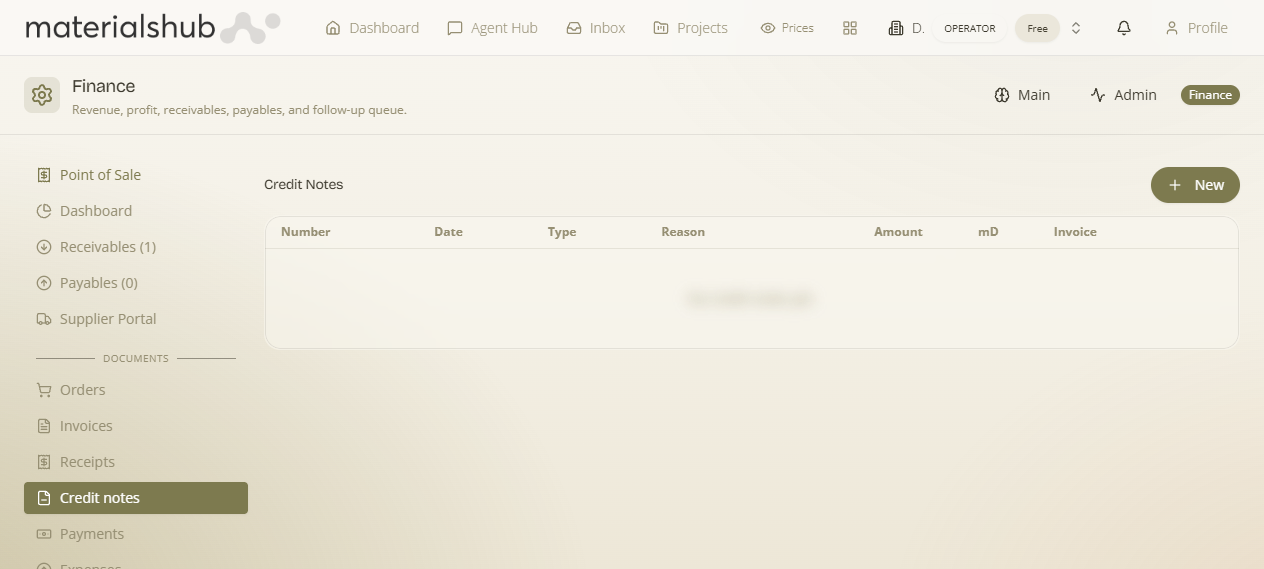
The columns let you read each credit note at a glance — note the Invoice column (the invoice it offsets) and mD (whether it has reached the tax authority):
| Column | What it shows |
|---|---|
| Number | The credit note number. |
| Date | The issue date. |
| Type | The credit note type. |
| Reason | The reason for the credit. |
| Amount | The credited amount. |
| mD | The myDATA transmission status — whether the document has been transmitted to the tax authority (ΑΑΔΕ). |
| Invoice | The invoice this credit note offsets. |
How to create a credit note — step by step
- Open Finance from the top navigation, then select the Credit notes tab.
- Click New to start a credit note.
- Choose the Type.
- Enter the Reason for the credit.
- Link the original invoice in the Invoice field so the credit offsets the right document.
- Save; issue/transmit when ready.
Worked example — crediting a returned item. A customer returns goods from an invoice you already issued. Open Finance → Credit notes → click New → set the Type → write the Reason ("returned goods") → pick the original invoice in the Invoice field. The credit note counter-balances that invoice, and both documents stay on file.
What it affects elsewhere
A credit note offsets the invoice it's linked to rather than deleting it — the Invoice column records which document it counter-balances, and the mD column reflects its myDATA transmission status to ΑΑΔΕ / myDATA. The original invoice remains on file as a legal record.
See also: Financial Documents, e-invoicing and Finance settings.