Receivables & Payables · Payables
Payables is the mirror image of Receivables — the "who you owe" ledger. It lists money going out: open supplier bills plus un-invoiced payables like rent, utilities and advances, laid out by how overdue each is. Seeing your outgoings by age lets you plan cash, pay on time, and avoid late-payment problems with suppliers.
Where it is
Top navigation → Finance → the Payables tab.
What's on the screen
Same layout as Receivables — aging buckets on top, then the toolbar, then the list.
- Aging buckets — the same five tiles, each with a € total and a bill count: Current, 0–30 days, 31–60 days, 61–90 days and 90+ days. Here they tell you what to pay next, oldest first. Click a bucket to focus the list on just those rows.
- Toolbar — Supplier credit note and New supplier bill buttons, an All categories filter, and a search box ("Search supplier / bill #…").
- The list — one row per bill or payable, with the columns described below.
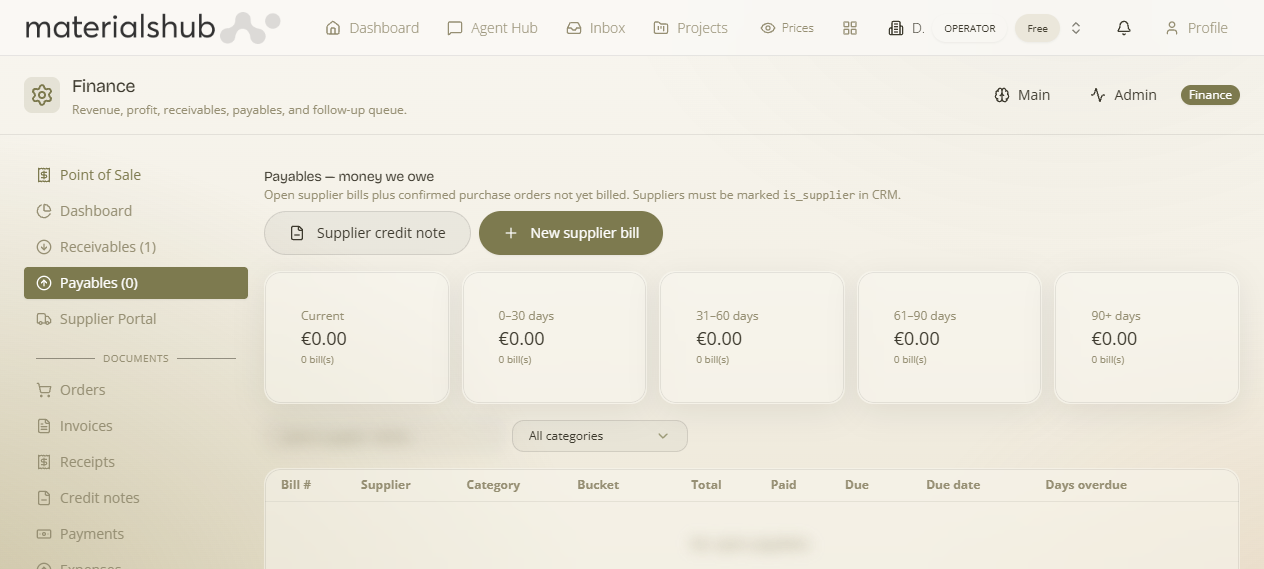
How to read each row — work the buckets exactly as on Receivables, but to prioritise what to pay next rather than who to chase:
| Column | Description |
|---|---|
| Bill # | Supplier bill / payable number. |
| Supplier | The party you owe. |
| Category | Expense/payable category. |
| Bucket | Aging bucket (Current, 0–30, 31–60, 61–90, 90+). |
| Total | Total amount of the bill. |
| Paid | Amount paid so far. |
| Due | Amount still outstanding. |
| Due date | When payment is due. |
| Days overdue | How many days past the due date. |
Suppliers must exist in CRM first: a company only appears in the supplier picker here if it's marked is_supplier in CRM → Companies. If a supplier isn't showing, that flag is usually why — set it on the company record, then come back.
How to add a supplier bill
- Click New supplier bill for a supplier invoice. (You can also record one straight from a purchase order with Record supplier bill.)
- Pick the supplier (it must be marked is_supplier in CRM to appear), the expense category, and enter the amount and the due date.
- If a supplier has issued you a credit, use Supplier credit note instead so it offsets what you owe.
- When you pay it, record the outgoing — the row's Due reduces and it moves toward Current/cleared.
Changed in 2026-06: the old “Add payable” for an un-invoiced cost has been removed — payables now always trace to a real supplier bill (or a purchase order), so the tab stays in step with your documents. Day-to-day running costs like rent or utilities go in as Expenses.
How to pay down by age — using the aging buckets
- Read the buckets from the right: 90+ days first, then 61–90, then 31–60 — the oldest unpaid bills are where late-payment problems start.
- Click a bucket to focus the list, and use the search box or All categories filter to group bills by supplier or expense type.
- Open a row to act on the bill, record the payment, and watch its Due fall as it moves back toward Current.
Worked example — clearing the oldest supplier debt. Open Payables → click the 90+ days bucket to surface the most overdue bills → if one of those suppliers gave you a credit, click Supplier credit note to offset it first, then pay the remainder. Each settlement reduces the row's Due and pulls it out of the 90+ bucket, lowering the payables total on the Dashboard.
What it affects elsewhere
The payables total on the Dashboard is the sum of the Due column here. Supplier credit notes and recorded payments both reduce it, so the overview always reflects what you still owe.