Documents · Orders
An Order is the spine of a deal. Instead of tracking a quote, an invoice, payments and a delivery as separate, disconnected documents, an order ties them together: invoices, payments, dispatch and profit all hang off the one order. Open an order and you see, in one place, what was sold, what's been invoiced, what's been paid, what's left to deliver, and what you actually made on it. This page explains what orders are, the two kinds, their statuses, and how to create and work one.
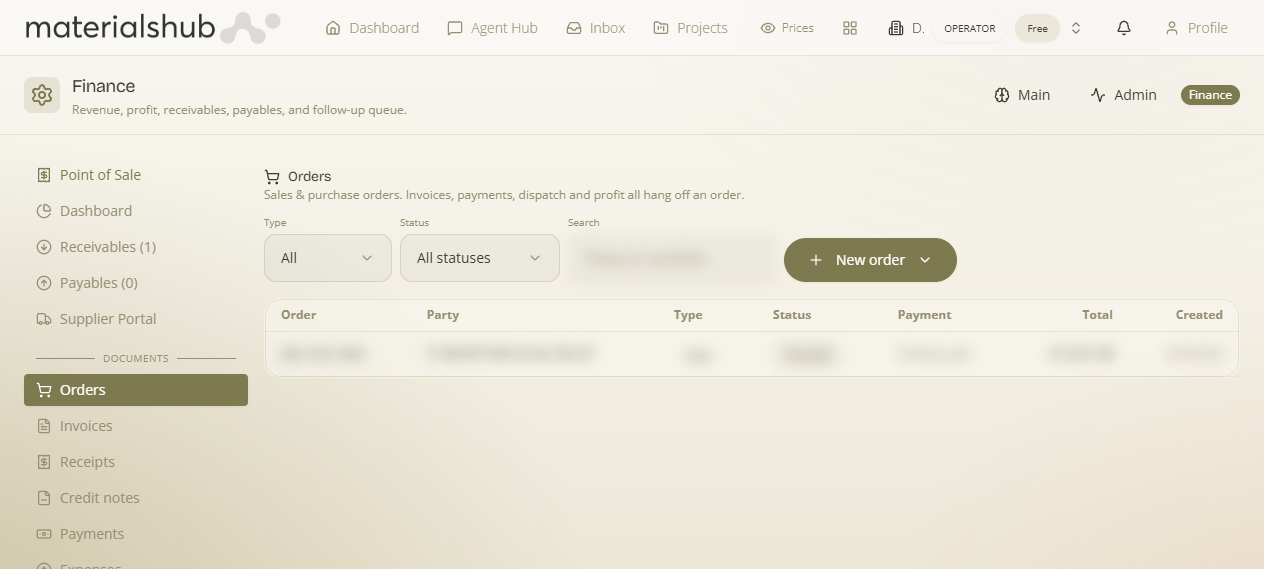
Where: top navigation → Finance → the Orders tab (the first tab in the Documents area). A company's own orders also appear on its CRM record under the Account tab.
Sales orders vs purchase orders
Every order is one of two types, chosen when you create it:
| Type | What it is | Party |
|---|---|---|
| Sales | Something you're selling to a customer. | A customer (company / contact). |
| Purchase | Something you're buying from a supplier. | A supplier (company / contact). |
The two statuses on every order
An order carries a fulfilment status (how far along delivery is) and a payment status (how much has been paid) — kept separate because a deal can be paid but not yet delivered, or delivered but not yet paid.
Fulfilment status
| Status | Meaning |
|---|---|
| Pre-order | Drafted, not yet confirmed — still editable. |
| Confirmed | Agreed and committed. |
| Partially delivered | Some lines (or quantities) have shipped, not all. |
| Completed | Fully delivered. |
| Cancelled | Called off. |
Payment status
| Status | Meaning |
|---|---|
| Unpaid | Nothing paid yet. |
| Partially paid | Some payment received/made. |
| Paid | Settled in full. |
What's on the screen
- Type filter — All / Sales / Purchase.
- Status filter — All statuses, or one of the fulfilment statuses above.
- Search — by party (customer/supplier) or order number (“Party or number”).
- The list — columns for Order (number), Type, Party, Status, Payment, Total and Created.
- New order menu — a dropdown with New sales order, New purchase order, and New pre-order (a sales order that starts in the Pre-order state). Each opens the create modal pre-set to that kind.
How to create an order — step by step
- Open the New order menu and pick New sales order, New purchase order or New pre-order.
- Pick the party (the Customer for a sales order, or the supplier for a purchase order — searchable; a contact who belongs to a business is attributed to that business, like quotes/invoices). Choose the Currency (defaults to EUR) and optionally link a Project.
- Add Items. Type to search the catalogue and pick a product, or type a new product name for an off-warehouse line. Per line set Qty, a Unit of measure (item / m² / kg …), the price, and VAT.
- Click Create. The order appears in the list with its number and a starting state.
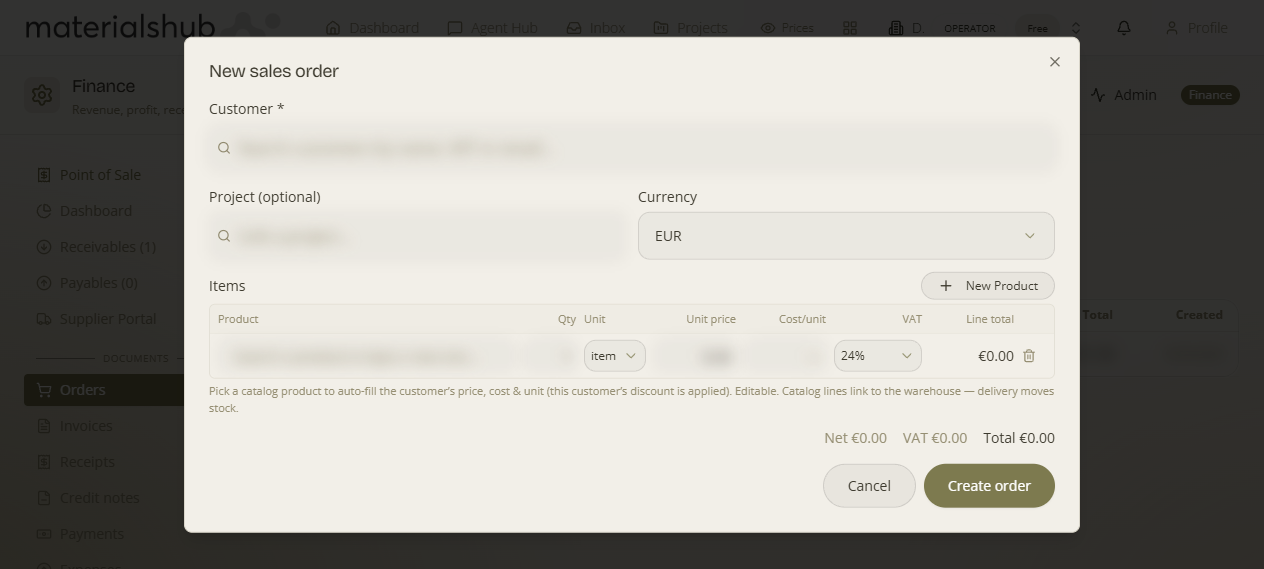
Customer-aware pricing (sales). Picking a catalogue product auto-fills this customer's price — their pricing level / discount already applied — plus the line's cost and unit. Everything stays editable. A sales line shows a separate Cost/unit column so the order can show its Margin; on a purchase order the unit price is the cost (what you pay the supplier).
Catalogue line vs off-warehouse line. A catalogue line links to the warehouse, so delivery moves stock; a typed-in line stays off-warehouse. If you sell more of a stocked line than you hold, the line warns “Only N in stock — ordering X” and lets you proceed anyway (a back-order — a purchase order restocks it).
Editing line items. While an order is still a draft / un-invoiced, you can edit it freely — change a line's quantity, price, cost, unit or VAT, and add or remove lines; totals and margin recompute as you go. Once an invoice has been raised against the order, the lines are locked so the order and its invoice can't drift apart.
Inside an order — the detail view
Click any order in the list to open its detail view. This is where an order earns its keep: everything about the deal — what was sold, how much has shipped, what's been invoiced and paid, and what you made — is consolidated on one screen. From top to bottom you get:
1. The header
The order's number, a type badge (sales / purchase), the fulfilment status badge, the payment status, and the order total.
2. Line items (with cost, profit, units, supplier & delivery)
A table of the order's lines — Item, Qty, Unit, Delivered, Price, Cost, VAT and line totals (Net / Total), plus each line's cost total and profit so you can see the margin line by line, not just for the whole order. Each line carries its unit of measure and a snapshot cost, and is marked “(off-warehouse)” when it isn't linked to stock. Per line you can:
- Set delivery directly — a small menu offers Mark fully delivered, Mark half delivered or Mark not delivered.
- Set the line's supplier inline — who supplies it / who you'll owe when you restock (auto-filled from the product's supplier, editable on any line).
While the order is still a draft / un-invoiced, Edit items turns this into an editable grid.
3. The Actions menu
A Status dropdown (plus one-click Mark completed) and an Actions menu gather the operations — Record money in / out, Create invoice / receipt, Record supplier bill, Receive into warehouse and Dispatch board — covered in the next section.
4. Cost, margin & real cash
An order shows its economics two ways, which answer two different questions:
- Margin (on paper) — sell price − cost across the lines. This is the profit the deal should make, visible the moment you've priced it (before any cash moves).
- Real cash — the order deals only in actual money: Received (money in), Paid to suppliers (money out), and Profit (Received − Paid) — what's actually happened so far. There are no “virtual” receivables/payables; a figure here means real money changed hands.
5. Attached documents
Below, the order lists everything financial that hangs off it — each appearing only when present:
| Section | What it lists |
|---|---|
| Invoices | Every invoice (or receipt) raised against the order — number, status, total and amount still due. |
| Supplier bills | (Purchase orders) the supplier bills recorded against the order — number, status, total and amount due. |
| Payments | Each payment linked to the order — date, direction (In / Out), method and amount (green/red by direction). |
Actions on an order
From the order's Actions menu (the available items depend on sales vs purchase and what's already been done):
| Action | On | What it does |
|---|---|---|
| Record money in | Sales | Logs cash received from the customer. For a cash sale you can tick to issue the receipt/invoice in the same step. Updates payment status + the cash figures. |
| Record money out | Purchase | Logs cash paid to the supplier (or a refund). Money out is attached to the supplier you're paying, so it registers against what you owe them. The order also tracks your supplier exposure — what's still owed to each supplier (their line costs minus what you've already paid out). |
| Create invoice / receipt | Sales | Raises the sales document for the order's lines and links it back. A sale to a company (B2B) raises an invoice; a sale to a bare contact (retail) raises a receipt. You review it, then issue & transmit to myDATA. |
| Record supplier bill | Purchase | Records the supplier's bill against the order (the purchase-side equivalent of an invoice) → it appears in Payables. |
| Receive into warehouse | Purchase | Receives the ordered goods into Warehouse stock (catalogue lines), so on-hand quantities go up. |
Procurement 3-way match (purchase orders)
What it is — the classic control that stops you overpaying a supplier: a purchase order lines up three numbers and checks they agree — PO cost × goods received × supplier bill. Why it matters — a supplier bill should only be paid for what you actually ordered and actually received; the 3-way match catches short-shipments and over-billing before you pay. On a purchase order you'll see:
| Column | What it is |
|---|---|
| Ordered (PO net) | What you ordered — the purchase order's net value. |
| Received | What actually arrived — the goods received into stock. |
| Billed | What the supplier billed you — the recorded supplier bill(s). |
The order shows whether the three match or flags a variance, so a bill that doesn't line up with the order and the delivery is caught rather than paid blind.
Orders on a project
Orders can be scoped to a project: pick a project when you create the order, and that order then shows in the project's Finance tab — so on a project you see exactly the orders (and their money) that belong to it, not the whole workspace.
Customers see their own orders
Each customer can see the orders you've raised for them — with line-item detail, status and any invoices/receipts to download — in their Client Portal. You don't send anything extra; issuing the order is enough.
Dispatch is invoice-driven
An order's Dispatch board button takes you to the dispatch queue. The flow is deliberate: once the order's invoice is paid and flagged for shipping, the order appears on the Dispatch board, which cuts the delivery note and moves warehouse stock — for catalogue lines only (ad-hoc lines stay off-warehouse). So you don't ship straight from the order; you raise and settle the invoice, and dispatch picks it up from there.
POS sales become orders automatically
You don't have to create an order by hand for counter sales. Every POS checkout automatically creates a sales order in a Completed, Paid, Delivered state — so even till sales show up in the orders list and roll into the customer's account and your profit figures, with no extra step.
Orders on a customer's account
A company in CRM is treated as an Account, and its orders drive that account. The company's single Account tab consolidates the running Account balance + ledger, the payment rules, expected payments, and the company's orders together — so the orders are the source and the balance is the summary, in one place. (A contact who belongs to a business is attributed to the business, so the money lives on the business account.)
What it affects
- Invoices/receipts (Invoices), supplier bills and payments link to an order — that's how Margin and the real-cash Received / Paid / Profit are computed.
- Issued invoices feed Receivables; recorded supplier bills feed Payables (there are no virtual entries — every row traces to a real document).
- Paid, ship-flagged invoices flow to the Dispatch board → delivery note + warehouse movement; receiving a purchase order also moves stock.
- POS sales auto-create completed orders; each order rolls up to the customer's Account in CRM and is visible to the customer in their Client Portal.