Receivables & Payables · Receivables
Receivables is the "who owes you" ledger. It lists everything customers owe — open invoices plus un-invoiced receivables like deposits, advances and fees — and lays them out by how overdue they are, so you can see at a glance who hasn't paid and decide who to chase first. Each row tells you the customer, the originating document, the amount, and how late it is.
Where it is
Top navigation → Finance → the Receivables tab. The tab label carries a live count so you can see how many items are outstanding without opening it.
What's on the screen
From top to bottom: the aging buckets, then the toolbar, then the list.
- Aging buckets — five tiles across the top, each showing a € total and an invoice count: Current, 0–30 days, 31–60 days, 61–90 days and 90+ days. The further right, the more overdue the money — 90+ days is your most at-risk debt. Click a bucket to focus the list on just those rows.
- Toolbar — a New invoice button, an All categories filter, and a search box ("Search customer / number…").
- The list — one row per outstanding item, with the working columns described below.
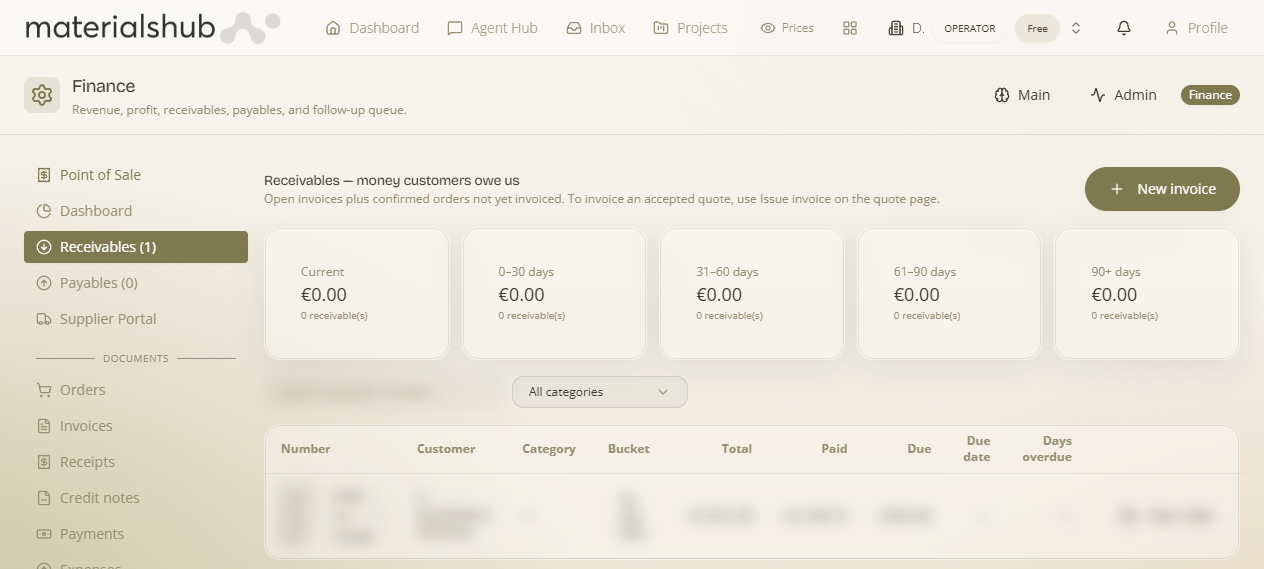
How to read each row — the columns are your working data for every outstanding item:
| Column | Description |
|---|---|
| Number | Document / receivable number. |
| Customer | The party that owes you. |
| Category | Income/receivable category. |
| Bucket | Aging bucket (Current, 0–30, 31–60, 61–90, 90+). |
| Total | Total amount of the receivable. |
| Paid | Amount paid so far. |
| Due | Amount still outstanding. |
| Due date | When payment is due. |
| Days overdue | How many days past the due date. |
How to chase an overdue invoice using the aging buckets
- Read the buckets from the right: start with 90+ days, then 61–90, then 31–60. Oldest debt is the most at-risk, so it gets called first.
- Click a bucket to focus the list on just those rows.
- Use the search box to jump to a specific customer or document number, and the All categories filter to narrow to one income category — handy if you only want to chase, say, a particular project's fees.
- Open a row to view the source document and act on it — record a payment if it's been settled, or note a follow-up.
- When the customer pays and you record it, the row's Due drops and it falls out of the overdue bucket.
Where receivables come from
Receivables are derived from real documents — there's no separate “virtual” receivable to keep in step by hand. A row appears here whenever a customer owes money: an issued invoice with an amount still due, or an order that's been delivered/invoiced and not yet paid. To create one, raise the underlying document:
- To raise a brand-new invoice directly from here, use New invoice on the toolbar.
- Or raise it from the deal: Create invoice on an order, or Issue invoice on an accepted quote.
Changed in 2026-06: the old “Add receivable” for an un-invoiced amount has been removed — receivables now always trace to a real invoice or order, so the tab can't drift out of sync with your documents.
Invoicing an accepted quote: to turn an accepted quote into an invoice, use Issue invoice on the quote page — that's what creates the invoice that then appears here. The Receivables tab is where the invoice lands, not where you raise it from a quote.
Worked example — building this week's collections list. Open Receivables → click the 90+ days bucket to see only the oldest debt → use the search box or All categories filter to group the calls you want to make → open each row to reach its source document and act. As each customer pays, the row's Due falls and it drops out of the 90+ bucket, so next week's list is shorter.
What it affects elsewhere
The receivables total on the Dashboard is the sum of the Due column here. Recording a payment against a row updates both that row's balance and the Dashboard total, so the overview always reflects what's actually outstanding.