Documents · Invoices
An invoice is a sales document you raise to bill a customer. The Invoices tab is the list of every sales invoice you've raised — where you start a new one, check what's still owed, re-open a past invoice, and (when enabled) transmit each document to the tax authority. This guide covers the list view, the full step-by-step of creating an invoice in the editor, the issue-time options, and what an issued invoice changes elsewhere on the platform.
Where it is
Top navigation → Finance → the Invoices tab. Click New to start one, or click any row to open its detail page at /finance/invoices/:id.
Before you issue your first invoice, set up Finance Settings — your business identity, a numbering series, your income categories, and (if you transmit to the tax authority) e-invoicing. Those settings supply the issuer details, the legal sequential number, and the category pickers you'll use here.
The Invoices list
What it is — the list of every sales invoice you've raised. When you'd use it — to bill a customer, to check what's still owed, or to find and re-open a past invoice. The toolbar and columns are built so you can read the state of each invoice at a glance.
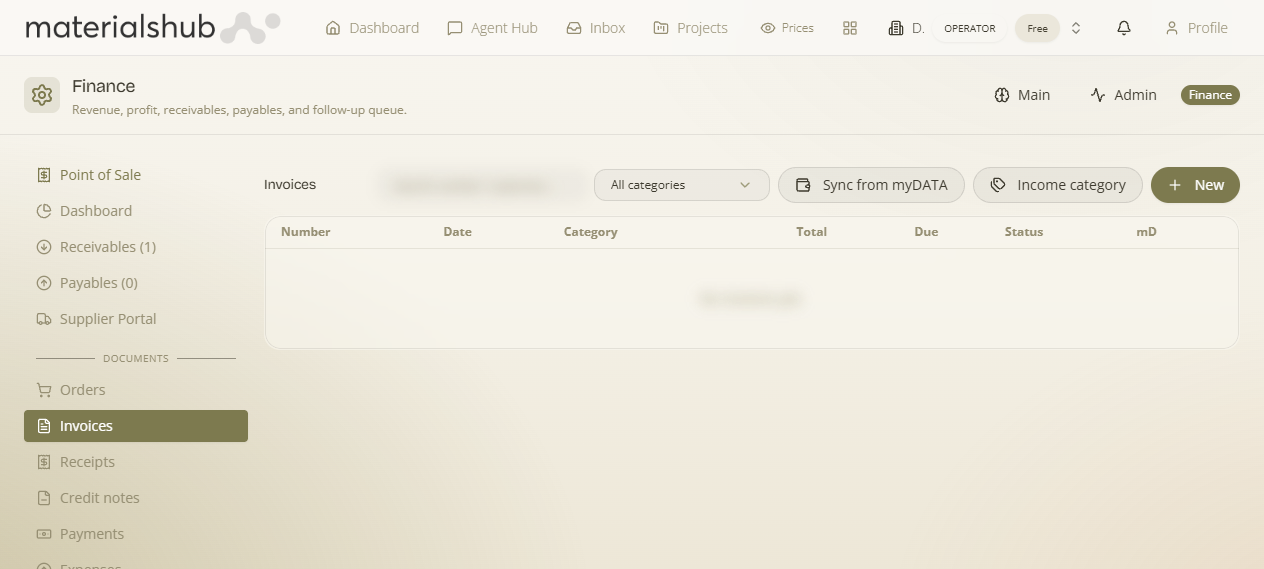
Toolbar
- New — start a new invoice in the editor (detailed below).
- Sync from myDATA — pulls the documents the tax authority already has on file for your business, so your own already-filed invoices appear and reconcile without re-keying them. It only works once you've entered your myDATA inbox credentials in Finance Settings → Documents.
- Income category — opens the manager for the income category list used across the document lists, filters and reports. These same categories are also editable inline on a document header, so you can keep your books consistent without leaving the document you're working on. See Finance settings.
- All categories filter — narrow the list to one income category.
- Search — by invoice number or customer when the history gets long.
Columns
The columns let you read the state of each invoice at a glance — note the Due column (what's still outstanding) and mD (whether it has reached the tax authority):
| Column | What it shows |
|---|---|
| Number | The invoice number. |
| Date | The issue date. |
| Category | The income category assigned. |
| Total | The gross document total. |
| Due | The amount still outstanding. |
| Status | The document status. |
| mD | The myDATA transmission status — whether the document has been transmitted to the tax authority (ΑΑΔΕ). |
For what the mD column means and how to fix a failed send, see e-invoicing.
The invoice detail page
What it is — the full view of a single invoice, reached by clicking any row in the Invoices tab. Why it matters — the list shows you the summary; the detail page is where you act on the document. What you can do here: see the customer, line items, taxes and totals, and the status; issue/transmit it, generate the PDF, and share a payment link so the customer can pay online.
How to create an invoice
How to open it: from Finance → Invoices, click New. The same editor builds several document types — Sales invoice, Service invoice, Receipt, Delivery note — so pick the type at the top first; the rest of the form adapts to it. The sections below walk down the form in order. You only need a handful of fields for a basic invoice (Client, a line item, Category); the rest cover the compliance and delivery options Greek invoicing requires.
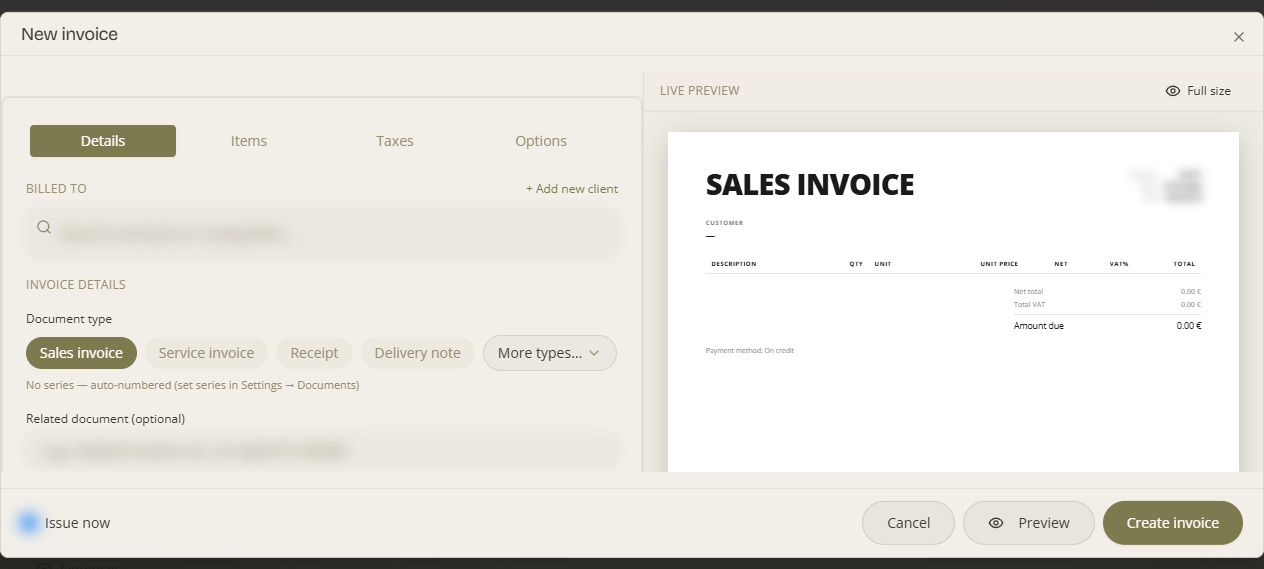
Billed to
Why it's first — the document needs a recipient before anything else. If the customer isn't in your contacts yet, you can create them without leaving the form.
| Field | What it does |
|---|---|
| Client | Search your contacts/companies, or use + Add new client to create one on the spot. |
Invoice details
Why it matters — this block carries the legal classification and the terms. The Document type (myDATA) is what tells the tax authority what kind of document this is, and the dates/terms drive when it becomes due.
| Field | What it does |
|---|---|
| Document type (myDATA) | The classification code for the document, e.g. "1.1 — Sales Invoice". |
| Related document | Optional myDATA MARK or related invoice number. |
| Date issued | The issue date of the document. |
| Payment terms (days) | Number of days until payment is due. |
| Currency | The document currency, e.g. EUR. |
| Default VAT % | The default VAT rate applied to lines. |
| Category | Income type / income category for reporting. |
Global line defaults
Why it's here — rather than repeat the same VAT rate or settings on every row, set them once and they apply to all lines, saving re-entry on long documents.
| Field | What it does |
|---|---|
| Global line defaults | Defaults applied to all rows. |
Items / services
The heart of the document — the lines that make up what you're billing. Add a blank row and type it in, or pull a priced line straight from your catalogue so you don't re-key product details. The Prices include VAT toggle tells the editor how to read the figures you enter, which changes how net/VAT/gross are calculated.
| Field | What it does |
|---|---|
| Description, Qty, Price, Disc., Unit, VAT category | The per-row fields for each item or service line. |
| Prices include VAT | Toggle for whether the entered prices are VAT-inclusive. |
| Add row / Pick from products | Add a blank line, or pull a line from the catalogue. |
Pick from products proposes a sell price using the resale pricing engine — the category markup, then the customer's pricing level discount — so a catalogue cost becomes the customer's sell price automatically.
Cash (paid-upfront) discount. When an invoice is created from an accepted quote that carried a paid-upfront (cash) discount, the invoice inherits that cash-discount line — it shows as its own line in the totals so the customer sees the upfront-payment saving on the invoice too.
Taxes
When you'd use it — certain transactions carry withholding or a digital transaction fee. Leave these blank unless they apply to your case.
| Field | What it does |
|---|---|
| Withholding tax | Withholding tax applied to the document. |
| Digital transaction fee | Digital transaction fee applied to the document. |
Payment
Why it matters — the Payment method (myDATA) is part of what's transmitted to the tax authority, and the note gives the customer the practical detail (where/how to pay).
| Field | What it does |
|---|---|
| Payment method (myDATA) | The myDATA payment method, e.g. "3 — On credit". |
| Payment note | IBAN, card reference, "on credit", etc. |
| VAT payment suspension | Toggle for VAT payment suspension. |
| Self-pricing | Toggle for self-pricing. |
Notes
When you'd use it — any free text you want printed on the document for the customer to read.
| Field | What it does |
|---|---|
| Notes | Free text shown on the invoice. |
B2G — public-sector invoice
When you'd use it — turn this on only when you're selling to a public body, which has its own invoicing requirements.
| Field | What it does |
|---|---|
| B2G — public-sector invoice | Toggle for selling to public bodies. |
Document & delivery options (issue-time toggles)
What these do — these are the toggles that decide what happens the moment you create the document: whether it transmits, whether it moves stock, whether it's emailed, and — most importantly — whether it's issued as a legal record or saved as a draft.
- Submit to myDATA on issue — transmit electronically when issued.
- Print online code / QR.
- Include in MYF report.
- Move stock on issue — decrement warehouse.
- Print terms & comments.
- Send by email on create / Send by SMS on create.
- Info box (printed, ≤250 chars) — extra printed note (warranty/delivery terms).
- Issue now — assigns the legal number + date (otherwise saved as draft).
When everything's right, click Preview to check the PDF, then Create invoice.
"Issue now" vs. draft
Draft vs. issued: "Issue now" assigns the official myDATA number — drafts can be edited freely; issued documents are legal records. Leave it off while you're still working on the document, and turn it on only when the document is final.
Worked example: create & issue an invoice
The full happy path, end to end, from opening the tab to handing the customer a way to pay:
- Open Finance from the top navigation, then select the Invoices tab.
- Start a new invoice.
- Pick the customer. The VAT number is validated; for Greek customers the details can be enriched automatically from ΑΑΔΕ — this also helps avoid a rejected submission later.
- Add line items — choose catalogue products or add custom lines — each with a quantity, price and VAT rate.
- Assign an income category from the document header (categories are editable and can be managed inline) so the invoice lands in the right report bucket.
- Review the totals (net, VAT and gross) to confirm the figures.
- Issue the invoice. On issue it is transmitted to ΑΑΔΕ / myDATA and appears in Receivables.
- Generate the PDF and share a payment link with the customer.
What it affects elsewhere
Issued invoices flow into Receivables and the Dashboard automatically, and (when enabled) transmit to ΑΑΔΕ / myDATA on issue. Nothing here is a dead end — every issued invoice moves a balance or a report.
See also: e-invoicing and Finance settings.