Material Recognition
Upload one or more photos of a real-world surface and let Hybrid AI identify the material, describe its visual properties, and match it against the catalogue — turning a single picture into structured, searchable knowledge. This guide teaches every part of that flow: how to get your images in, what the result actually means, and how to act on the matches.
How to open it: open your Profile menu (top-right) → Tools, then under Catalog tools (signed-in only) choose Material Recognition. Direct route: /recognition.
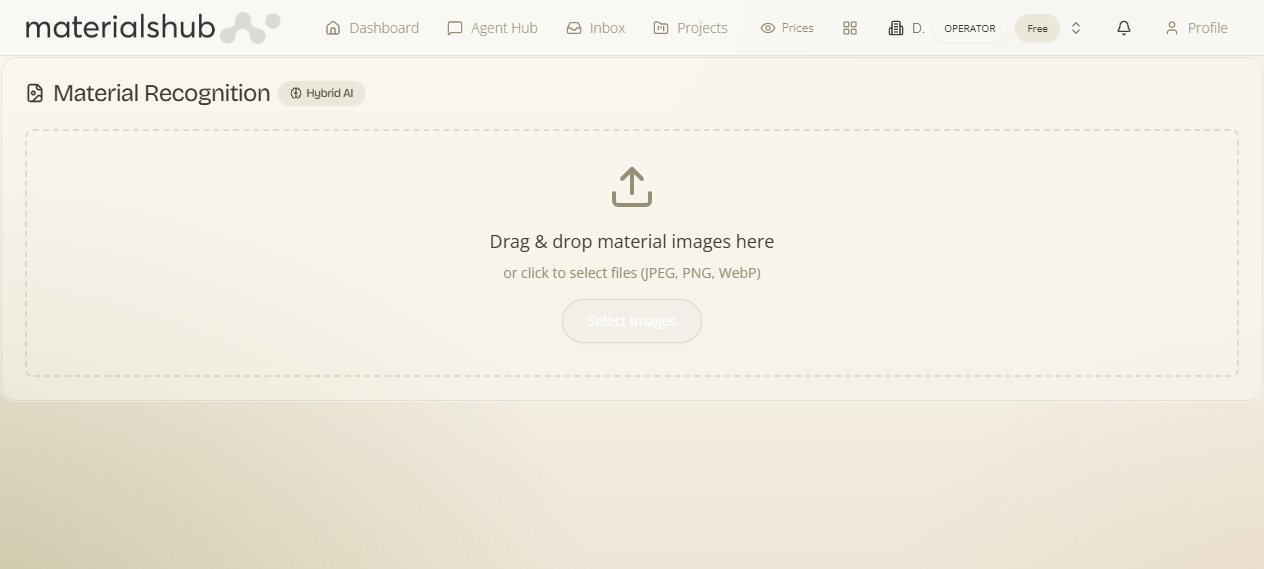
The shape of the page (so each section below makes sense): an upload area at the top where you add and review your photos, a Start Recognition button that runs the analysis, and a results area where each image returns its identification, visual attributes and matched catalogue products. Read it as a top-to-bottom flow: add → analyse → review → act.
1. What Material Recognition is
What it is — the visual front door to the catalogue. It answers the question "what is this, and do you have something like it?" Point it at a tile, a fabric swatch, a stone sample, a wood finish or any finished surface, and it returns the most likely material type and sub-category, a description of how the surface looks (colours, textures, finish, surface pattern), and a set of visually-similar products from the catalogue.
Why it matters — it's the fastest way to go from a photo on your phone to a shortlist of real, sourceable materials. Instead of describing a surface in words and hoping search understands you, you show the platform the thing itself and get structured, searchable knowledge back.
What it affects elsewhere — the same understanding that powers recognition also drives search across the platform, so a photo here connects naturally to the rest of your workflow: searching the Knowledge Base, comparing candidates on the Compare page, and building boards and proposals.
2. What "Hybrid AI" means
What it is — rather than relying on a single model, recognition combines several AI models working together on every image:
- A visual encoder — converts the picture into a visual "fingerprint" that can be compared against catalogue images to find genuine look-alikes.
- A vision-language analysis — "reads" the image and writes a structured description: the material type, its category and sub-category, and its visual attributes.
Why it matters — because two complementary techniques are combined — one for matching, one for describing — the result is richer and more reliable than any one model could produce alone. That's why every result carries the Hybrid AI badge: it's your signal that both the look-alike matching and the written description came from that combined analysis.
What it affects — the quality of both halves of the result you see in section 5: the visual encoder feeds the Similar products, and the vision-language analysis feeds the Material identification and Visual attributes.
Recognition works best on a clear, well-lit, close-up photo of the surface itself, with the material filling most of the frame. Avoid heavy glare, strong shadows or busy backgrounds for the most accurate read.
3. Uploading your images
What it is — the upload area accepts your photos in three ways, and you can analyse several at once. Why it matters — getting a good, correctly-formatted image in is the one thing that most affects the result; the AI can only describe what you give it.
The three ways to add photos
- Choose Files / Select Images — click the button to browse and pick images from your device.
- Drag and drop — drop one or more images straight onto the upload area.
- Multiple at once — add a whole batch; each image is analysed independently and gets its own result.
How to upload
- Add your photos with Choose Files / Select Images, or drag and drop them onto the upload area.
- Check the accepted formats — recognition reads JPEG, PNG and WebP.
- Review the thumbnails of the selected images, which appear before analysis runs.
- Remove any individual file you didn't mean to include, or clear all to start again.
What it affects — what you stage here is exactly what gets analysed in the next step; remove stray images now so you don't pay attention (or credits) on results you don't want.
4. Running the analysis
What it is — the step that hands your staged images to Hybrid AI. Why it matters — nothing is analysed until you start it, so you stay in control of when the work (and any cost) happens.
How to run it
- Confirm the thumbnails show the photos you want and only those.
- Click Start Recognition to analyse them with Hybrid AI.
- Watch the progress indicator — it shows the work in flight while the models run.
- Wait for the results area to populate; each image returns its own block.
What it affects — each image is processed independently, so a batch produces a separate result per photo rather than one blended answer.
5. What you get back
What it is — for each analysed image, recognition returns three kinds of information. Why it matters — together they tell you both what the surface is and where to find it, which is the whole point of the tool.
| Result | What it tells you |
|---|---|
| Material identification | The material's type and category, plus a more specific sub-category where it can be determined. |
| Visual attributes | Descriptive properties of the surface — dominant colours, textures, finish and surface pattern. |
| Similar products | Visually-matched items from the catalogue, so you can see real materials that look like your photo. |
How to read the confidence
Each identification is shown with an indication of how confident the analysis is, so you can judge how closely the read fits your image. Treat a high-confidence read as a solid starting point; on a lower-confidence read, lean more on the Similar products and your own eye before committing.
What it affects — the Similar products here are the bridge to the rest of the platform; everything in the next section starts from one of those matches.
6. Acting on the results
What it is — the actions you can take once a result is in front of you. Why it matters — a recognition result is a starting point, not an end point; these actions turn "this looks like that" into a real next step in your workflow.
- Open a match — jump from a similar product straight to its full catalogue entry to see specifications, availability and more.
- Add to a moodboard — collect the materials you like onto a moodboard to build out a scheme.
- Compare options — line up several matched materials side by side on the Compare page.
- Refine in the Agent Hub — take an image or a result into the Agent Hub and ask in plain language for variations, narrower matches or follow-up searches.
A typical follow-through
- Open the most promising match to confirm it has the specs and availability you need.
- If a few candidates are close, send them to Compare to judge them together.
- Save the keepers to a moodboard so the scheme builds up as you go.
- Not quite right? Take the image or result into the Agent Hub and ask for closer variations in plain language.
What it affects — these actions feed directly into your boards, comparisons and proposals, and the same visual understanding lets you search the Knowledge Base from what recognition learned about your photo.
Recognition is powered by AI analysis. Most identification is included in normal use, but some advanced AI actions may consume credits — where that applies, the platform makes the cost clear before you proceed.