Account · Keys & Connections
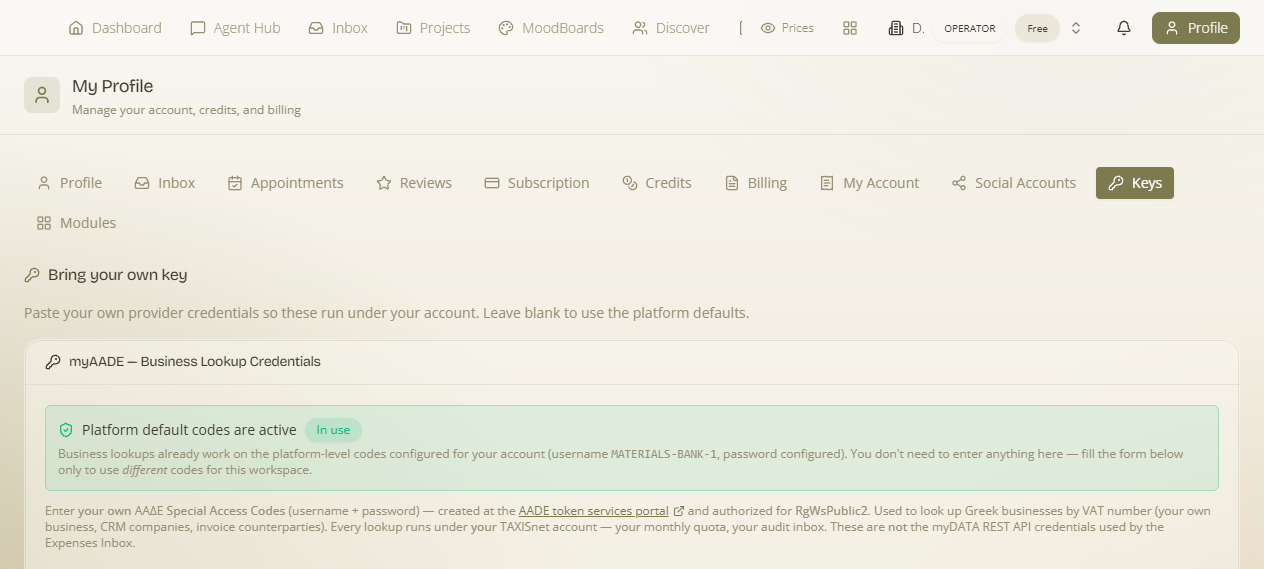
The Keys tab is the one place to connect a workspace to the outside services it uses — your social accounts, your WhatsApp number, your own Stripe payout account, and your own provider API keys (bring-your-own-key). It consolidates connections that used to be scattered across different settings screens, so everything a workspace plugs into is managed and visible together.
Where: open your Profile menu (top-right) → the Keys tab. Connections are per workspace — if you belong to several, pick the workspace whose keys you're managing (“Select a workspace to manage its keys.”).
What you can connect
| Connection | What it's for |
|---|---|
| Email (Resend) — required to send | Connect your own Resend account (API key + verified sender). This is now required for all tenant business email — invoice & quote emails, account statements, campaigns and flow emails all send from your own domain. See the connect-email note below. |
| Social accounts | Connect Instagram, Facebook, LinkedIn, TikTok and more (via Zernio) for publishing — see Social Accounts. |
| Connect a WhatsApp number (via Zernio) to send & receive messages in the Inbox. | |
| Stripe payouts | Connect (onboard) your own Stripe account to receive store payments into it — for selling through the platform. |
| Bring your own key | Supply your own provider API key(s) so the workspace runs on your account where you'd rather use your own credentials. |
Each connection shows a clear Connected / Not connected state, with an onboarding/connect action where it isn't set up yet.
Connect email before you can send. Every place that sends business mail — emailing an invoice or quote, sharing an account statement, an Email Marketing campaign, or a flow email — is now gated on a connected sender. If you haven't connected Resend yet, you'll see a “Connect your email to send” prompt: add your Resend API key + a verified sender (and optional Reply-To / from-name defaults, with a test send to confirm) and sending unlocks. There's no shared platform sender for tenant business mail — it always goes out as you.
How to connect something
- Open Profile → Keys and (if prompted) pick the workspace.
- Find the connection you want — Social, WhatsApp, Stripe payouts, or Bring-your-own-key.
- Click its connect / onboard action and complete the provider's flow (an OAuth sign-in for social/WhatsApp, Stripe onboarding for payouts, or pasting a key for BYOK).
- The card flips to Connected; the capability it powers is now available to the workspace.
Two different “keys”. This tab is for the outbound services your workspace connects to. It's separate from the kai_* partner API keys that let other projects call your price/mention/job tracking — those live on the Subscription tab.
What it affects
- Connected social accounts enable publishing; WhatsApp enables Inbox conversations on that number.
- Stripe payouts is what lets store payments land in your own account.
- Bring-your-own-key routes the workspace's usage through your own provider credentials. (Operators may surface a platform-default credential where you haven't supplied your own.)