Client Portal
The Client Portal is a self-serve account page for your customers. A customer who has a login sees, in one branded place, everything a business has issued to them: their orders (with line-item detail), invoices and receipts to download, payment receipts, and a running summary of what they've spent and what's still outstanding. It's the customer-facing flip side of Finance — the same documents you issue, presented back to the person they were issued to.
How to open it: a customer opens /portal (it's also the “My Account” view inside their Profile). Most customers arrive by clicking the link in an invoice or statement email, which drops them straight onto their account. Any signed-in user can open it; someone who isn't a customer of any business just sees an empty state.
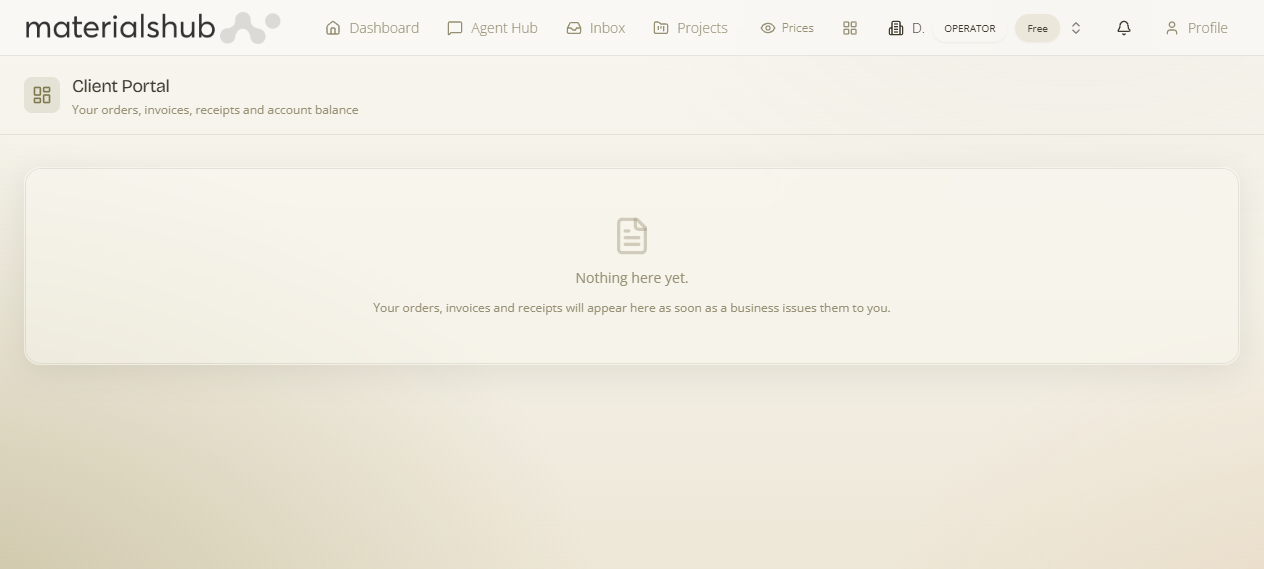
/portal — the signed-in customer's orders, invoices, receipts and account balance.What it is & who it's for
What it is — a read-only account view for the recipient of your documents. Why it matters — instead of customers emailing you to ask “what do I owe?” or “can you resend that invoice?”, they self-serve: they see their balance and download any document themselves, day or night. Who it's for — your customers. They see only what's addressed to them, never your back-office.
Privacy: finance records are protected so customers can't read your books directly — the portal fetches each customer's data through a dedicated, ownership-scoped service that returns only the orders and documents addressed to that account. One customer can never see another's.
What a customer sees
Account summary
At the top, a set of summary cards (one set per currency they've transacted in):
| Card | What it shows |
|---|---|
| Total spent | Everything they've paid you. |
| Outstanding | What they still owe (highlighted when above zero). |
| Orders | How many orders they have. |
| Documents | How many invoices/receipts are on file for them. |
Orders (with line-item drill-in)
Each order is a row showing its number, date, total, and two badges — its fulfilment status (Pre-order / Confirmed / Partially delivered / Completed / Cancelled) and its payment status (Unpaid / Partially paid / Paid). Clicking a row expands it to reveal the line items (item, quantity, unit price, line total), including a “3 of 10 delivered” note where an order is only partly fulfilled. So a customer can check exactly what they ordered and how much has shipped.
Invoices & receipts
Each issued invoice or retail receipt is listed with its number, issue date, total, a status badge, and any amount still due. A PDF button downloads the document. This is how a customer re-downloads an invoice without asking you.
Payment receipts
Every payment they've made is listed with its date, amount and method, each with a PDF to download as proof of payment.
Where the data comes from
Everything on the portal is the same data you manage in Finance — orders, invoices, receipts and payments — just filtered to the one account and presented read-only. There's nothing extra to maintain: the moment you issue an order, invoice, receipt or record a payment against a customer, it appears on their portal. The customer's running balance here mirrors the Account balance on their CRM record.
The empty state
A signed-in user who isn't (yet) a customer of any business sees: “Nothing here yet. Your orders, invoices and receipts will appear here as soon as a business issues them to you.” — so the page is safe to expose to every user; it simply fills in once documents are addressed to them.
Tip for businesses: the invoice and statement emails you send already link here, so you don't need to attach PDFs or field “please resend” requests — point customers at their portal and they self-serve. To set the running balance and what's owed, see Orders, Invoices and Receivables & Payables.