Stock Management Pro add-on
Stock Management is your multi-warehouse inventory: what you hold and where, every movement (receive / issue / adjust / transfer), reorder-point low-stock alerts, physical stock counts, inbound container tracking, an AI resupply forecast, and a bridge to buy more when you run low. It was extracted from Finance into a first-class paid add-on so businesses that live and die by inventory get a proper home for it. This page covers each section, plus the two shipping integrations — ShipsGo container tracking (bring-your-own-key) and SeaRates freight quotes.
Where: enable Stock Management from the App Launcher (Pro add-on), then open it at /stock. Everything is per workspace. Note: inventory used to live under Finance → Warehouse; it's now this dedicated module.
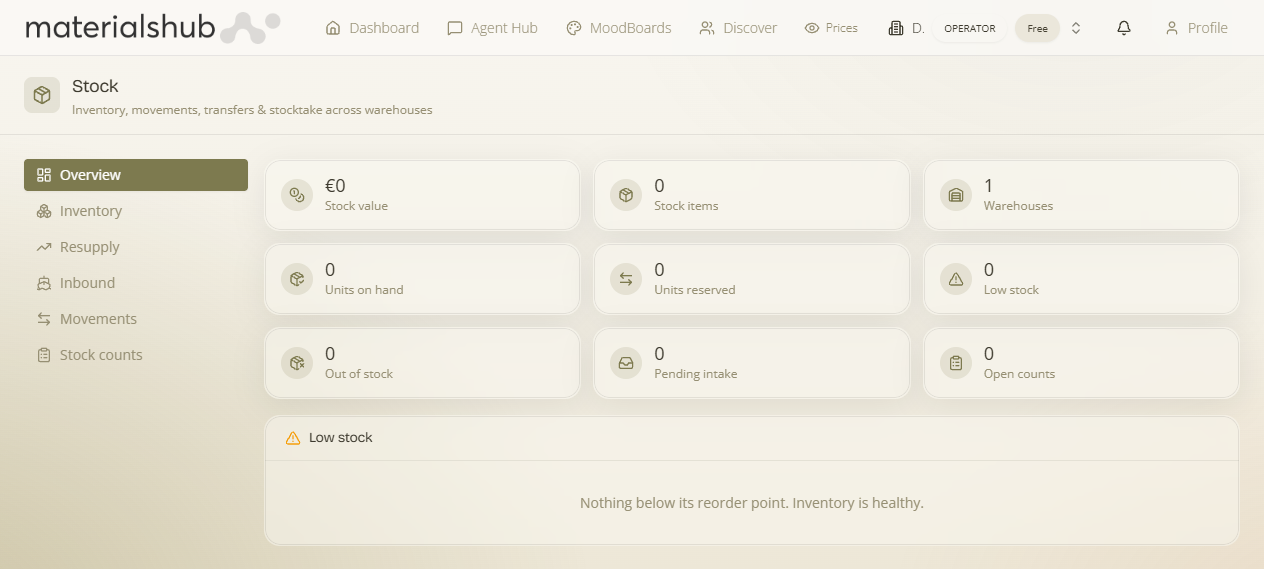
Overview — what you hold
The overview is your at-a-glance inventory health: Stock items, Warehouses, Units on hand and Units reserved, plus the numbers that need action — Low stock (items below their reorder point), Out of stock, Open counts (stocktakes in progress) and Pending intake (inbound not yet received). When all's well it reads “Nothing below its reorder point. Inventory is healthy.”
Movements — receive, issue, adjust, transfer
What it is — the ledger of every change to stock. Why it matters — on-hand numbers are only trustworthy if every in and out is recorded, so movements are the source of truth behind the overview. Each movement records the item, the quantity, a reason and a source, and moves stock between states/warehouses:
- Receive — stock coming in (e.g. from a supplier or an inbound container).
- Issue — stock going out (sold, consumed).
- Adjust — a correction (breakage, a stocktake difference).
- Transfer — moving stock between your warehouses.
Stock counts (stocktake)
What it is — a physical count reconciled against the system. How — click New stock count, pick the warehouse (optionally name it, e.g. “Q3 physical count”), and count each item; differences post as adjust movements so on-hand matches reality. Counts in progress show as Open counts on the overview.
Reorder points & the resupply bridge
Each item can carry a reorder point; when on-hand falls below it, the item shows under Low stock. From there you can act:
- Reorder bridge (Stock → Sourcing). Turn a low-stock item straight into a purchase — it bridges into the sourcing/purchase flow so you can restock without re-keying.
- Inventory valuation. Stock is valued from each product's cost, so you always know what your inventory is worth, not just how many units you hold.
AI resupply forecast · credit-metered
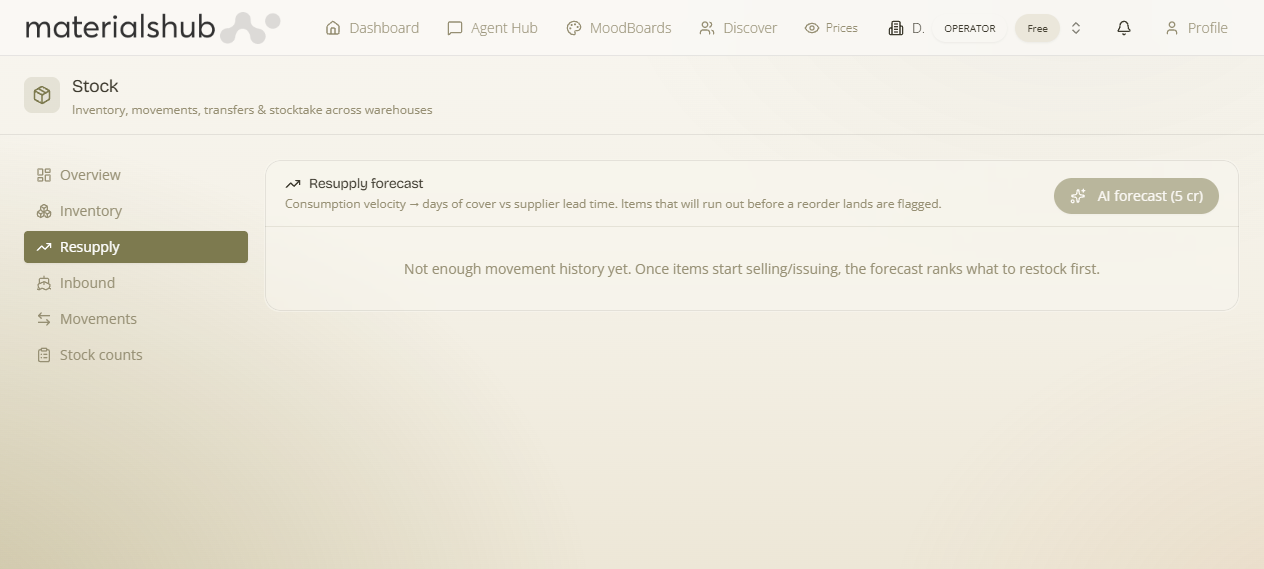
What it is — a trend-based forecast that tells you what to reorder and when. Why it matters — a static reorder point doesn't know that demand is climbing; the forecast reads your movement history and projects it. For each item it shows a Days cover (how long current stock lasts at the recent rate), a stockout risk, and a Recommendation. Because it runs an AI/analytics pass, it's metered against your credits (charged by usage).
Inbound container tracking (ShipsGo) BYOK
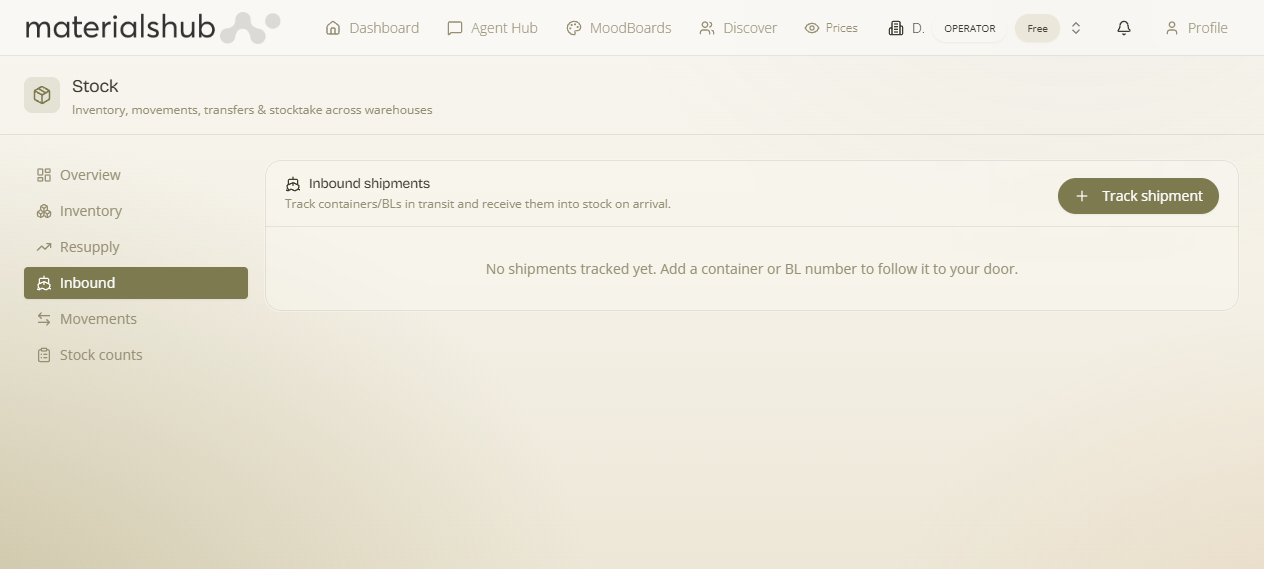
What it is — live tracking of shipments coming to you, by container or Bill of Lading. Why it matters — you see where inbound stock actually is and when it'll land, and can Receive it into a warehouse when it arrives. Tracking uses ShipsGo and is bring-your-own-key.
Set up ShipsGo — exactly what to add
In the Stock module's shipping credentials card, enter:
| Field | What to enter |
|---|---|
| ShipsGo API key | Your ShipsGo API key (from your ShipsGo account). |
| Base URL | The ShipsGo API endpoint (default https://api.shipsgo.com/v2). |
Once Configured, add an inbound shipment with its Container number (e.g. MSCU1234567) or Bill of Lading, an optional Carrier / line and Reference, and optionally link it to a purchase order. the module then pulls milestone updates; Refresh re-checks, and Receive into warehouse books it in on arrival. Tracking refreshes are credit-metered.
Freight quotes (SeaRates)
What it is — getting a shipping price for an order. Where — on a quote, under Extras: “Get shipping quote” fetches freight offers, and a chosen offer is added to the quote as a shipping line item. How it's provided — freight rates come from SeaRates, which is operator-provided: a tenant's request routes to the operator, who returns the offers (they appear on the quote when answered). So you don't need your own SeaRates key — you request, the platform operator fulfils.
Two different shipping integrations, two models: ShipsGo tracking is your key (BYOK, per workspace); SeaRates freight quotes are operator-provided (you request, the operator answers). Don't confuse the two.
Also here
- Inbound-document intake — bring inbound paperwork into the module.
- Marketplace listing — list surplus/last-stock straight from inventory to the Marketplace.
Day-to-day: watch the overview for Low stock → check the AI resupply forecast for what's actually at risk → reorder via the bridge → track the inbound container (ShipsGo) → Receive into warehouse on arrival → run a periodic stock count to keep it honest.