HR · Documents (AI OCR)
The Documents area covers two very different jobs. One is quiet paperwork storage — the HR documents attached to each employee, like contracts and payslips, which are exactly what a staff member sees in their self-service portal. The other is the interesting one: an AI OCR workflow that reads your monthly accounting and payment paperwork, turns it into structured, checkable data, and reconciles it against what you actually owe — so a stack of PDFs becomes numbers you can verify without typing any of it by hand. Both AI steps are credit-metered by actual usage.
The two kinds of document
It's worth being clear on the split before you start, because the two areas serve different audiences:
- HR documents (employee-attached). Files that belong to a specific person — employment contracts, payslips, and similar. These are the documents that surface for the employee in their self-service portal, so they can read their own contract or download a payslip. This is straightforward attach-and-share storage, scoped to one employee.
- Accounting documents (AI-assisted). The monthly payment / accounting paperwork for the business — the documents that describe what you're paying and to whom. This is where AI OCR and reconciliation live: you upload a document, the system reads it, and it checks the numbers against your obligations. This is the focus of the rest of this page.
Why AI OCR matters here
Month-end accounting paperwork arrives as PDFs full of amounts, payees, references, periods and line items. Retyping all of that into a system is slow and error-prone, and it's exactly the kind of manual data entry that quietly introduces mistakes. The AI OCR step reads the document for you and extracts those fields as structured data — an amount, a payee, a reference number, the period it covers, and the individual line items — so the paperwork stops being an image and becomes numbers the platform can compare, total and check. In short: it turns a PDF of monthly obligations into structured, checkable data without manual entry.
Where: HR is owner/admin only. Open /hr → the Documents section → the Accounting documents area to upload and analyze payment paperwork. HR-document attachment for employees lives with each person's employee record.
Analyzing a document — step by step
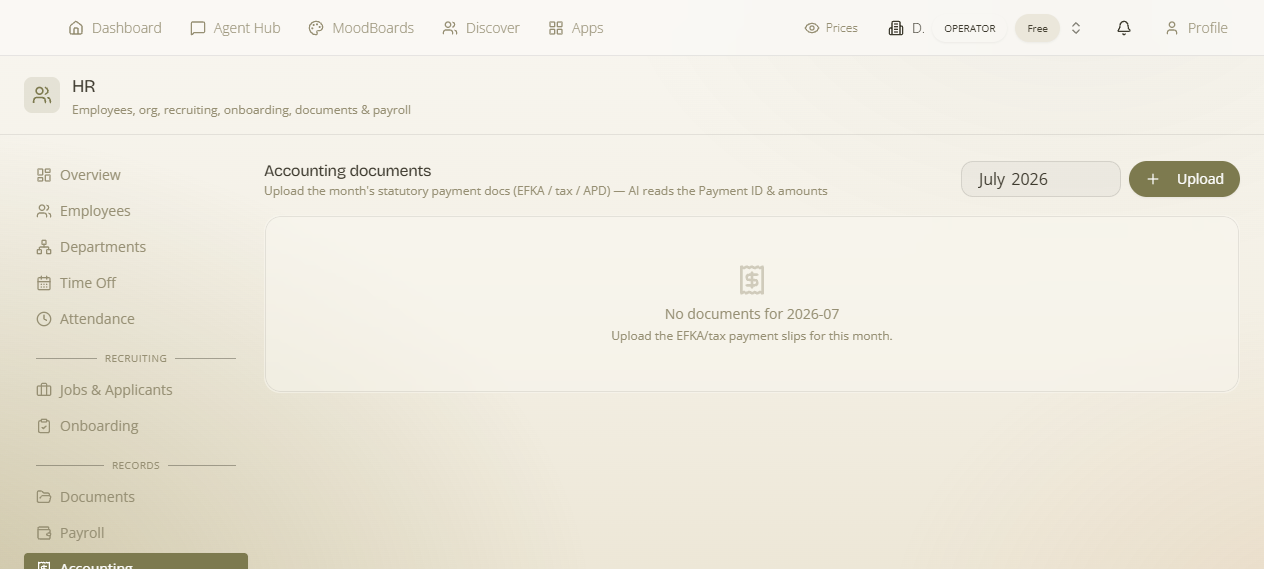
- Open HR → Documents → Accounting documents.
- Upload the monthly accounting / payment document.
- (Optional) Link it to a payroll run — pick the period it belongs to, so month-end payroll paperwork can be read and reconciled against that run automatically (see below).
- Click Analyze. This kicks off two AI steps in sequence.
- Step 1 — AI OCR reads the document (using Claude) and extracts the structured fields. It records an AI confidence score, any notes, and how many credits it spent.
- Step 2 — AI reconciliation matches what you're expected to owe (your obligations) against the uploaded documents and recorded payments, and produces per-obligation matches, a summary of discrepancies, and a ready-to-pay flag.
- Review the extracted values and the reconciliation result. Because the OCR carries a confidence score and notes, you can see at a glance where the AI was sure and where it wasn't.
What AI OCR extracts
The OCR pass reads the document and pulls out the following structured fields, alongside its own confidence and cost metadata:
| Field | What it captures |
|---|---|
| Amount | The total amount on the document. |
| Currency | The currency that amount is in. |
| Payee | Who the payment is to. |
| Payment ID / Reference # | The document's payment identifier or reference number. |
| Period covered | The period the document relates to. |
| Due / issued dates | When the document was issued and when it's due. |
| Line items | The individual entries, each as a label + an amount. |
| AI confidence & notes | How confident the AI was in the read, plus any notes it recorded. |
| Credits spent | How many workspace credits this OCR operation consumed. |
What AI reconciliation does
Once the document is read, reconciliation compares your expected obligations — what you owe, for example the amounts coming out of payroll — against the uploaded documents and the payments you've recorded. It produces one match per obligation, so you can see line-by-line whether the paperwork agrees with what was expected:
| Per-obligation match field | What it tells you |
|---|---|
| Expected amount | What you were supposed to owe for this obligation. |
| Found amount | What the AI actually found in the documents / recorded payments. |
| Status | Whether this obligation matched. |
| Discrepancies | Any differences the reconciliation surfaced between expected and found. |
| Summary | An overall summary of the reconciliation across all obligations. |
| Ready-to-pay flag | The headline outcome — a signal that the obligations line up and the batch is ready to be paid. |
The ready-to-pay flag is the outcome you're looking for: when expected and found amounts agree with no unresolved discrepancies, the document set is flagged as ready to pay, so you know the month-end paperwork has been checked end to end rather than eyeballed.
Linking to a payroll run
An accounting document can be linked to a payroll run — that is, to a specific period. This is what lets month-end payroll paperwork be read and reconciled automatically: the reconciliation step already knows the obligations for that run (what payroll says you owe), so linking the document lets the AI compare the paperwork directly against those figures. See Payroll for how runs and their obligations are produced.
Credits — charged by actual usage
Both AI steps consume workspace credits, and they are metered by actual usage — you're charged for the work each operation actually does, and every operation is logged with the credits it spent. This mirrors how the rest of HR's AI features work (for example CV screening in Recruitment): the AI reading is done with Claude and is metered like any other AI operation on the platform.
- AI OCR is credit-metered by the actual reading it performs, and records the credits it spent on that document.
- AI reconciliation is likewise credit-metered by actual usage and logged per operation.
In practice: upload the month's accounting document, optionally point it at the matching payroll run, and hit Analyze. The OCR turns the PDF into an amount, a payee, a reference, a period and a set of line items; reconciliation then checks those against what payroll says you owe and, when everything agrees, raises the ready-to-pay flag. You've verified a stack of paperwork without hand-entering a single figure — and you've spent only the credits the two AI steps actually used.