HR · Payroll & payslips owner / admin
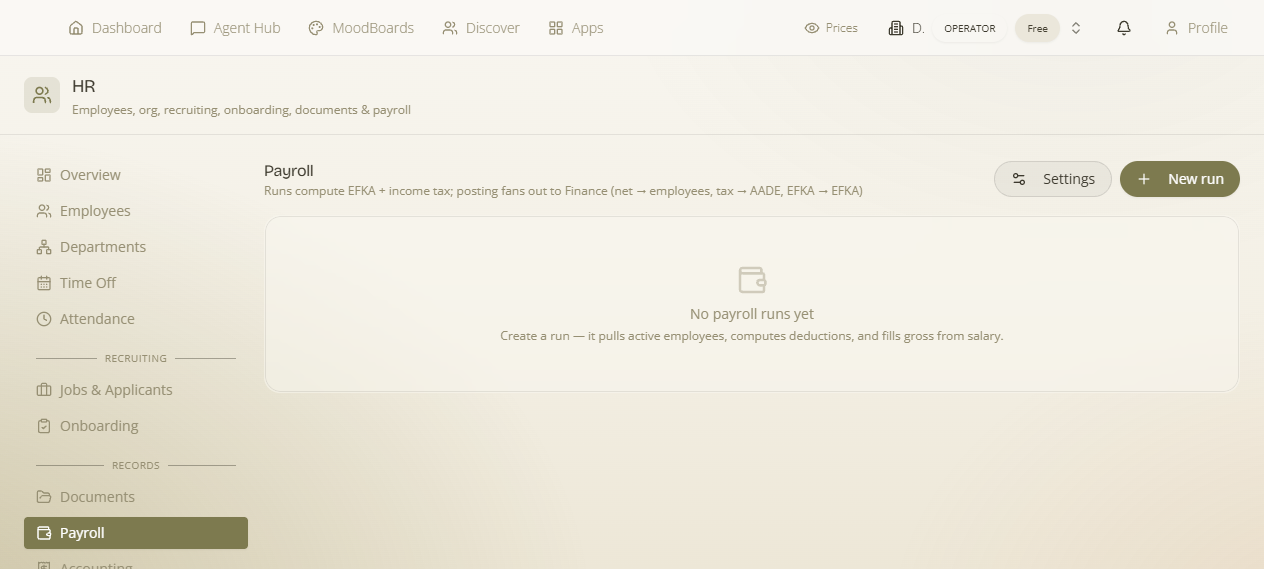
Payroll turns each month's attendance and each employee's terms into a full, tax-correct run: it computes every person's gross, deductions, income tax, social-security contributions and net, shows you your total employer cost, produces a payslip PDF for each employee, and — on approval — posts into Finance as scheduled salary payments. It supports both monthly-salaried and hourly staff, and its tax engine is driven by editable brackets and contribution rates so the numbers match Greek payroll rules. This page explains the model, running a payroll, and how it reaches Finance.
Where: HR → Payroll. Reading it requires nothing beyond enabling HR, but the numbers depend on each employee's record (pay, hours, dependants) and on the payroll tax settings — set those up first.
What drives a payroll — the inputs
Each employee's pay is computed from their employee record plus the period's attendance:
- Pay basis — an employee is paid either monthly (a fixed salary) or hourly. For hourly staff the pay is rate × working days in the month (with the hours-per-day and rate on the record), so days actually worked drive the figure.
- Days worked / hours — taken from attendance and time-off for the period.
- Dependent children — recorded on the employee; they affect the income-tax calculation.
The tax engine
What it is — a configurable calculator, not a fixed formula. Why it matters — rates change and you need the run to reflect the current rules without a code change. In Payroll settings you maintain:
- Income-tax brackets — a progressive table of up-to threshold → rate, applied in bands.
- Contribution rates — the employee and employer social-security contribution rates.
- Band reductions — the calculation applies the statutory reductions for young workers and for family status (dependent children), so an employee's age and dependants lower their tax the way the rules intend — not just a flat bracket.
From these, each line computes, per employee:
| Figure | What it is |
|---|---|
| Gross | Pay before deductions (from the pay basis above). |
| Employee contributions | The employee's social-security deduction. |
| Income tax | Calculated from the brackets (adjusted for dependants). |
| Deductions | Employee contributions + income tax withheld. |
| Net | What the employee actually receives (gross − deductions). |
| Employer contributions | The employer's social-security cost on top. |
| Employer cost | Your true total cost = gross + employer contributions. |
A run's summary totals all of these (total gross, net, income tax, employee/employer contributions, and employer cost) so you see the whole month at a glance — what staff take home and what it costs you.
Running a payroll — step by step
- Create a run for a period (e.g. a month). It generates a line per active employee using their basis, the period's days/hours, and the tax settings; it starts as a draft.
- Review each line and the totals. Adjust where needed; a line carries its basis, days worked, hours-per-day and rate so you can see how it was derived.
- Approve the run. This locks the numbers and posts them into Finance (below), and stamps an approved date.
- Pay — once the salaries are actually paid, the run is marked paid.
- Payslips — a PDF payslip is produced for each employee; these appear to staff in their self-service portal and can be shared as HR documents.
How payroll reaches Finance
Approving a run doesn't leave the money in a silo — it fans out into Finance as scheduled (planned) payments under the salary category, so what you owe staff and the authorities sits alongside everything else you owe. The split covers the three real obligations of a payroll: the net due to each employee, the withheld employee contributions + income tax, and the employer contributions — so nothing owed is missed. See Planning for scheduled payments.
Month-end flow: confirm attendance for the month → create the payroll run → review the summary (watch employer cost, not just net) → approve (it posts to Finance) → distribute payslips → mark paid once salaries go out. Pair this with the AI accounting-document reconciliation to check what you paid against what was owed.